Help / benavi
BeNavi
BeNavi is the AI chatbot built into ESPL.
What is BeNavi?
-
BeNavi is the AI chatbot built into ESPL.
-
You can ask BeNavi how to use ESPL. It also doubles as in-app help.
-
BeNavi is designed to support users’ walking challenges — it delivers timely messages that encourage you and help sustain motivation.
- Motivation messages
Motivation messages help users sustain motivation and meet their goals during a walking challenge. They’re personalized based on the user’s progress and behavior patterns, and delivered at appropriate times.
- Cheering messages
Cheering messages send periodic encouragement based on the day’s step goal — recognizing effort and reinforcing continuation.
-
BeNavi gives individual advice based on the user’s progress and goals, supporting continued walking.
- Recommended challenges
The recommended-challenges feature suggests a suitable walking challenge based on the user’s goal and current fitness level.
How to open BeNavi
- From the home screen, tap “BeNavi”.
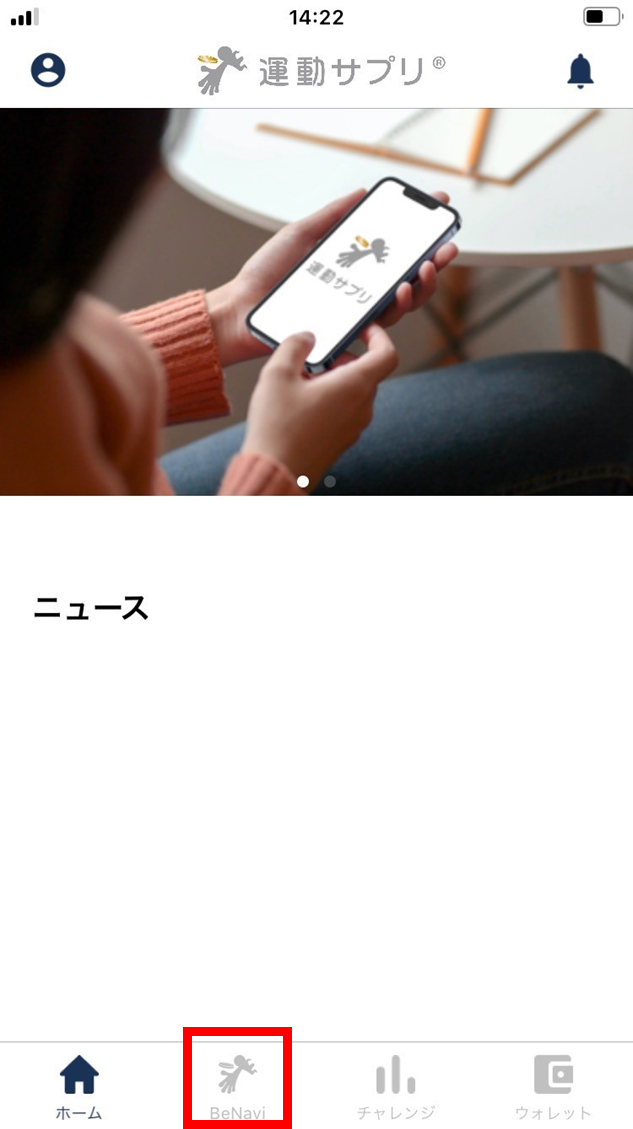
- BeNavi opens.
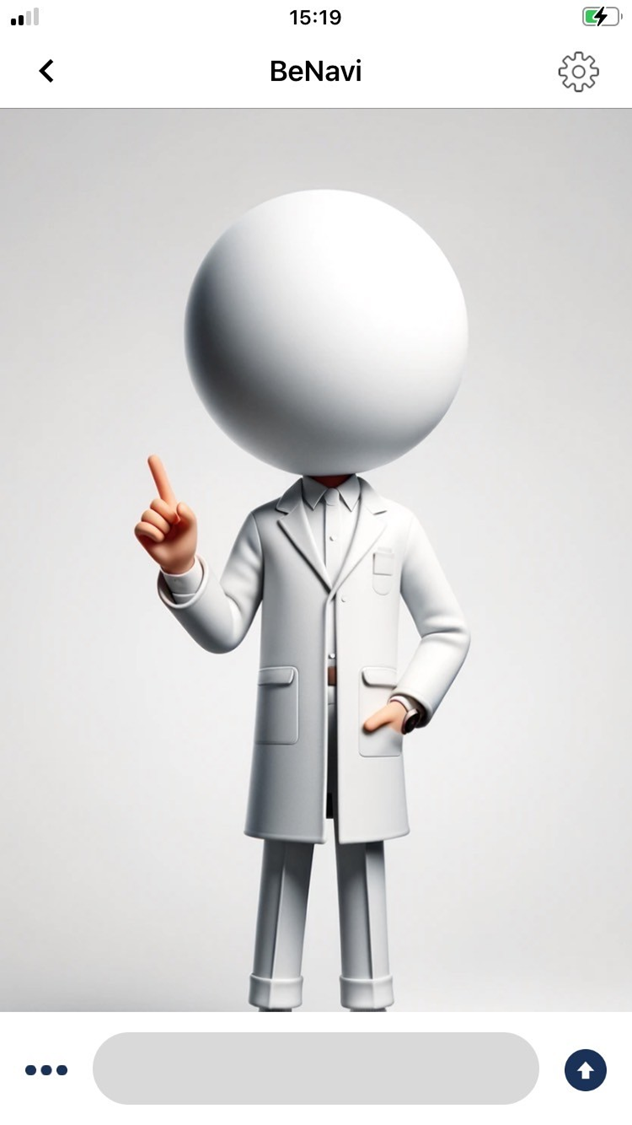
Create a recommended challenge
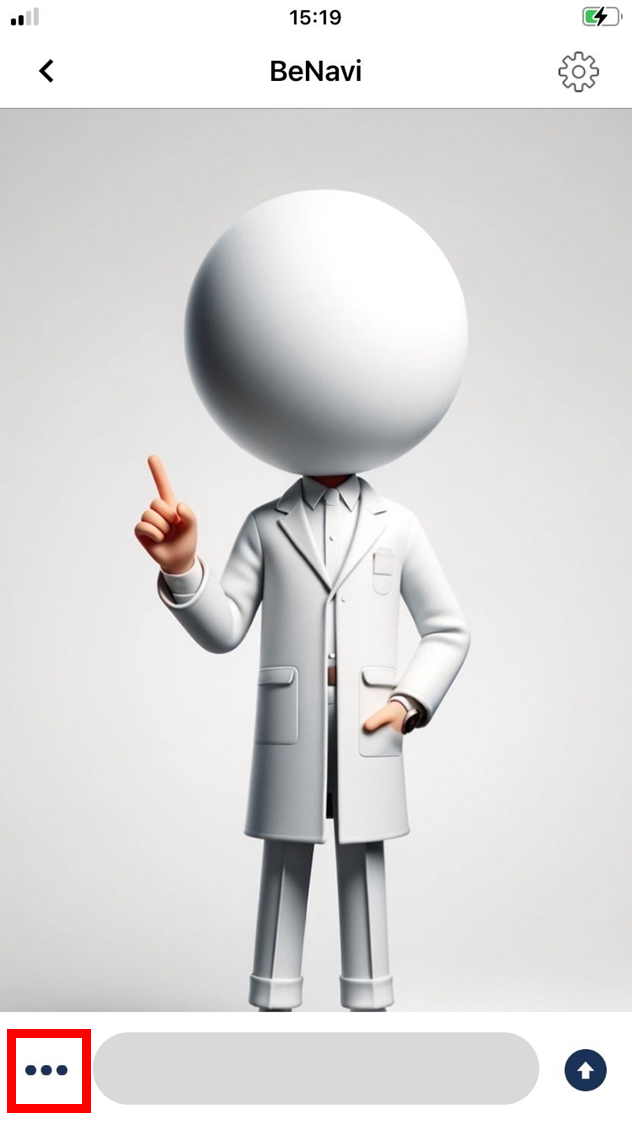
- Tap ”…”.
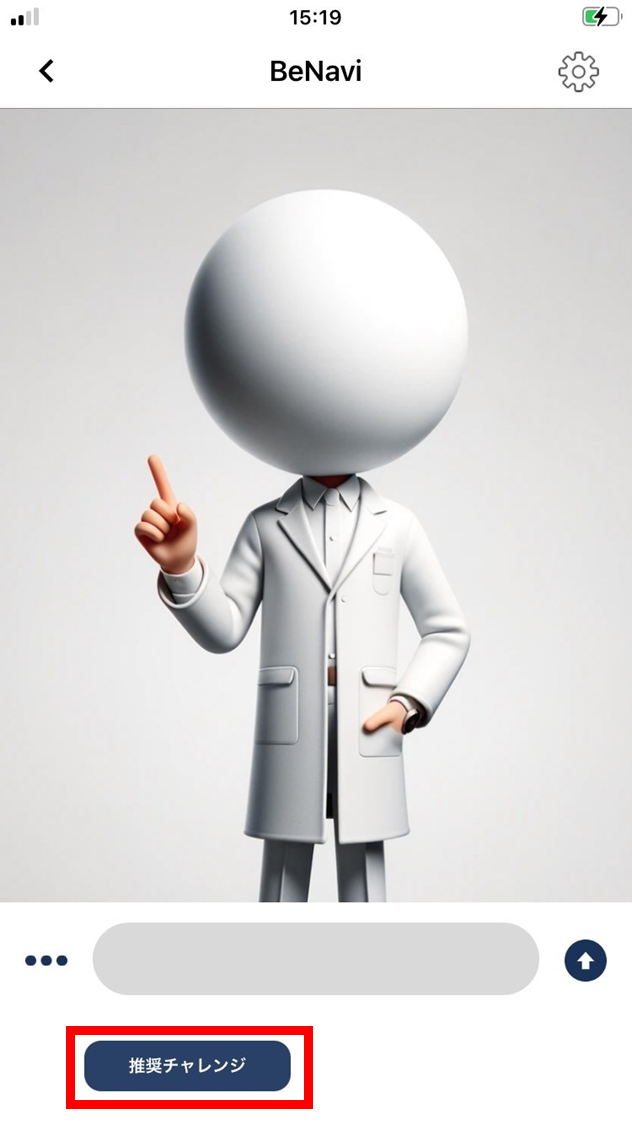
- Tap “Recommended challenge”.
Settings
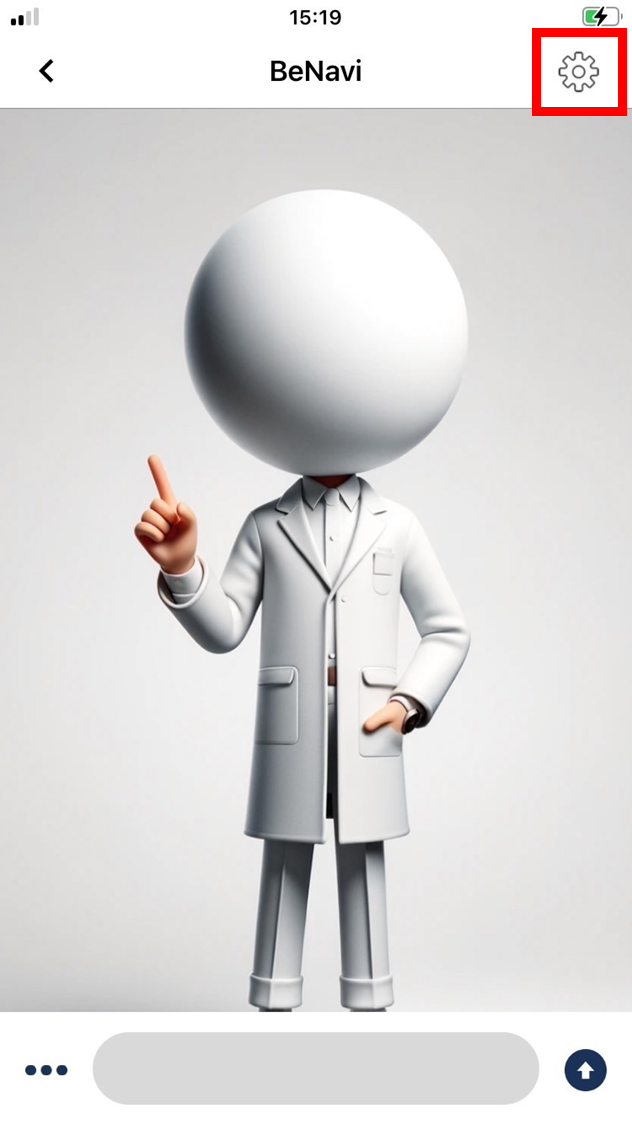
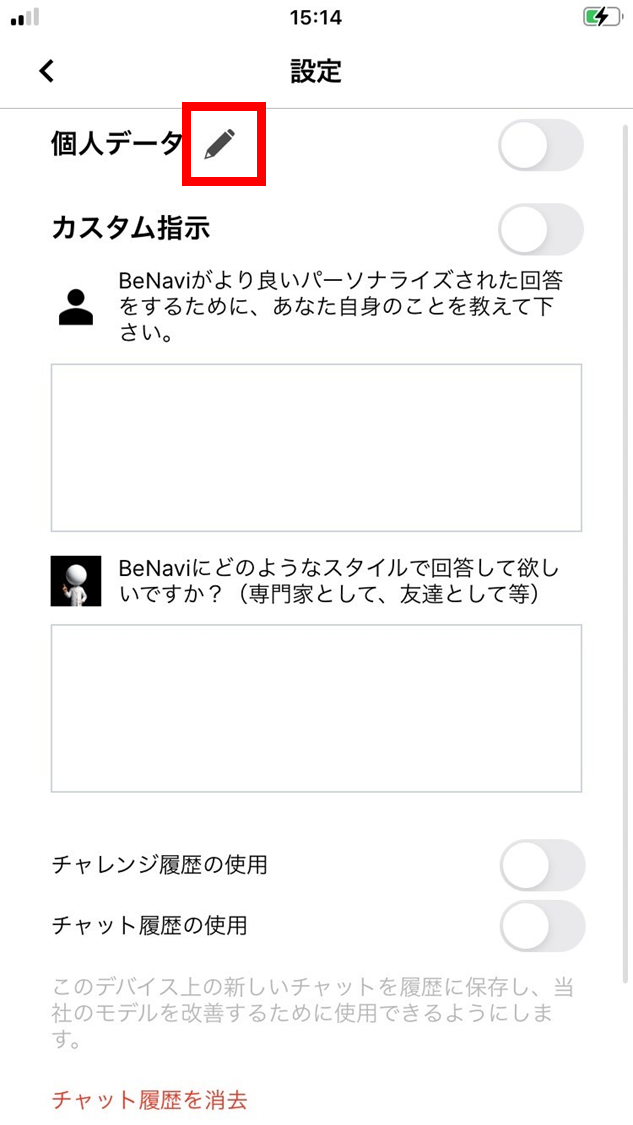
- Tap the gear icon.
-
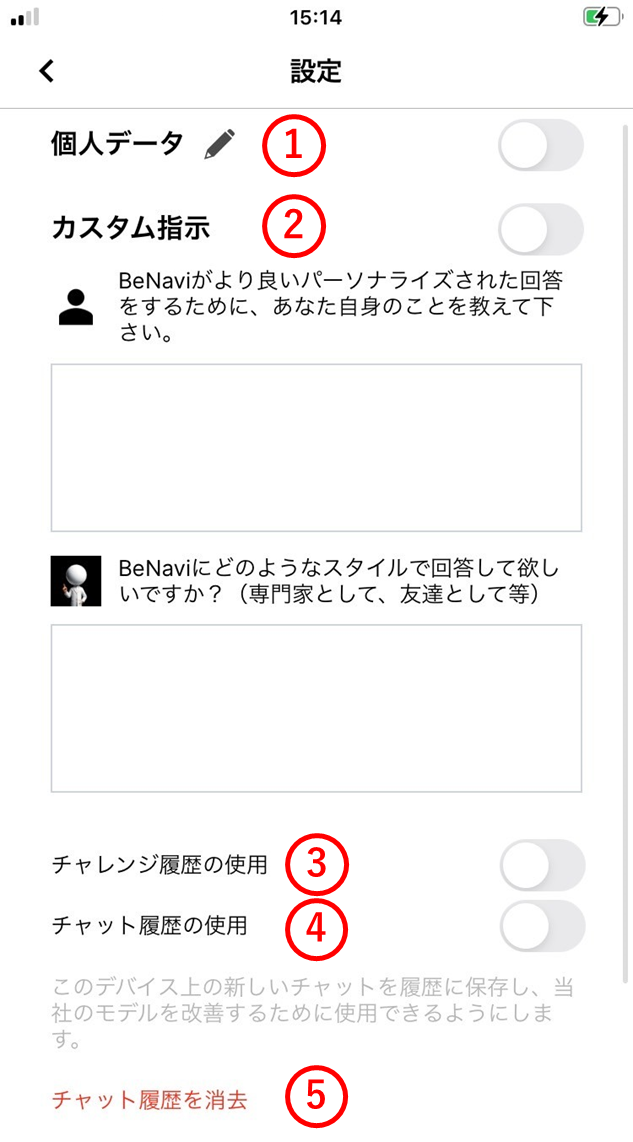
The settings page opens. (1) Personal data
-
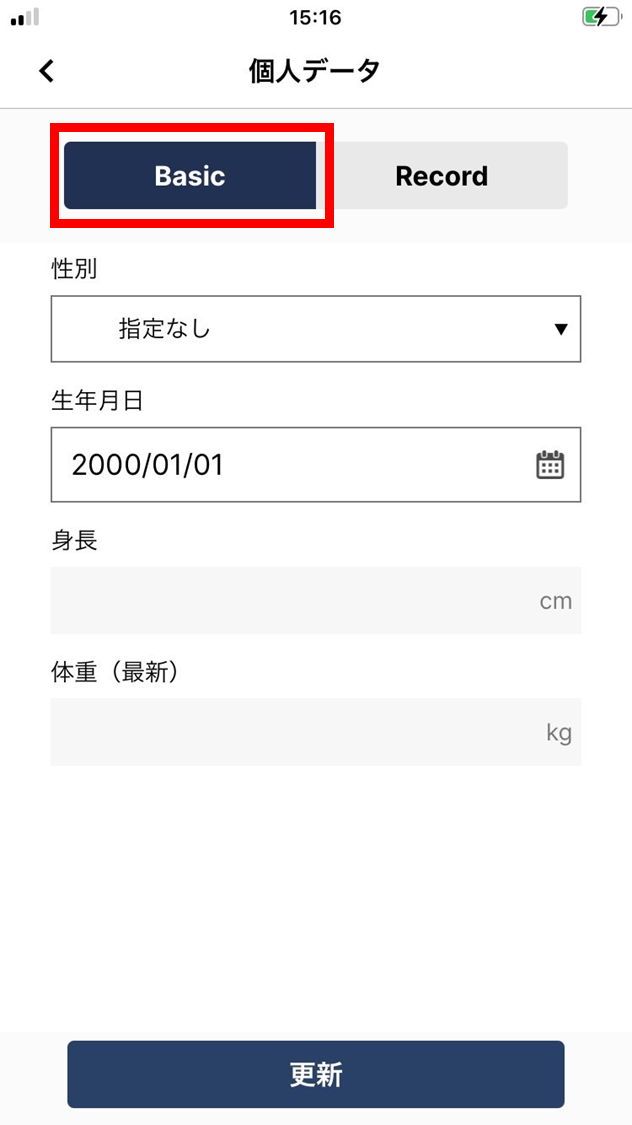
Enter personal information such as gender, date of birth, height, and weight.
-
Entering personal data lets BeNavi tailor its suggestions more closely to you.
(2) Custom instructions
-
Tell BeNavi about yourself so it can give better, personalized answers (e.g., “I’m an office worker”, “I’m good at exercising”).
-
Tell BeNavi how you’d like it to respond (e.g., “as an expert”, “as a friend”).
(3) Use challenge history
Lets BeNavi tailor messages based on your past challenges.
(4) Use chat history
Saves new chats on your device to history and allows them to be used to improve our model.
(5) Delete chat history
Deletes the chat history.
-
Personal data
Basic
- Tap the pencil icon.
- Tap “Basic”.
-
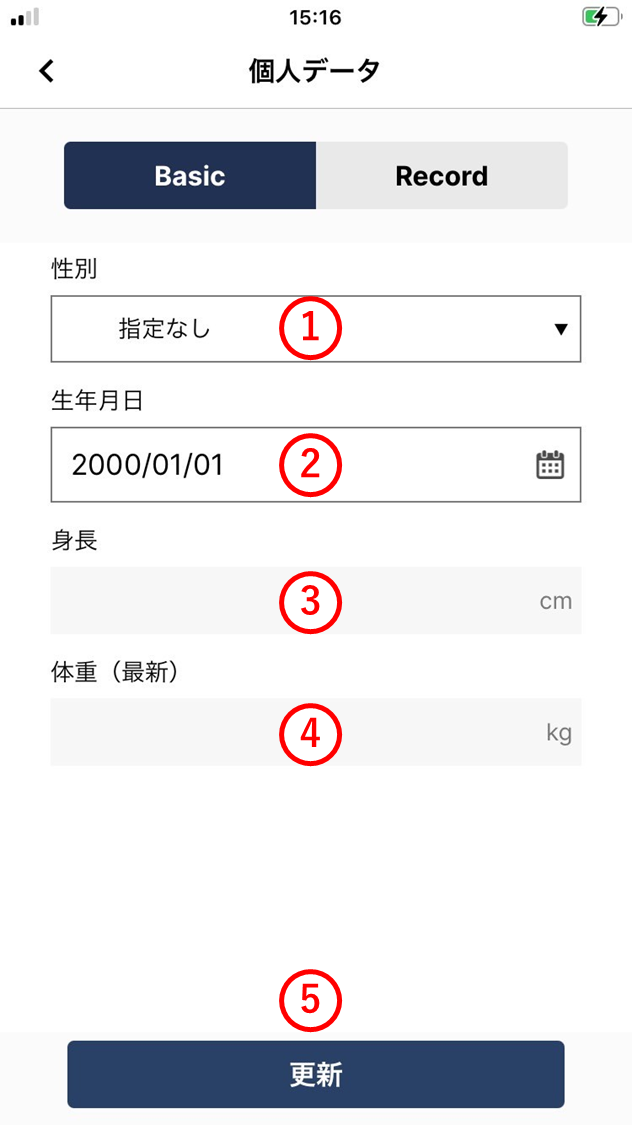
The contents of the address book are shown. (1) Gender
Change your gender.
(2) Date of birth
Change your date of birth.
(3) Height
Change your height.
(4) Weight
Change your weight.
(5) Update
Update your personal data.
Record
- Tap the pencil icon.
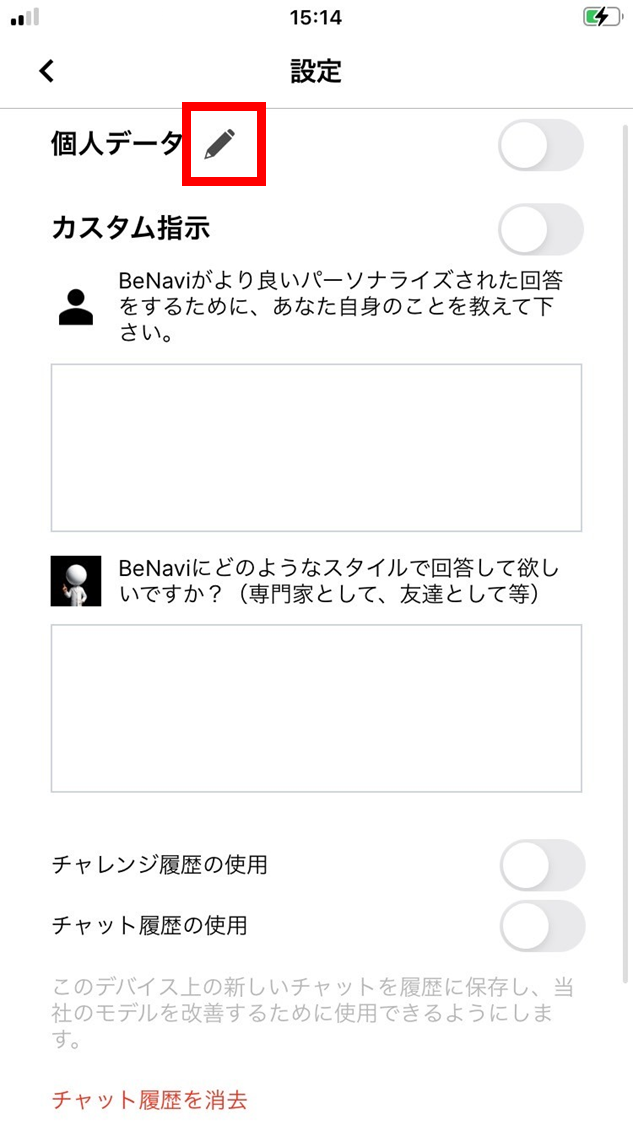
- Tap “Record”.
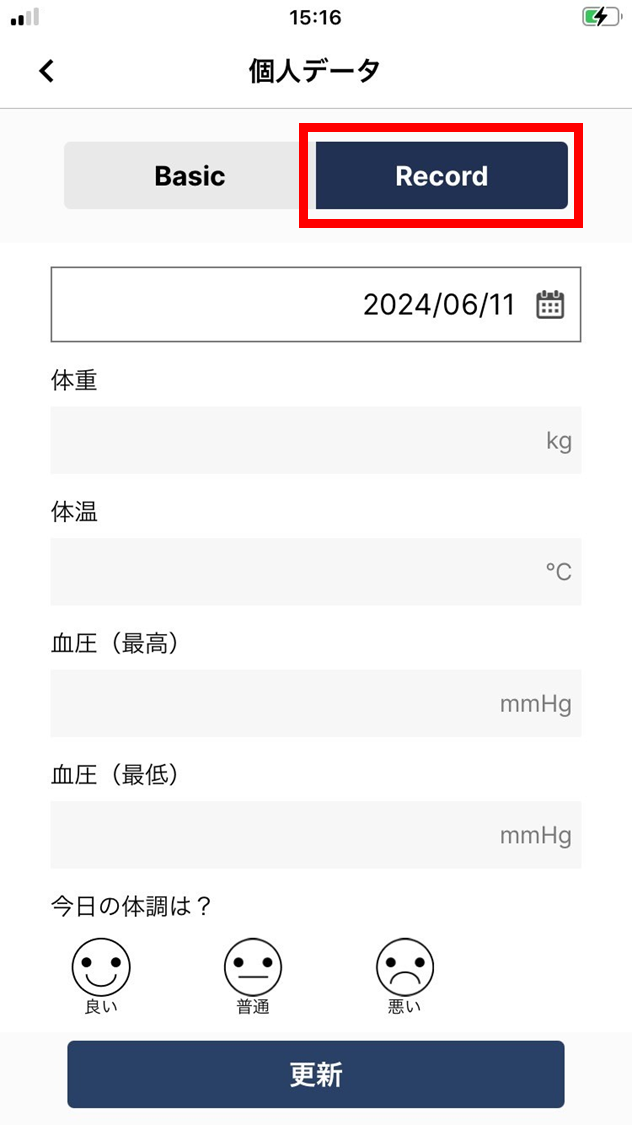
-
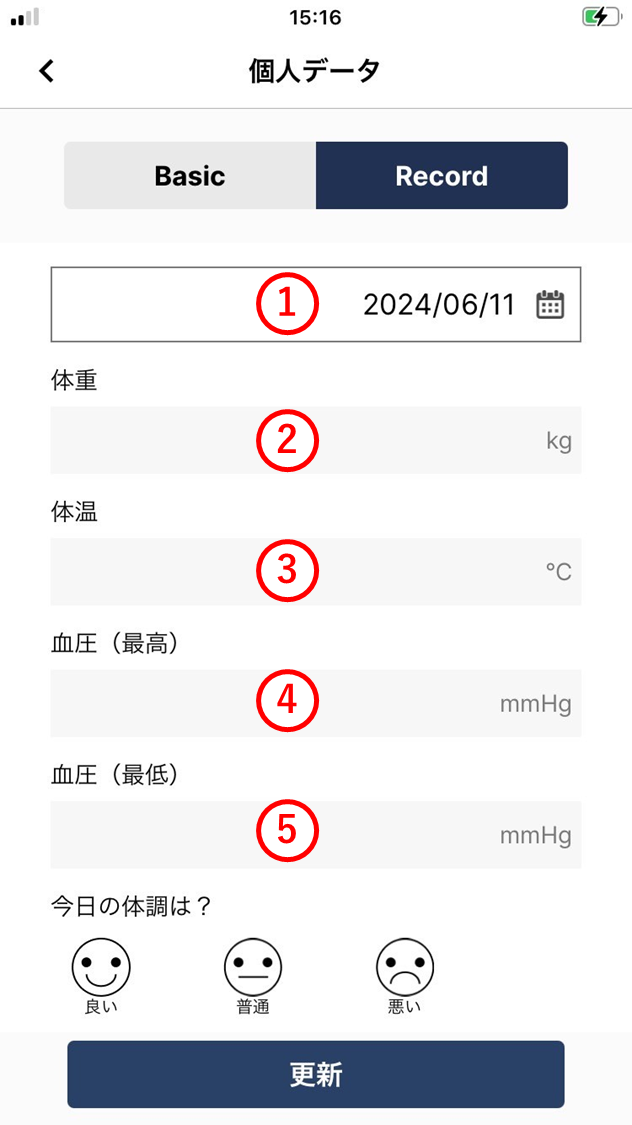
View and edit personal data (Record). (1) Date
The date when the Record was changed.
(2) Weight
Change your weight.
(3) Body temperature
Change your body temperature.
(4) Blood pressure (systolic)
Change your systolic blood pressure.
(5) Blood pressure (diastolic)
Update your diastolic blood pressure.
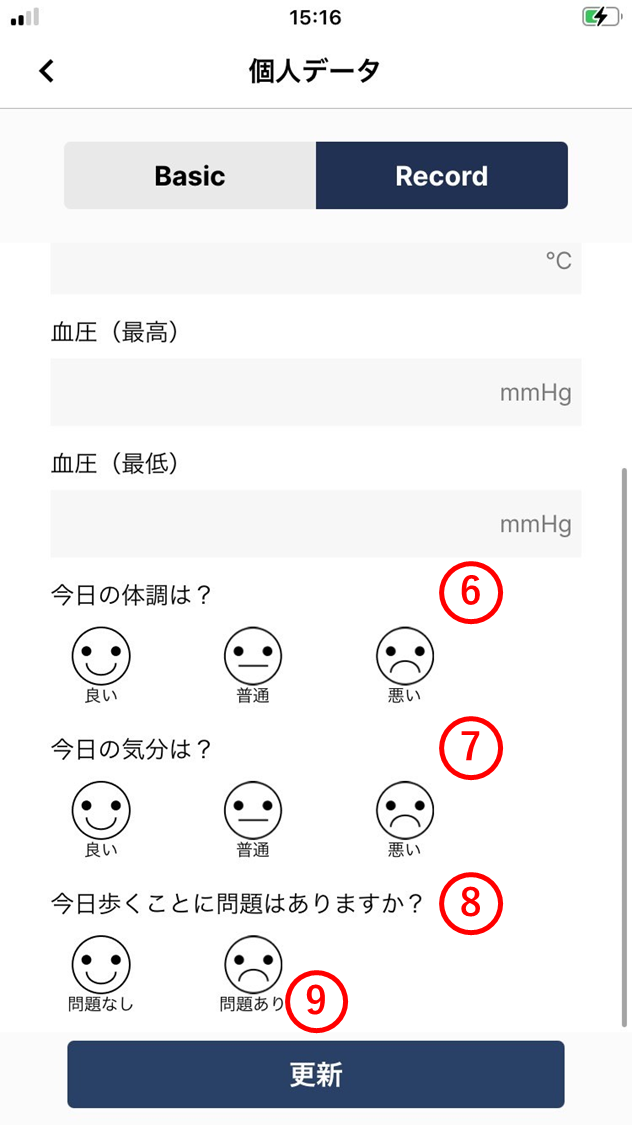
(6) Condition
Change today’s overall condition.
(7) Mood
Change today’s mood.
(8) Walking status
Change whether there’s any issue with walking today.
(9) Update
Update your personal data.