Help / nft
αU (Alpha U)
αU (Alpha U) is a metaverse offering Web3-era services such as a metaverse environment, live streaming, and virtual shopping.
What is αU (Alpha U)?
-
αU (Alpha U) is a metaverse offering Web3-era services such as a metaverse environment, live streaming, and virtual shopping.
-
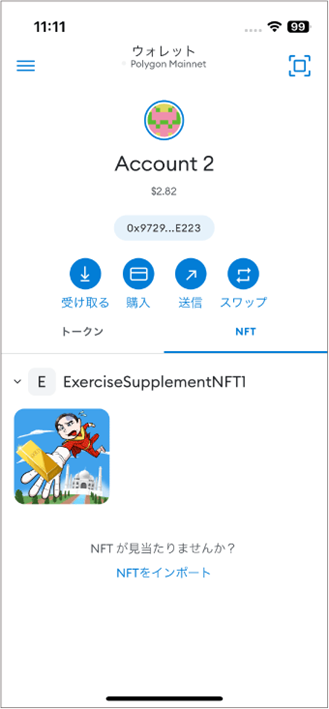
NFTs distributed in ESPL can be displayed in αU.
-
You can import your ESPL wallet into αU and manage it there.
-
After importing, the assets in your ESPL wallet appear in αU.
-
Importing requires your ESPL private key.
Install αU (Alpha U)
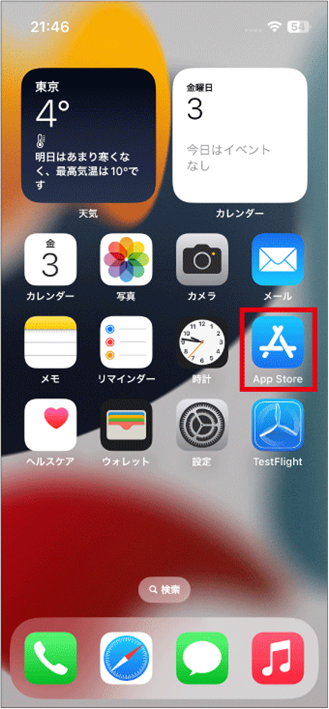
- Tap “App Store”.
-
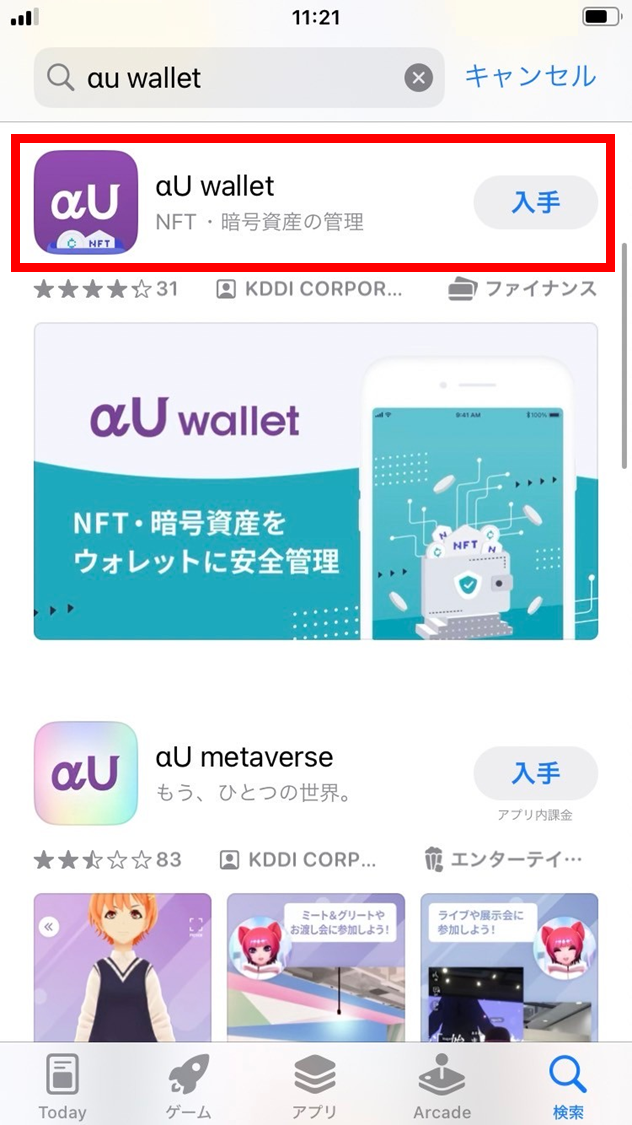
Search for “αU (Alpha U) wallet”.
-
Install αU wallet.
Create a new wallet in αU
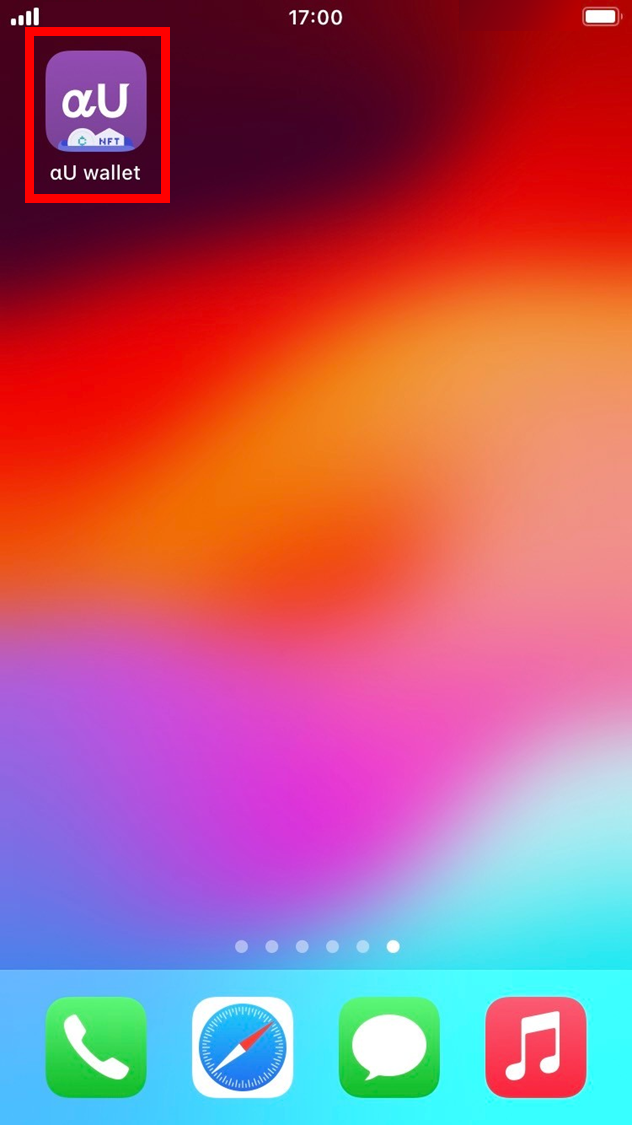
- Tap αU wallet.
- Tap “Allow”.
Allow push notifications from αU as appropriate.
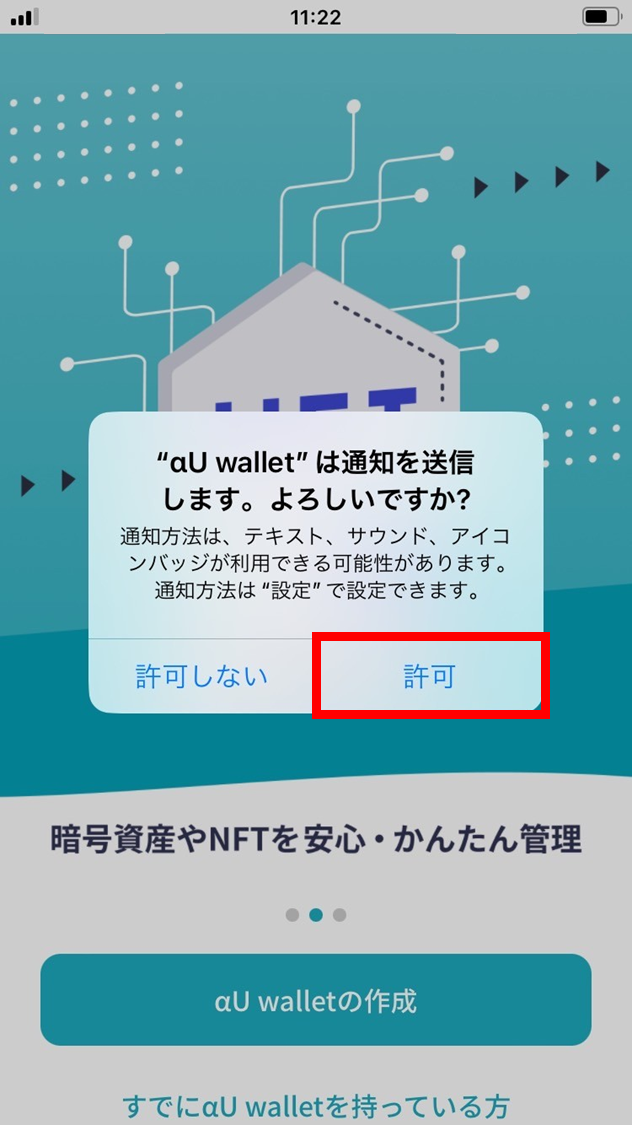
- Allow tracking from αU as appropriate.
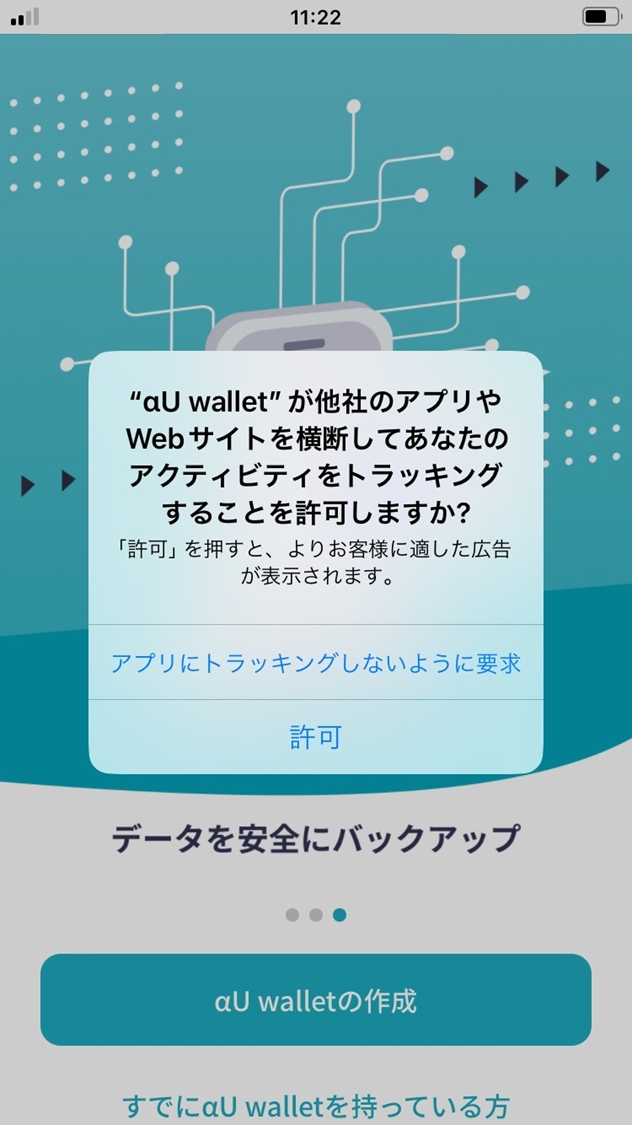
- Tap “Create αU Wallet”.
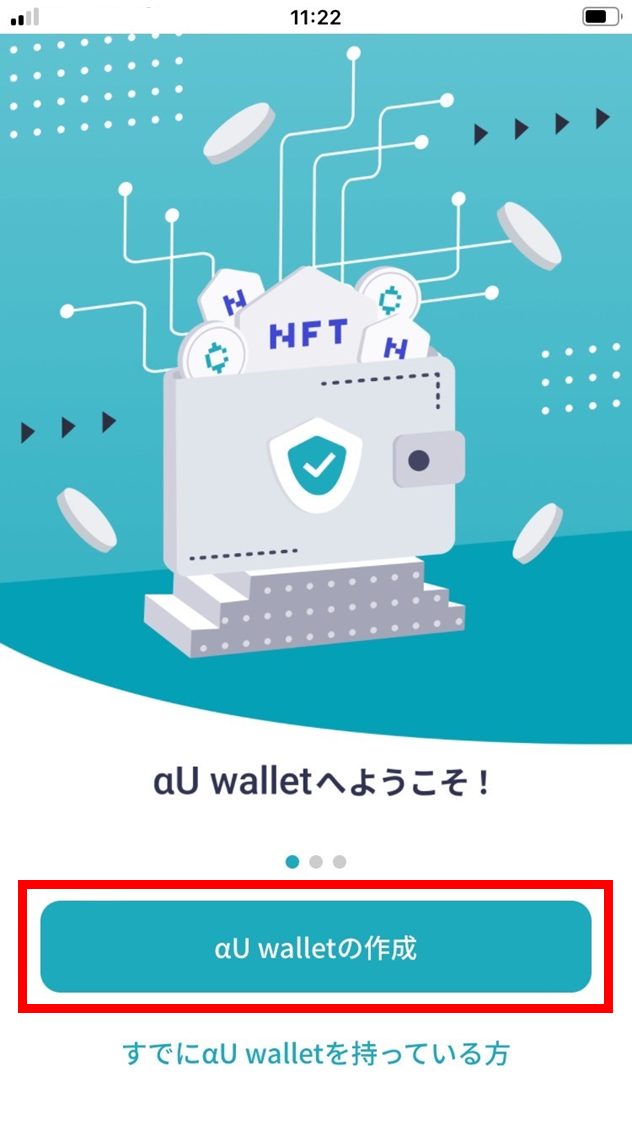
- Read the app Terms of Use and Privacy Policy, and if they’re fine, tap “Agree and set up Touch ID”.
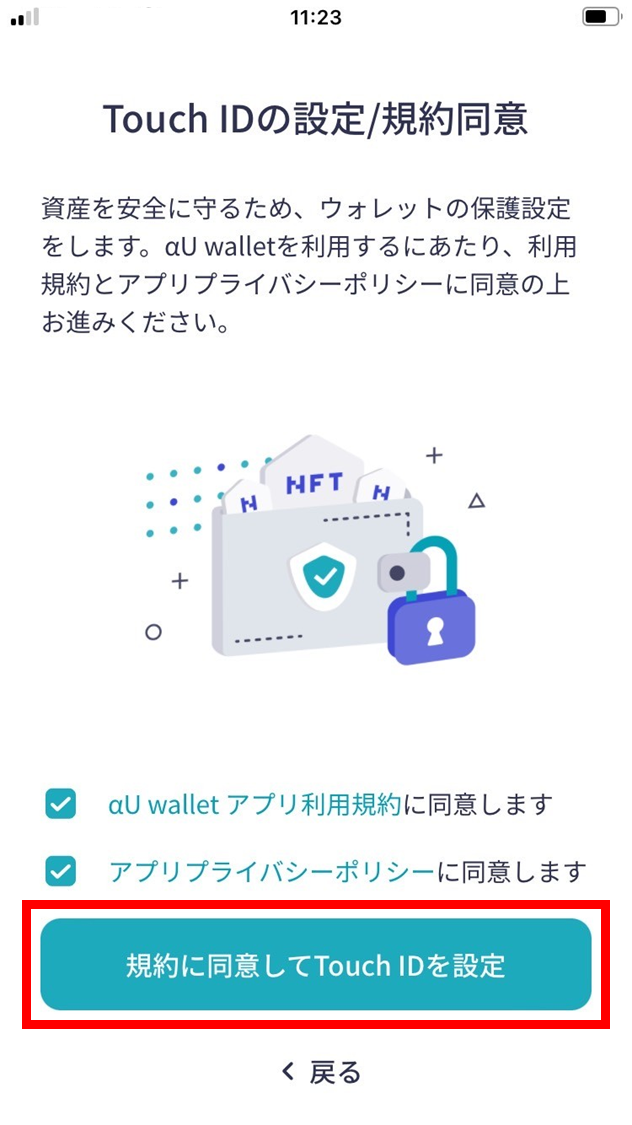
- Configure backup. Read the backup Terms of Use and Privacy Policy, and if they’re fine, tap “Set up backup”.
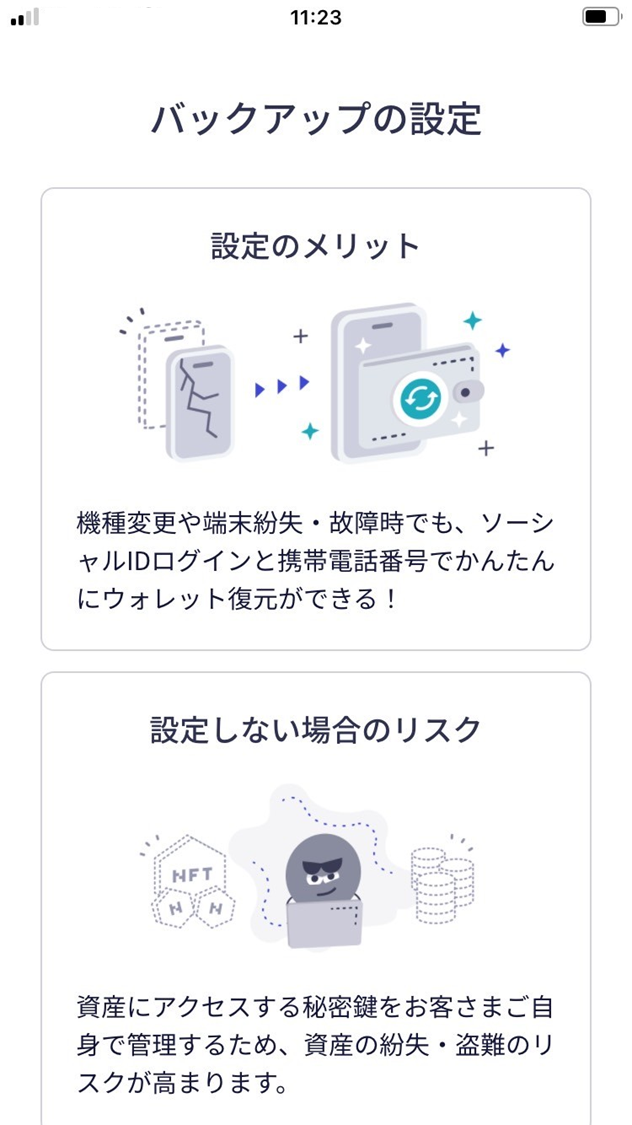
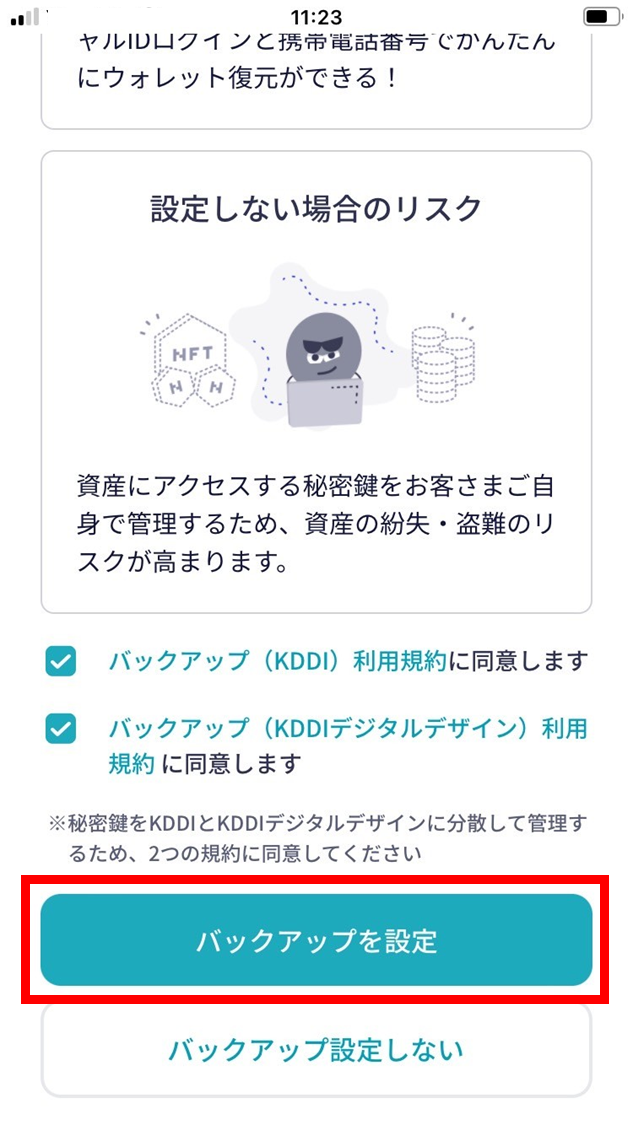
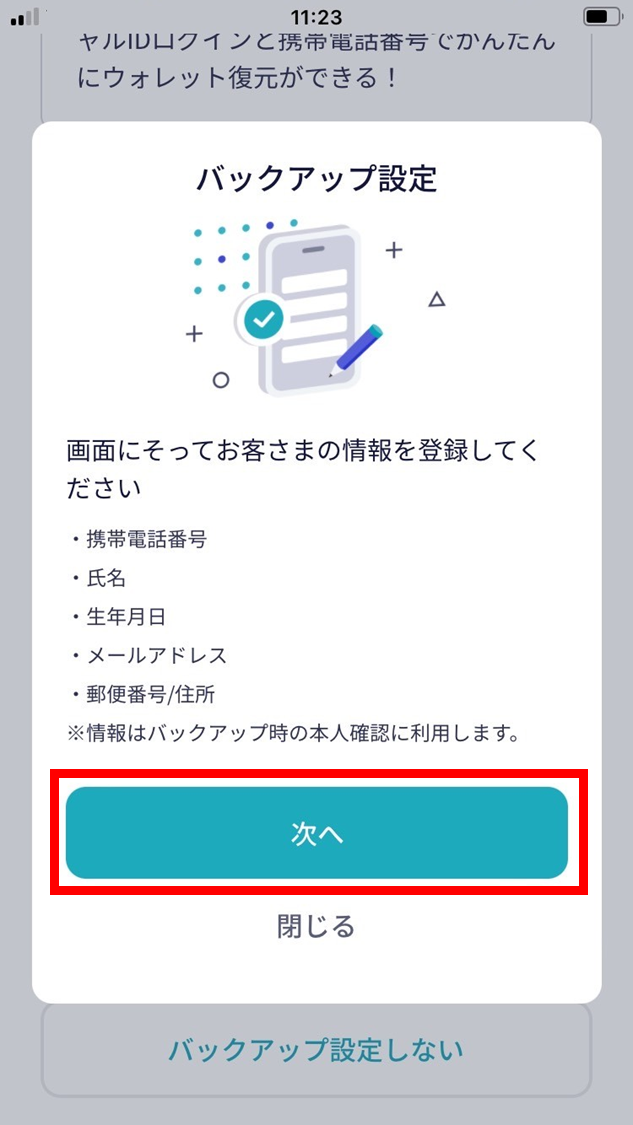
- Tap “Next”.
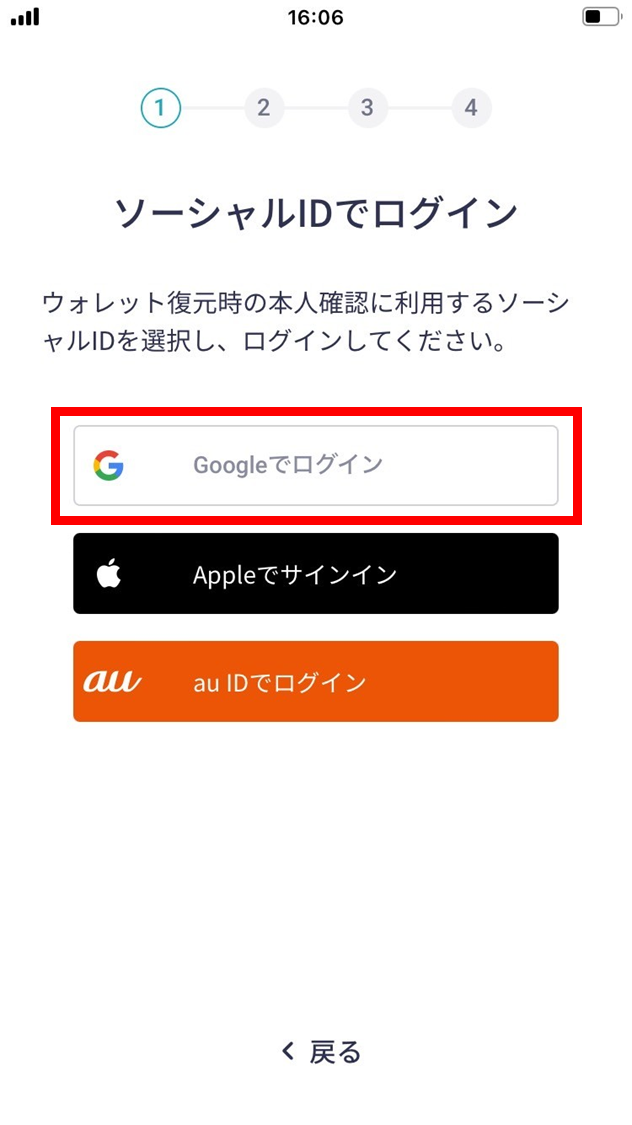
- Choose a sign-up method.
For this example, log in with Google.
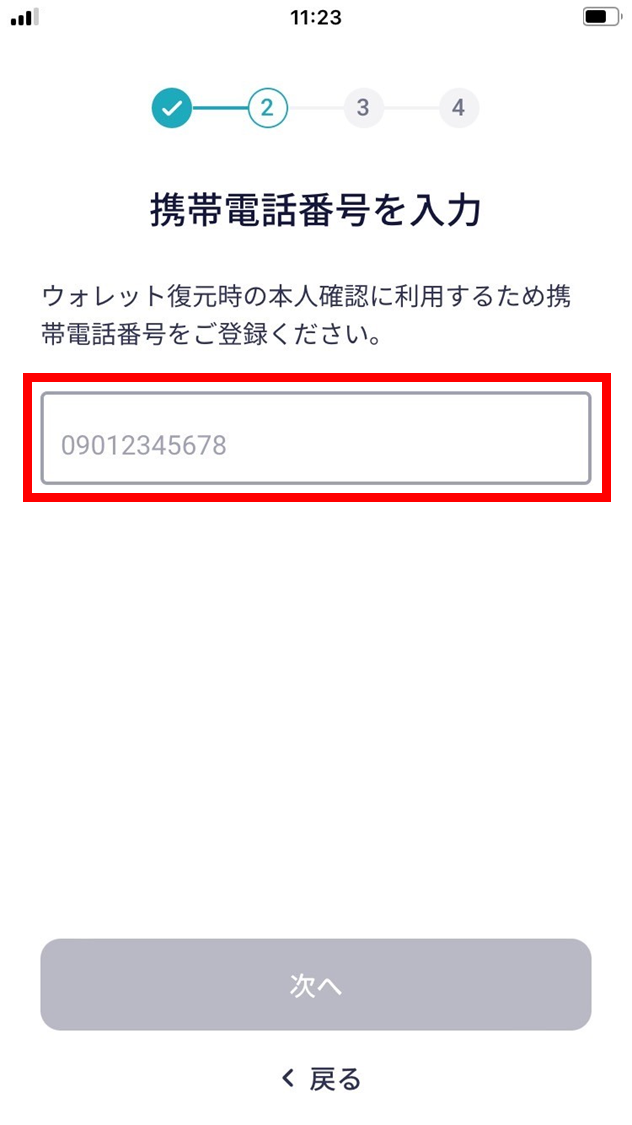
- Enter your mobile phone number.
A SMS with a verification code is sent to that number.
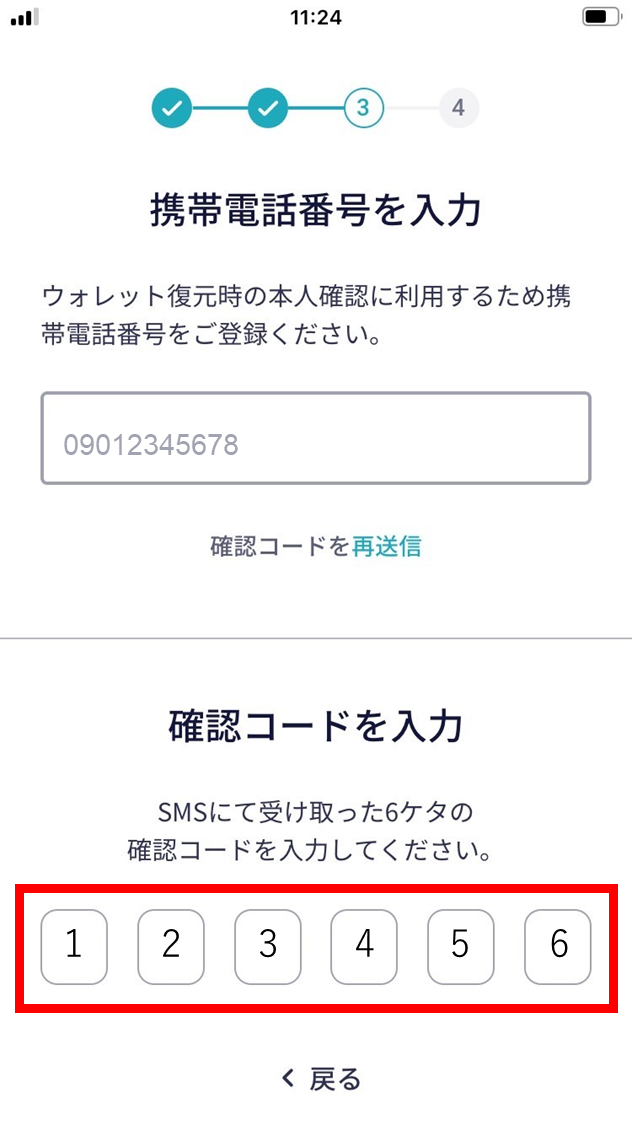
- A 6-digit verification code arrives by SMS — enter it.
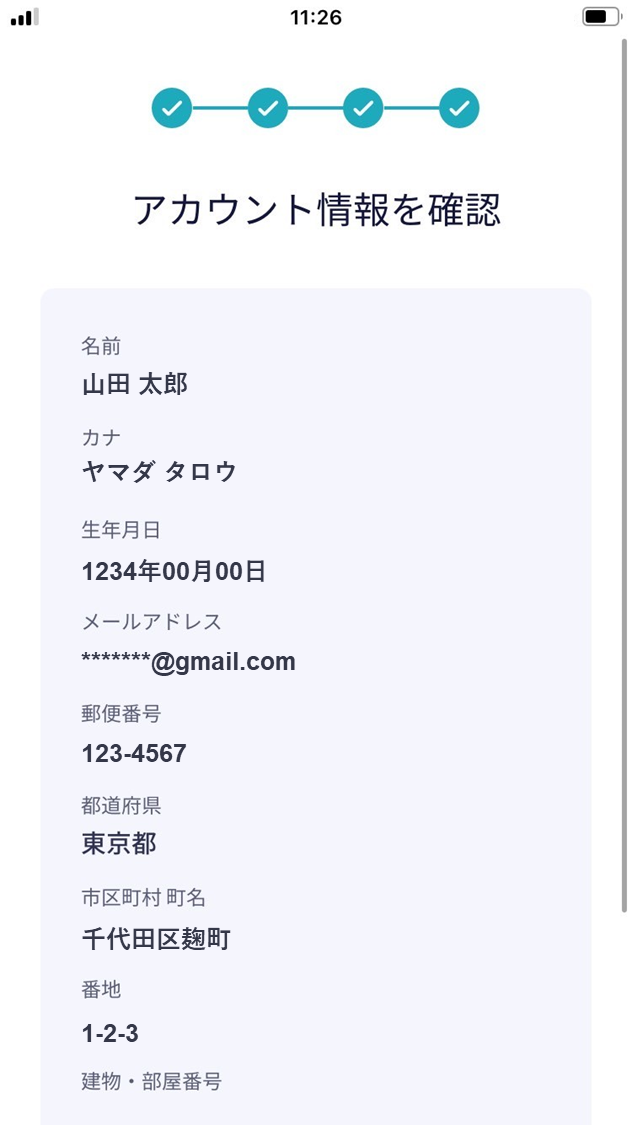
- Enter your account information and tap “Confirm”.
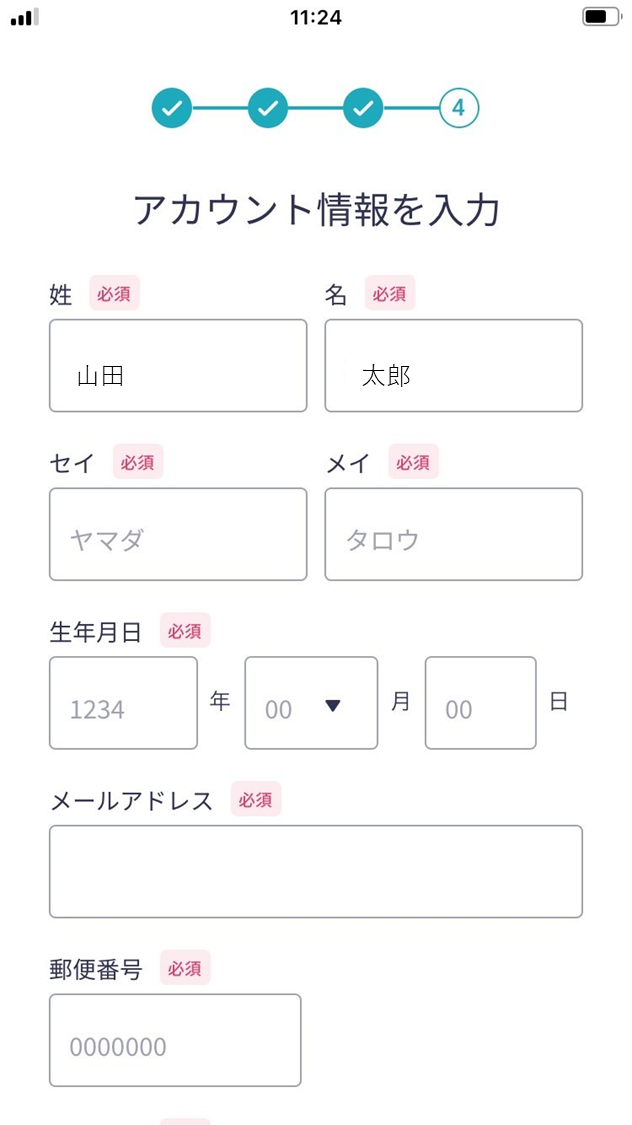
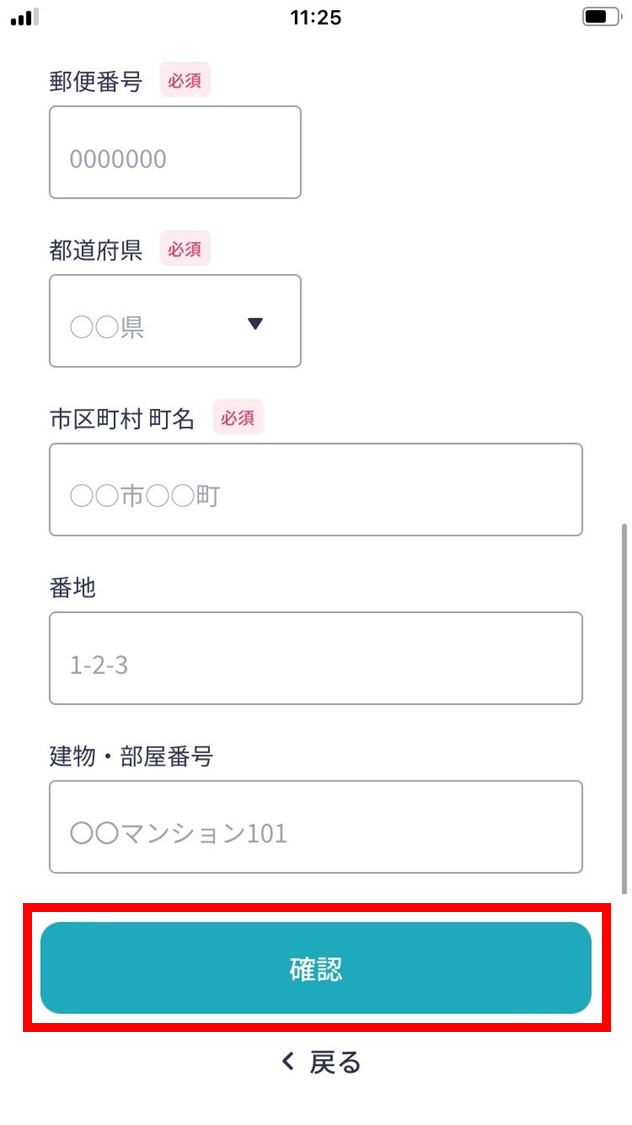
- Review the account information and tap “Register”.
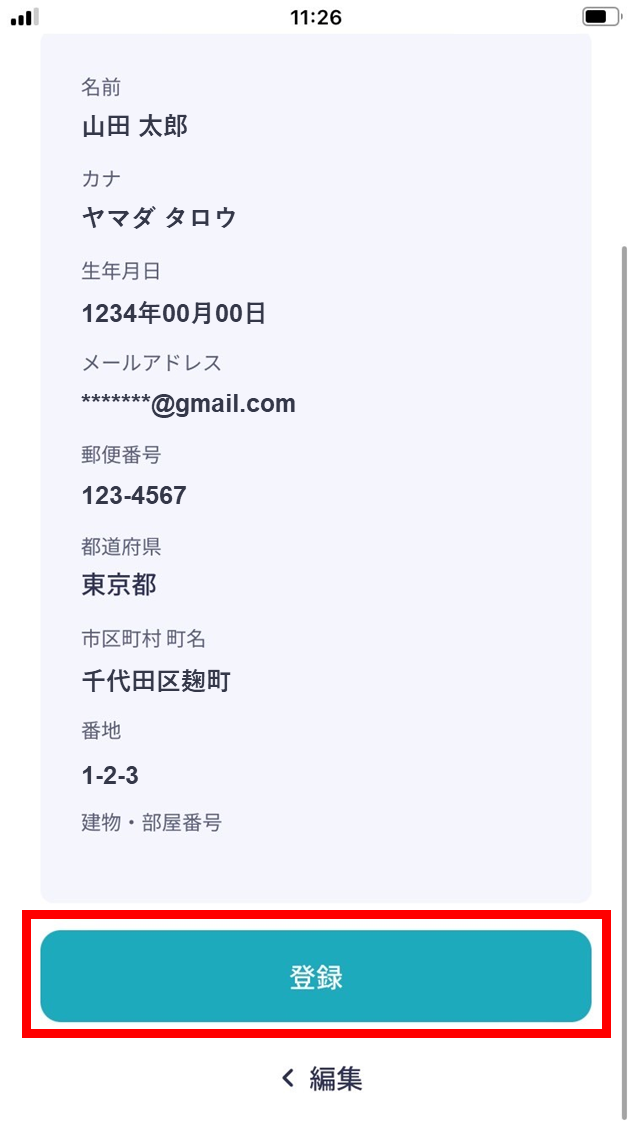
- Sign-up is complete.
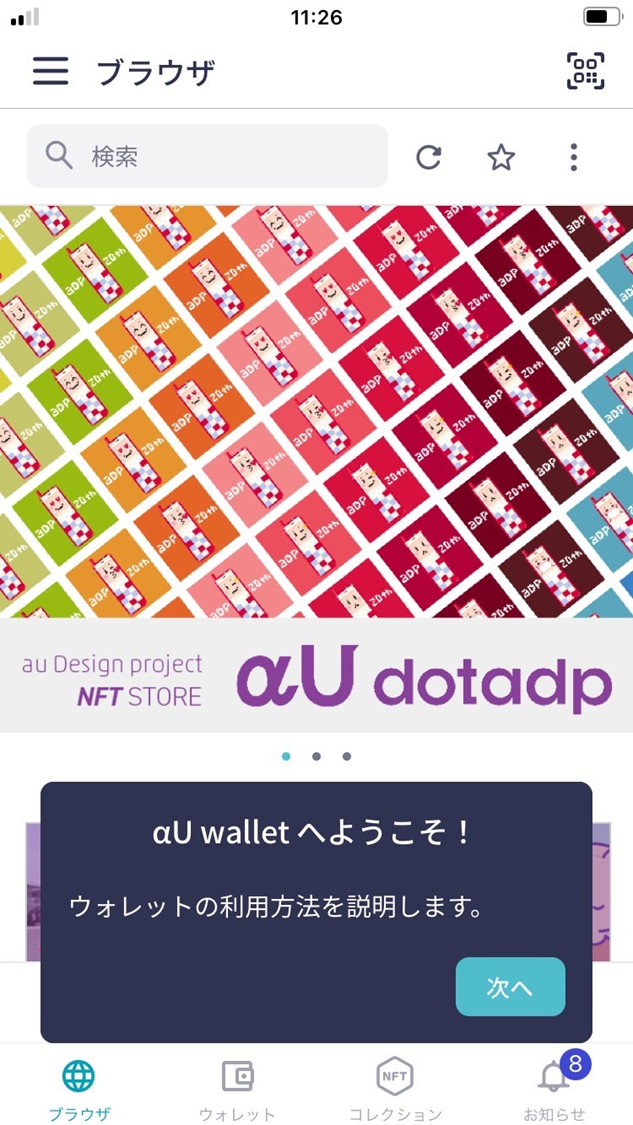
Add the ESPL account to αU
- Tap the icon in the top left.
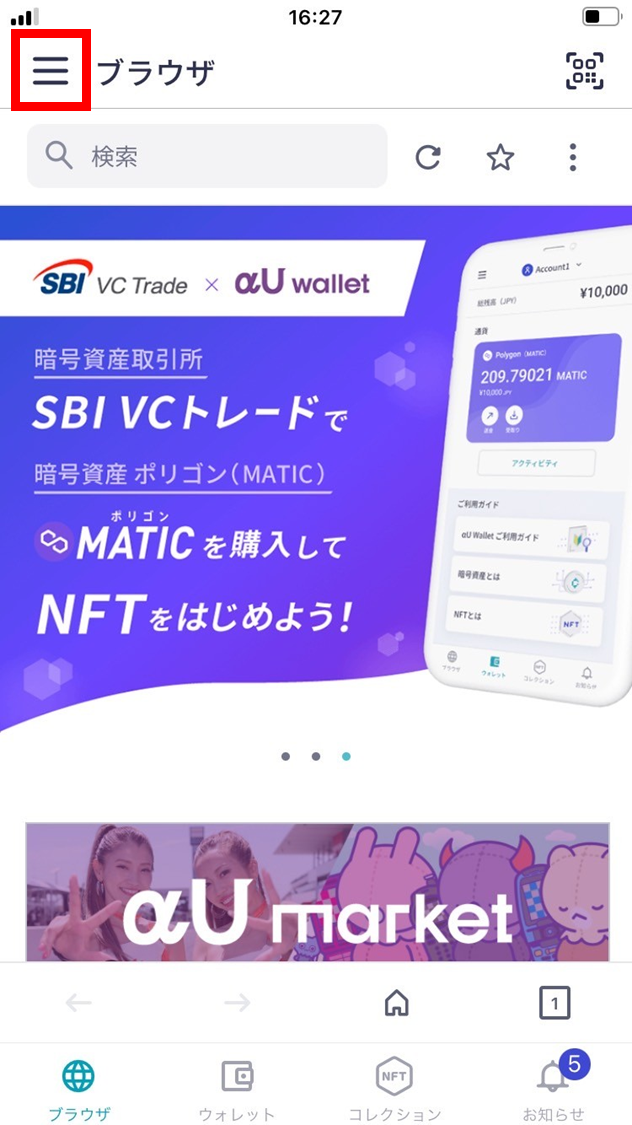
- Tap “Settings”.
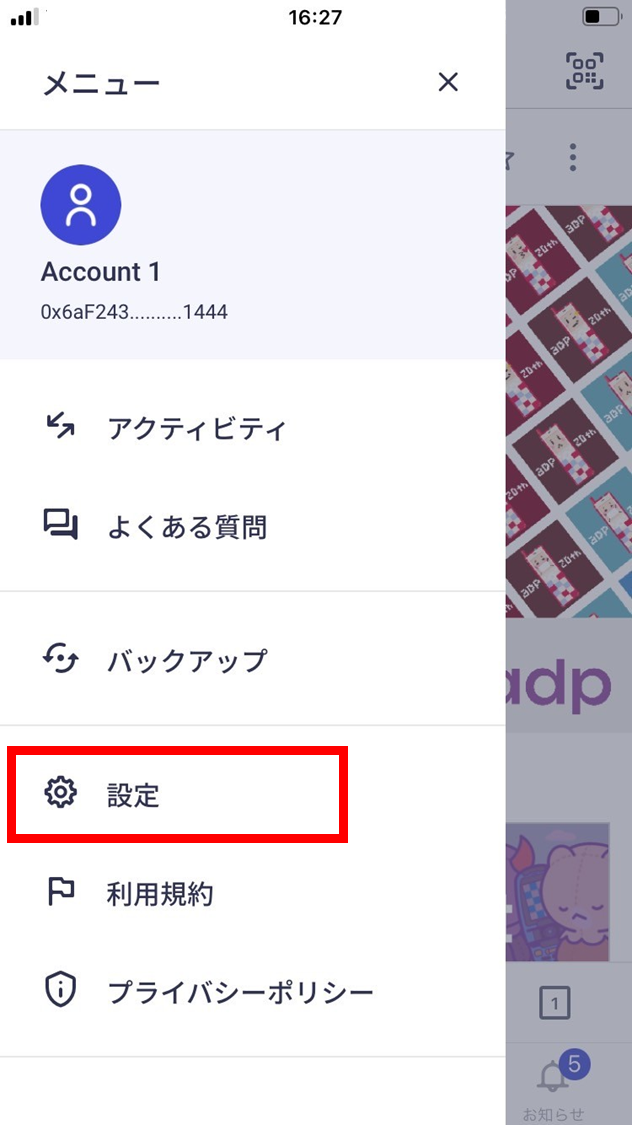
- Tap “Switch account”.
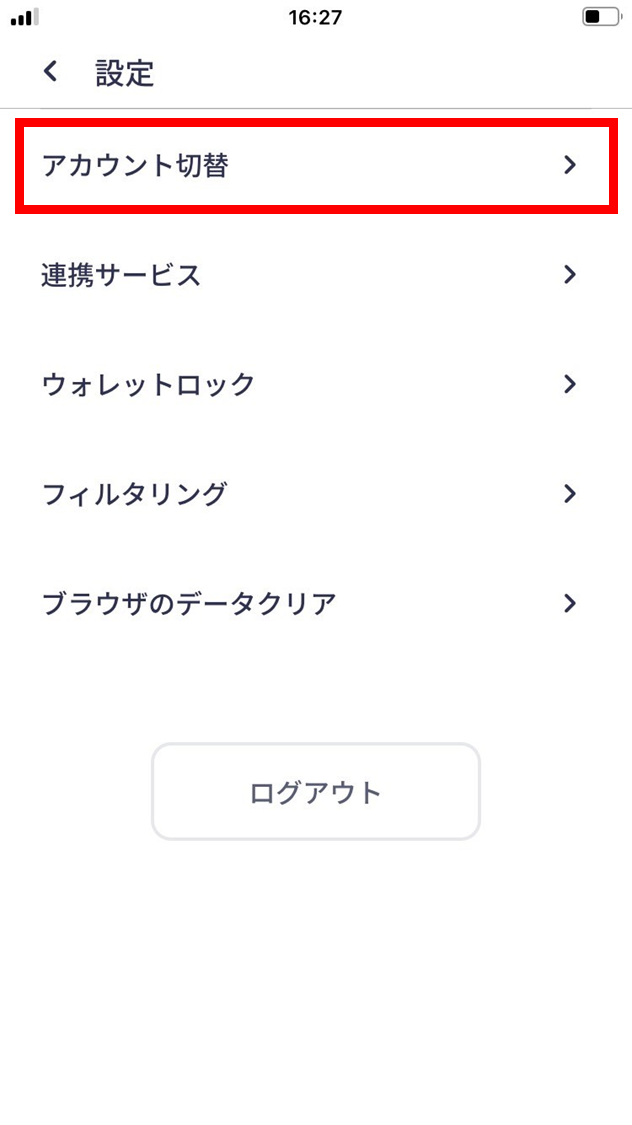
- Tap “Import account”.
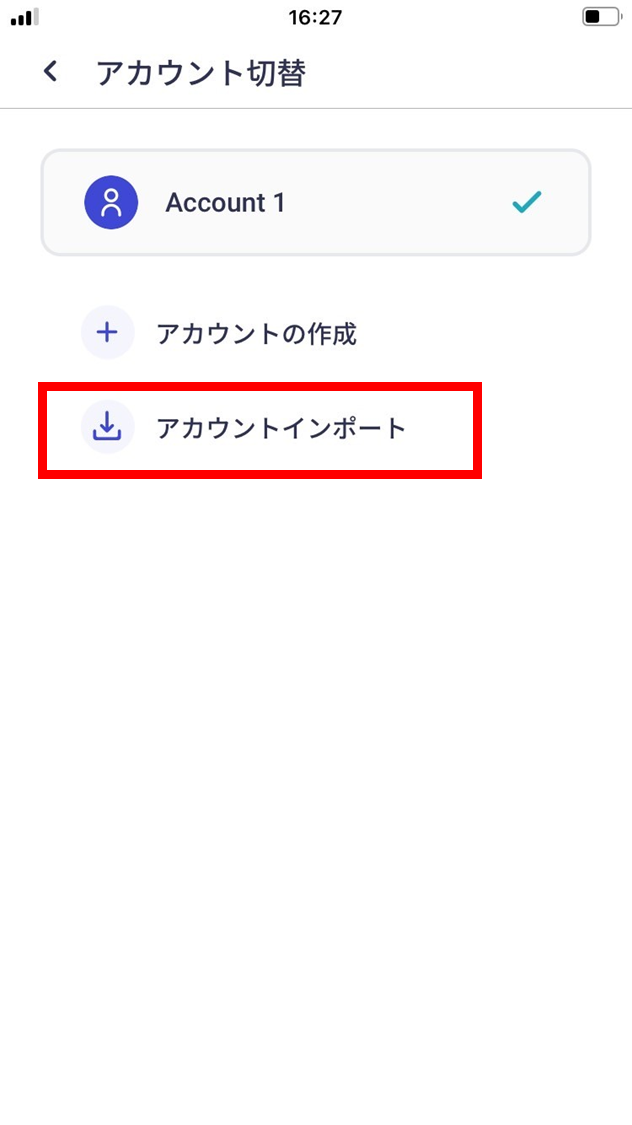
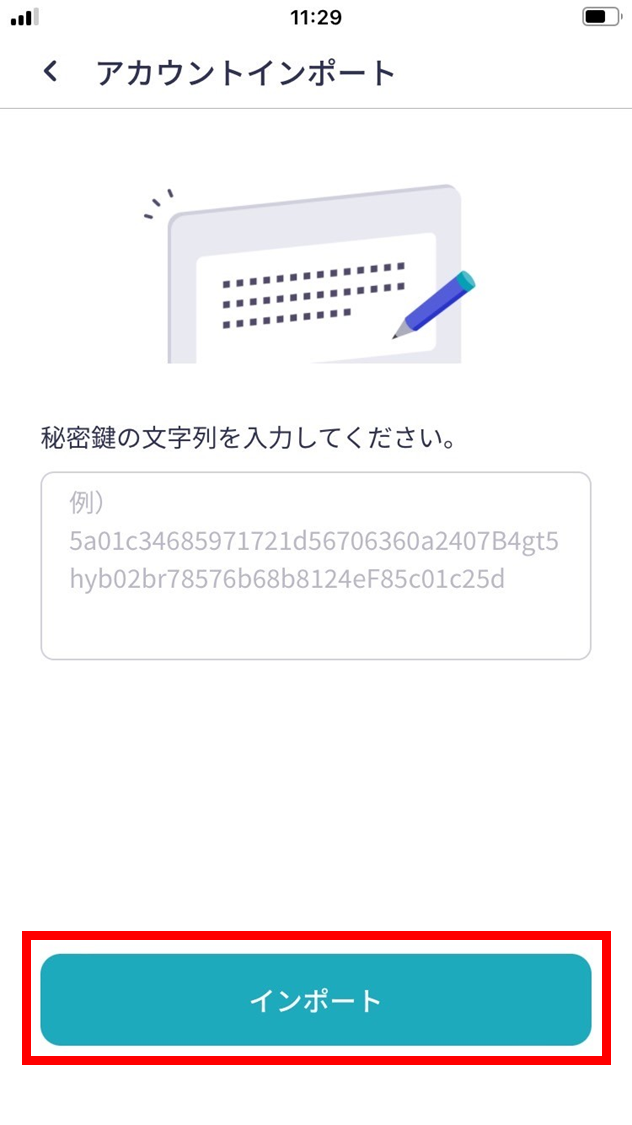
- To import the account, copy and paste your ESPL private key.
The ESPL private key is shown under: top-left settings icon → “Security” → “Private key”.
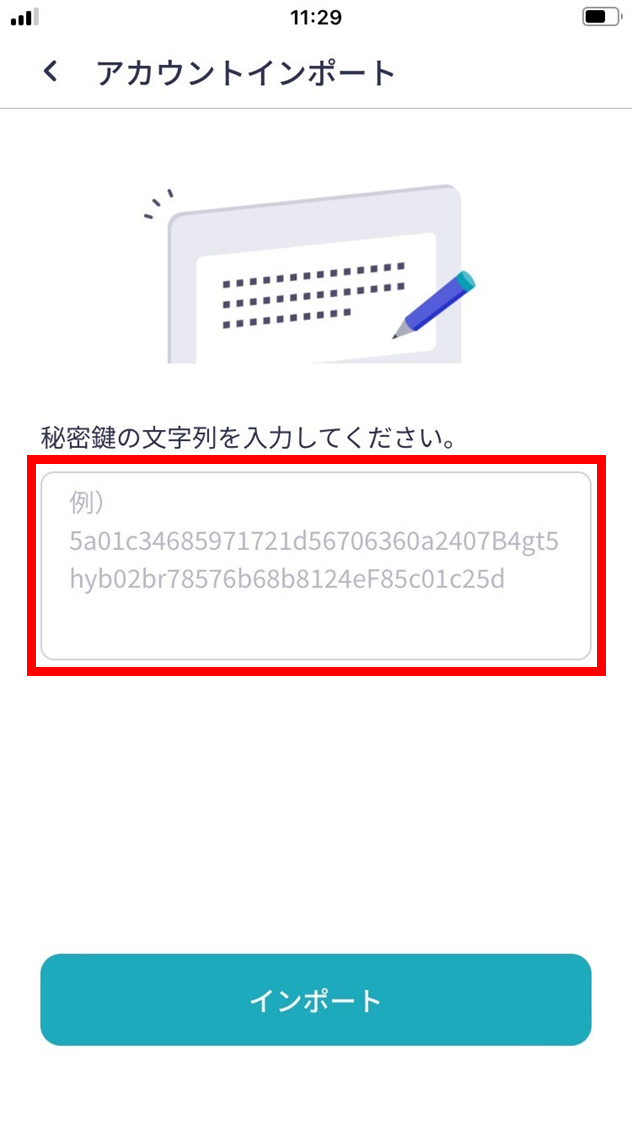
- Tap “Import”.
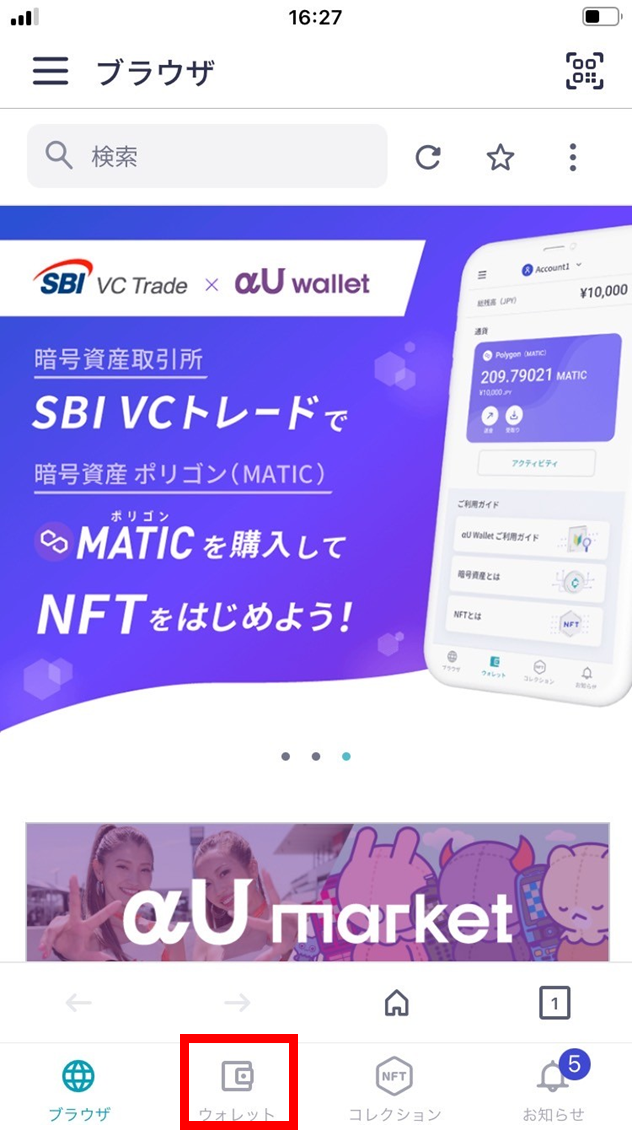
- Return to the top screen and tap “Wallet”.
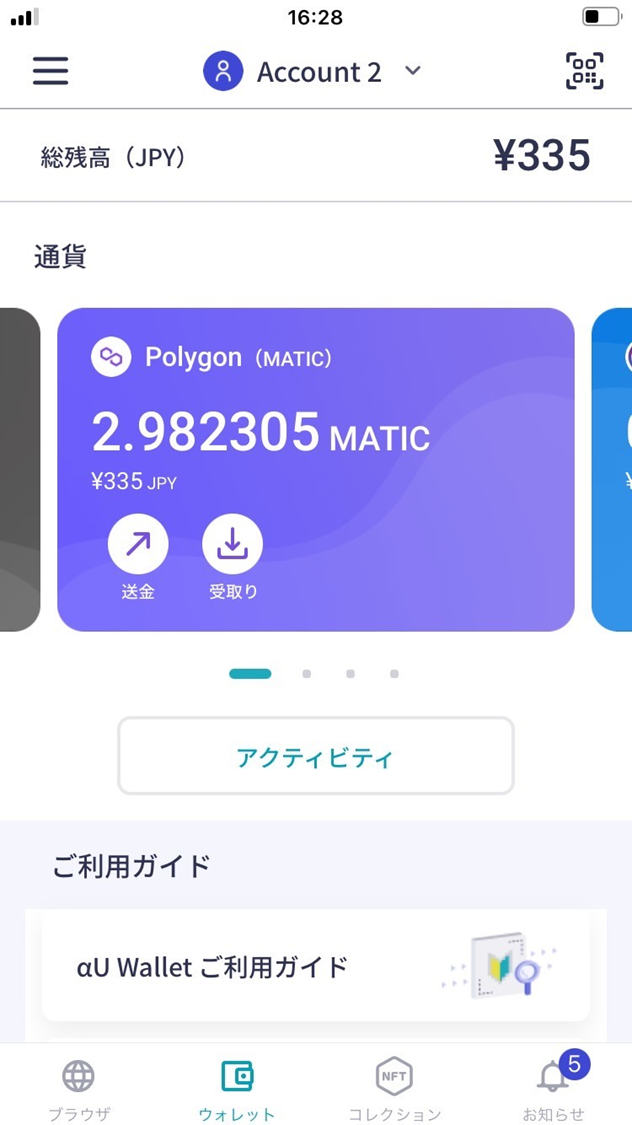
- The ESPL wallet balance is now visible in αU as well.
How to display NFTs
You can import NFTs distributed in ESPL into αU and display them.
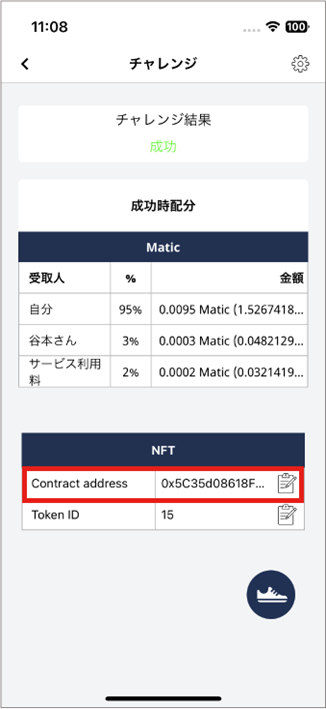
- In the ESPL ended-challenge screen, copy the NFT’s contract address.
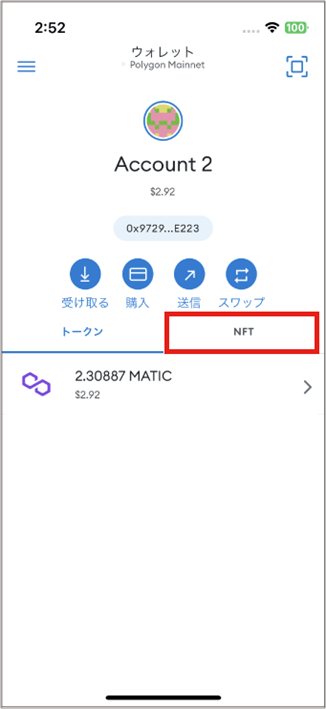
- In MetaMask, tap “NFT”.
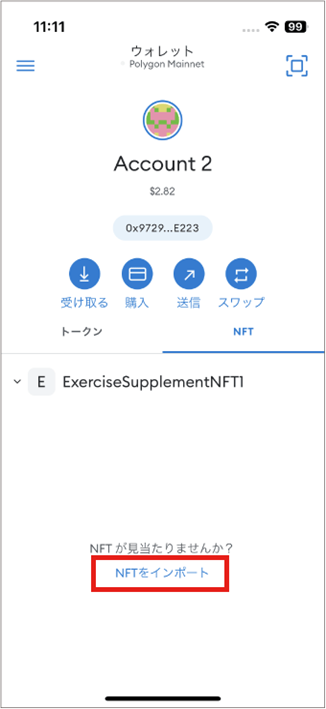
- Tap “Import NFT”.
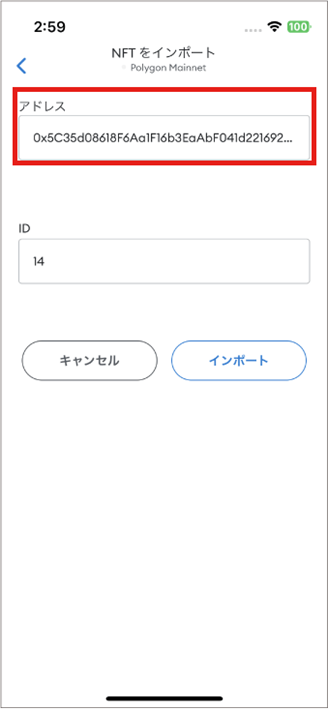
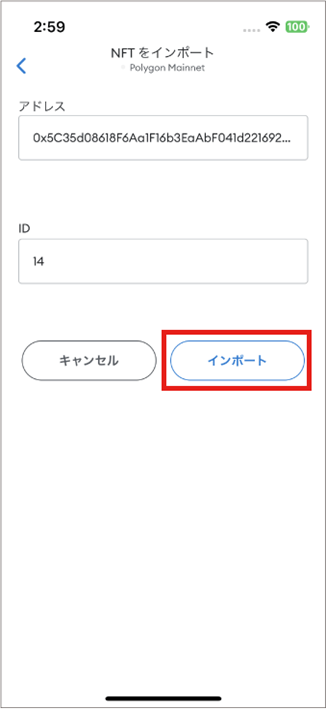
- Paste the contract address.
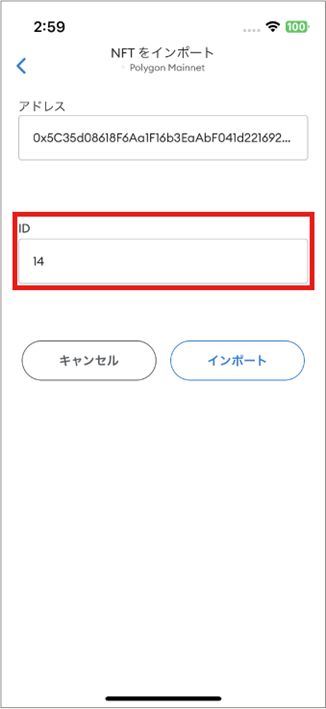
- Enter the ID.
- Tap “Import”.
- The NFT image appears.