Help / settings
Security
View and change ESPL's security settings.
View and change ESPL’s security settings.
- Tap “Security”.
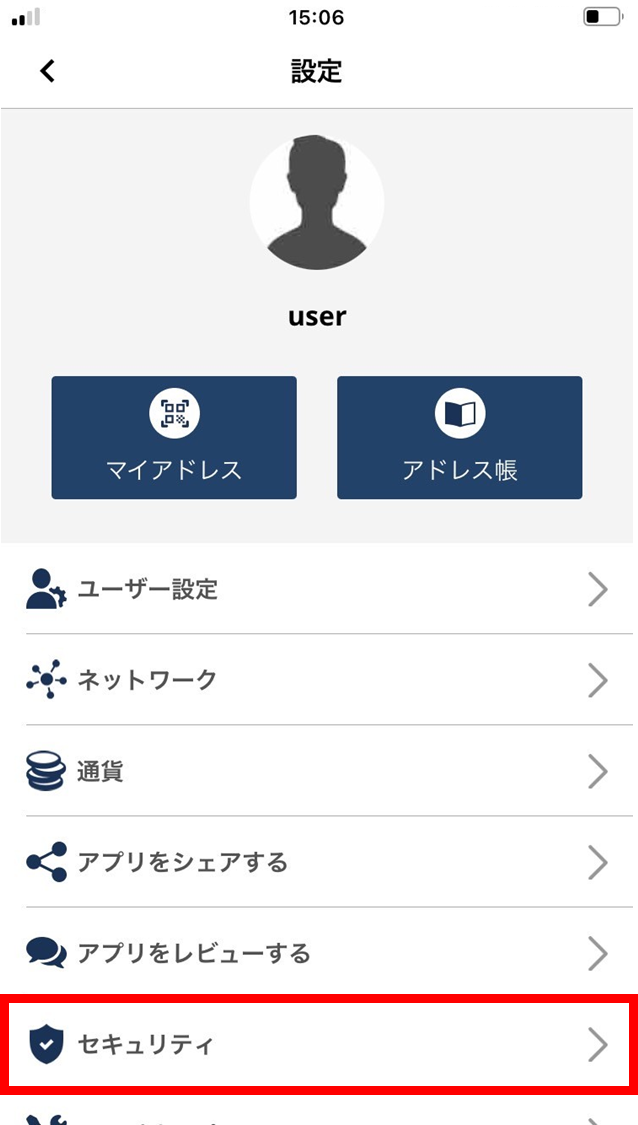
-
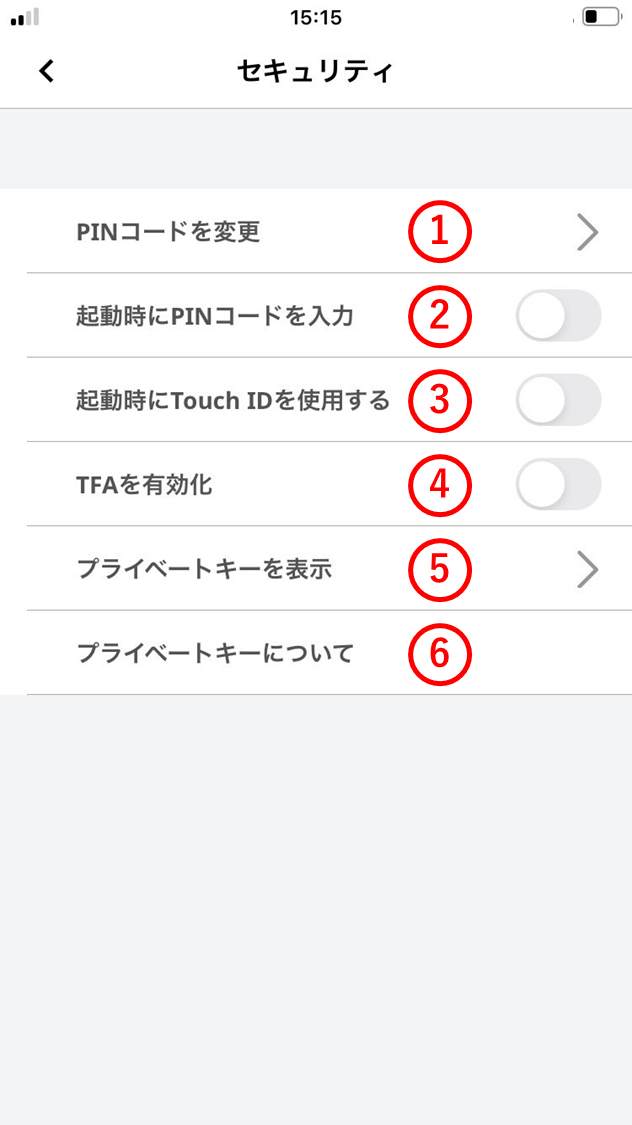
The settings page opens. (1) Change PIN
Change the 6-digit PIN used for transaction confirmation and similar moments.
(2) Require PIN at launch
Choose whether to require the 6-digit PIN when the app launches.
(3) Use Face ID (or Touch ID)
Choose whether to use Face ID when logging in. When enabled, a quick glance is enough to unlock iPhone / iPad, authorize purchases, and sign in to apps.
(4) Enable two-factor authentication
Two-factor authentication adds a second verification step that strengthens security. Even if your password leaks, no one else can access your account. Enable two-factor authentication.
(5) Show private key
-
Use this when exporting wallet information to MetaMask and similar.
-
The private key is the wallet’s cryptographically secure 256-bit random number, expressed as 64 hex characters. After entering your PIN, you can display the wallet’s private key. The private key is used to sign every blockchain transaction — sending crypto-assets or tokens, sending challenges, sending step data, and so on.
-
Do not save the private key on a PC or in cloud storage, and do not share it with anyone.
-
One effective approach is to paste the private key into a note, print it, save the data to a USB stick, and keep both the printout and the USB stick in a secure place.
(6) About the private key
-