Help / nft
NFT
NFTs are digital data issued and traded on a blockchain.
What is an NFT?
-
NFTs are digital data issued and traded on a blockchain.
-
NFTs distributed in ESPL can be displayed in ESPL or in MetaMask, among other places.
How to display NFTs
-
You can display NFTs distributed in ESPL.
-
NFTs you receive via “Send steps (gacha)” are added automatically.
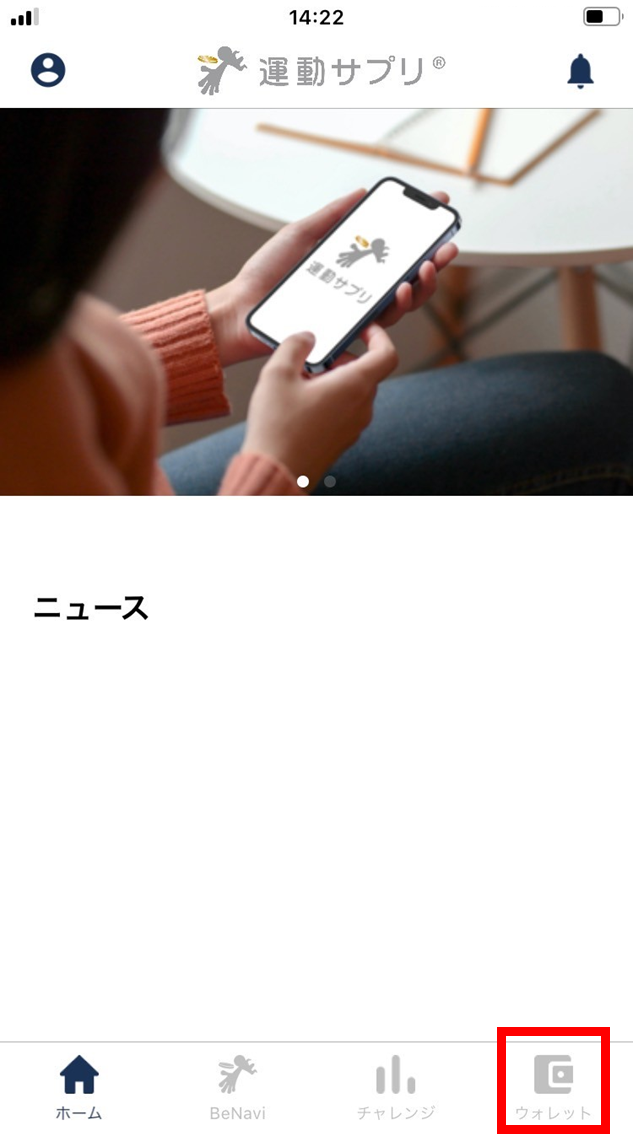
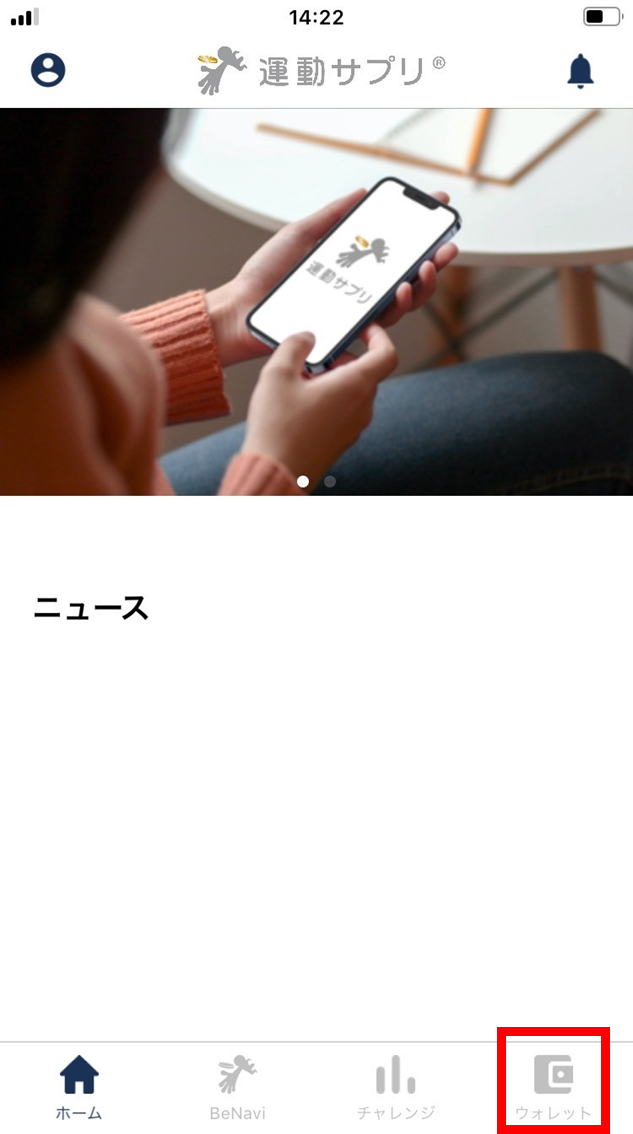
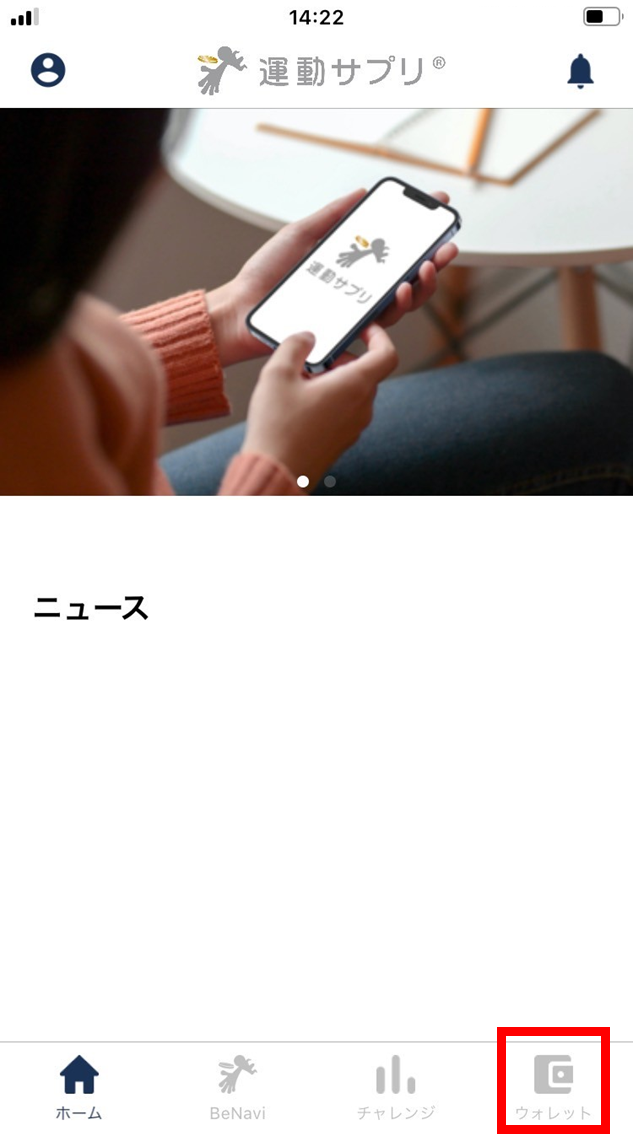
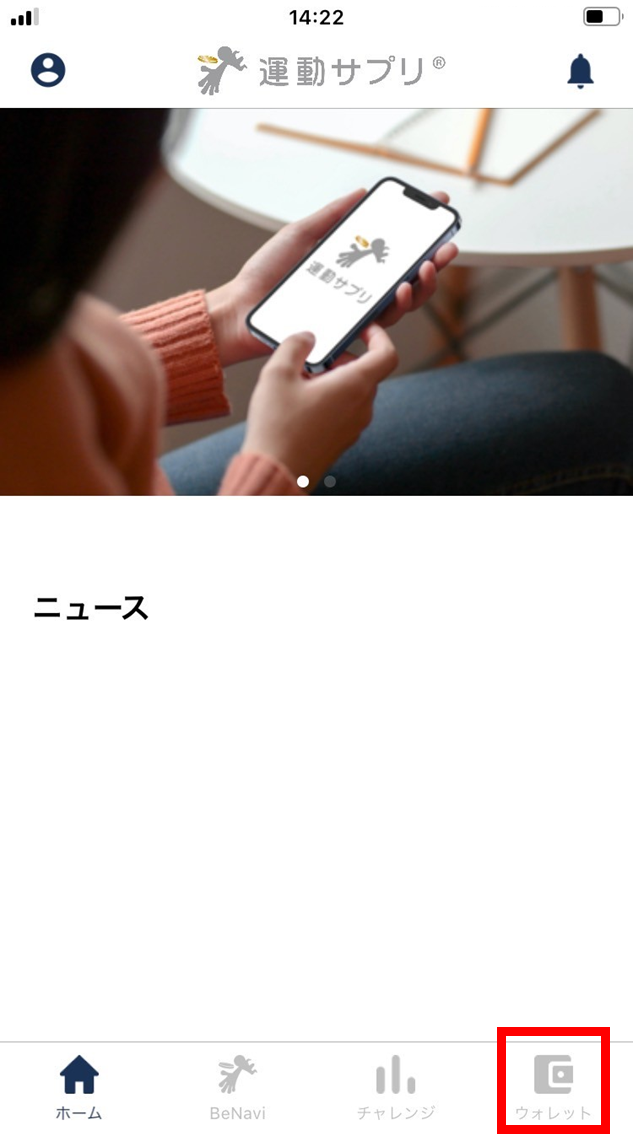
- From the home screen, tap “Wallet”.
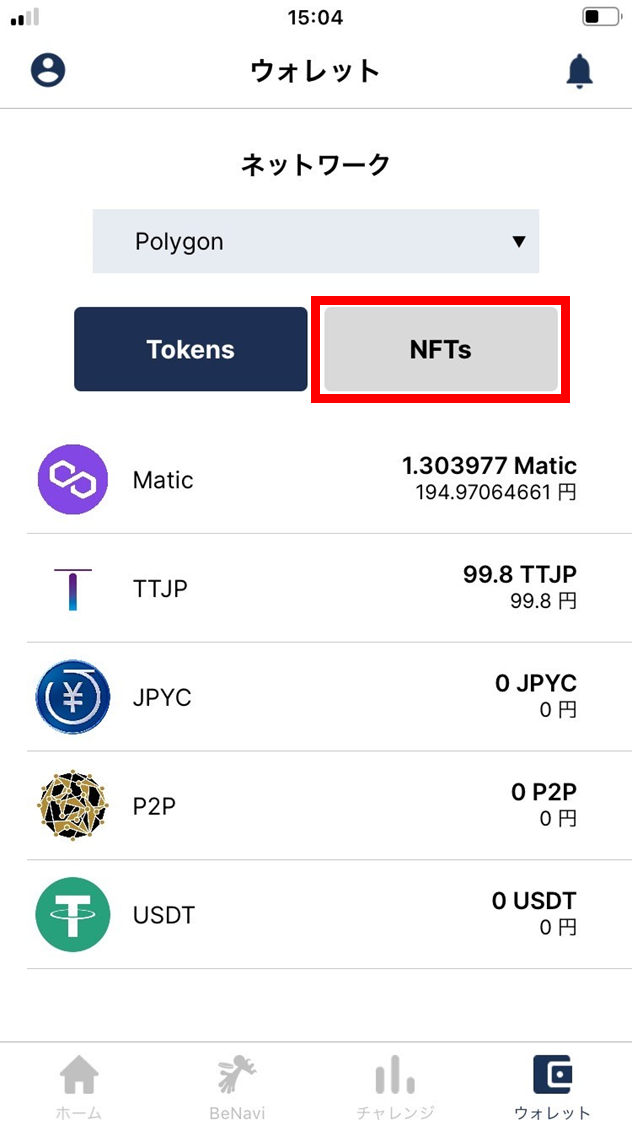
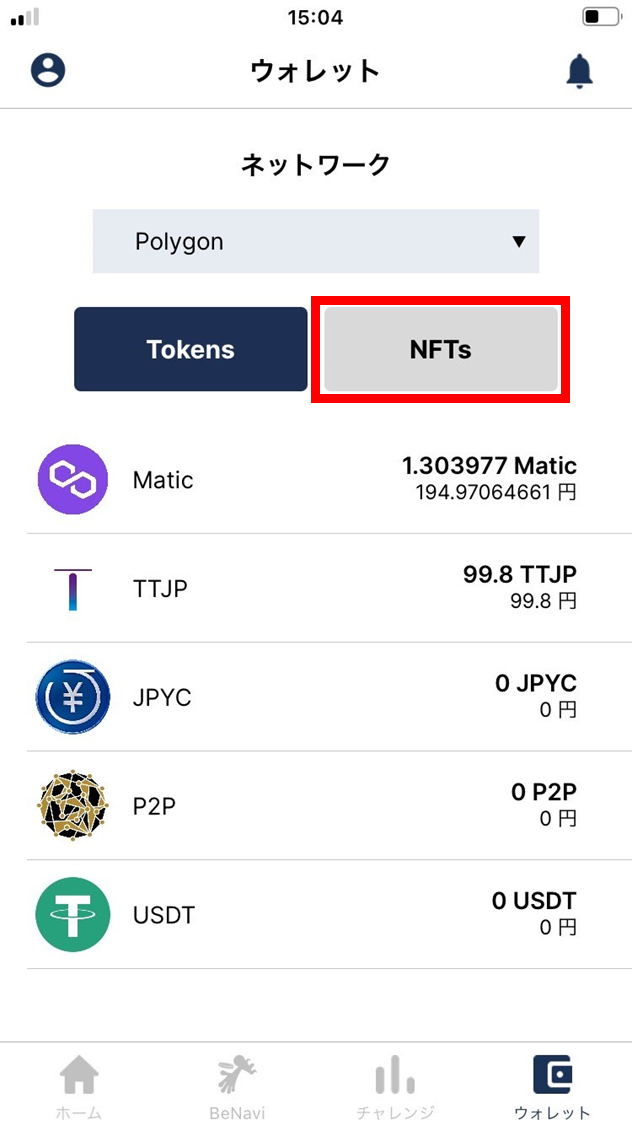
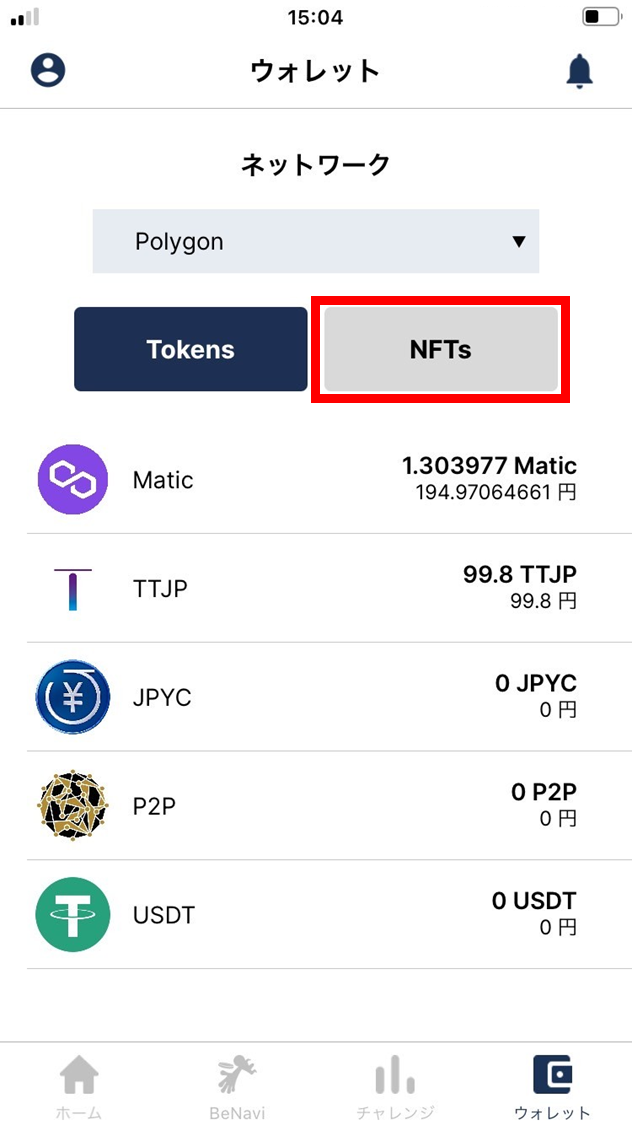
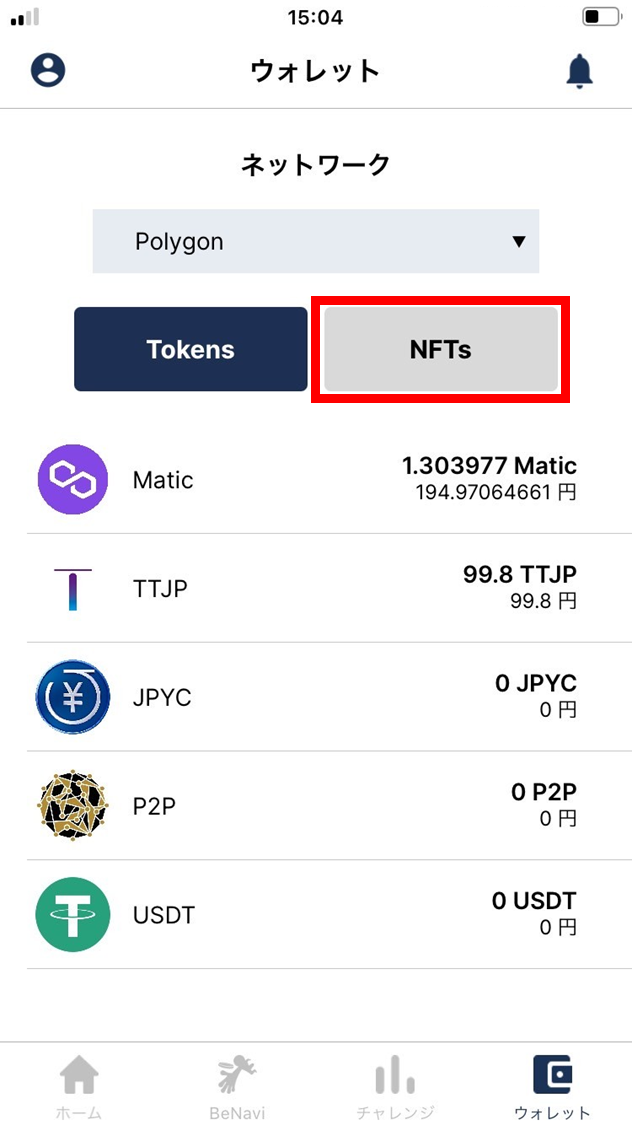
- Tap “NFT”.
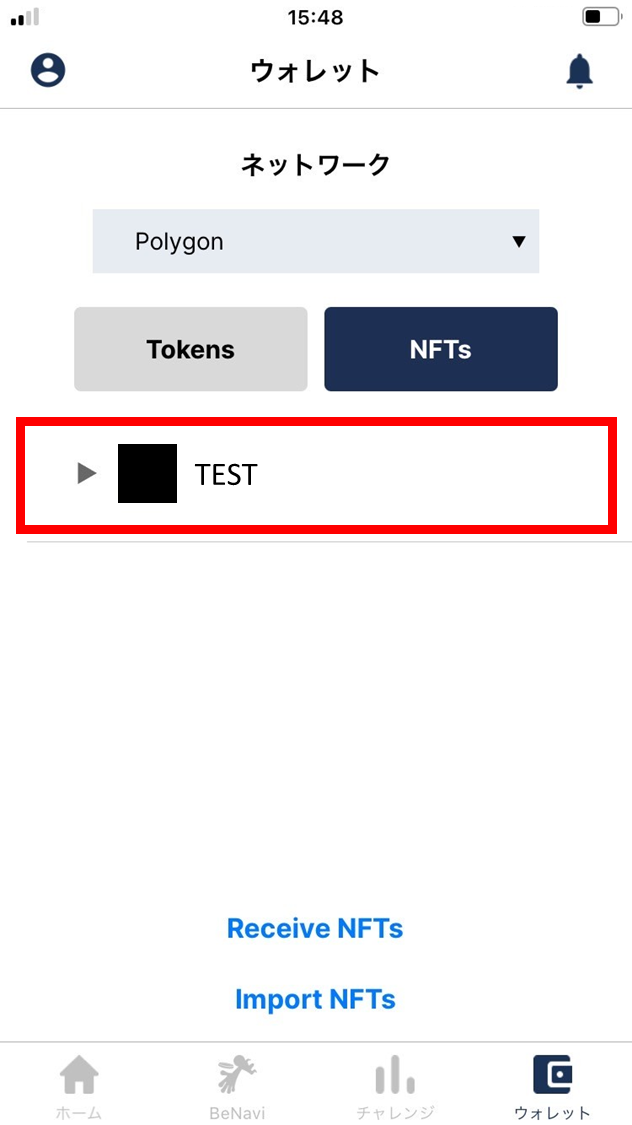
- The NFTs are displayed.
How to display NFTs (if you have the contract address and Token ID)
-
You can import NFTs distributed in ESPL into ESPL and display them.
-
If you receive an NFT as a success reward, copy the “contract address” and “Token ID” shown at the bottom of the challenge detail screen ahead of time. *If the NFT doesn’t appear, tap the [refresh button] on the challenge detail screen. [refresh button] screen
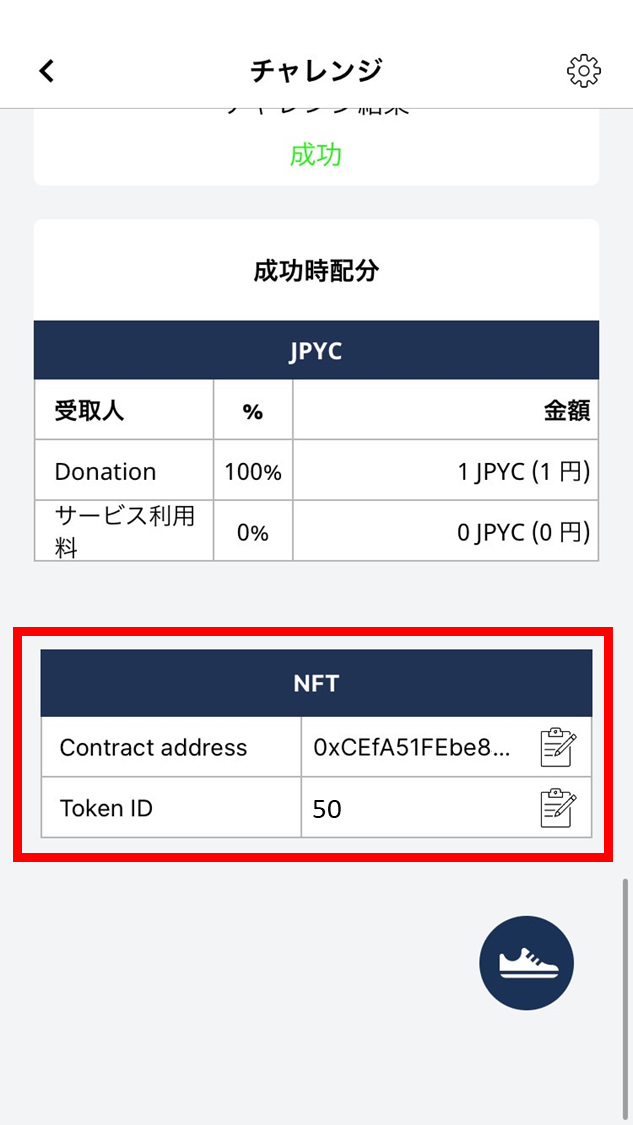
- From the home screen, tap “Wallet”.
- Tap “NFT”.
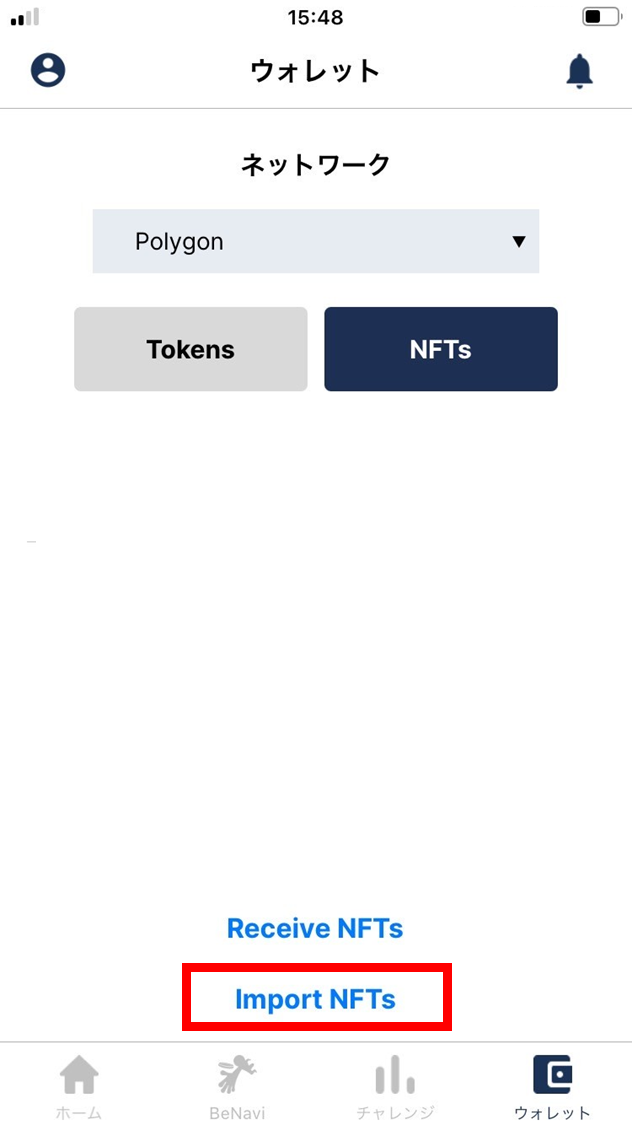
- Tap “Import NFTs”.
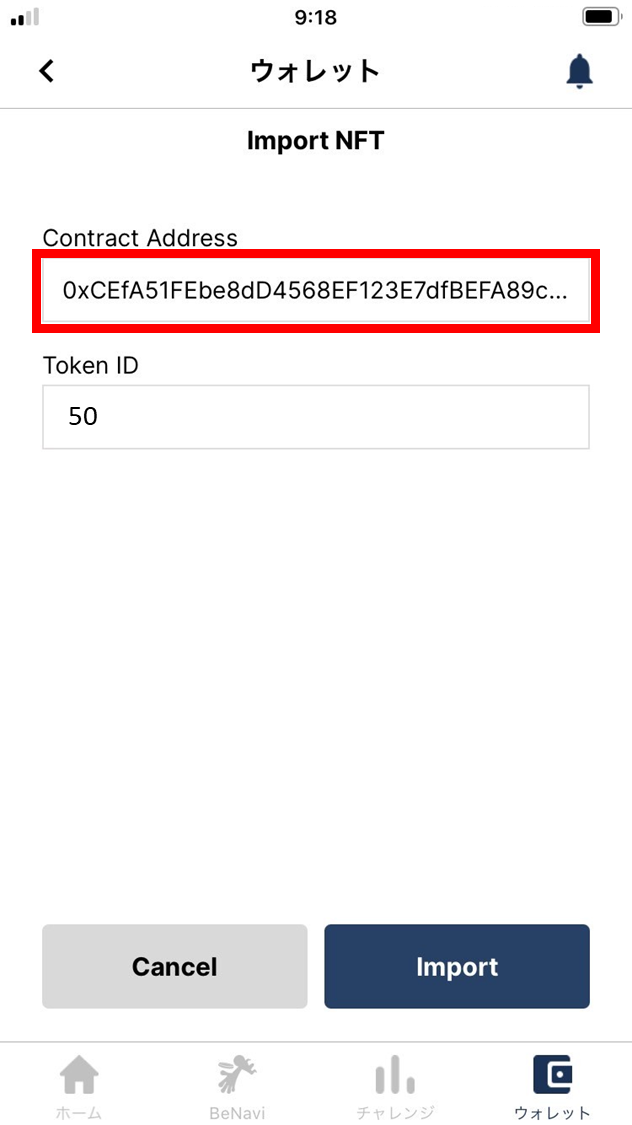
- Enter the contract address.
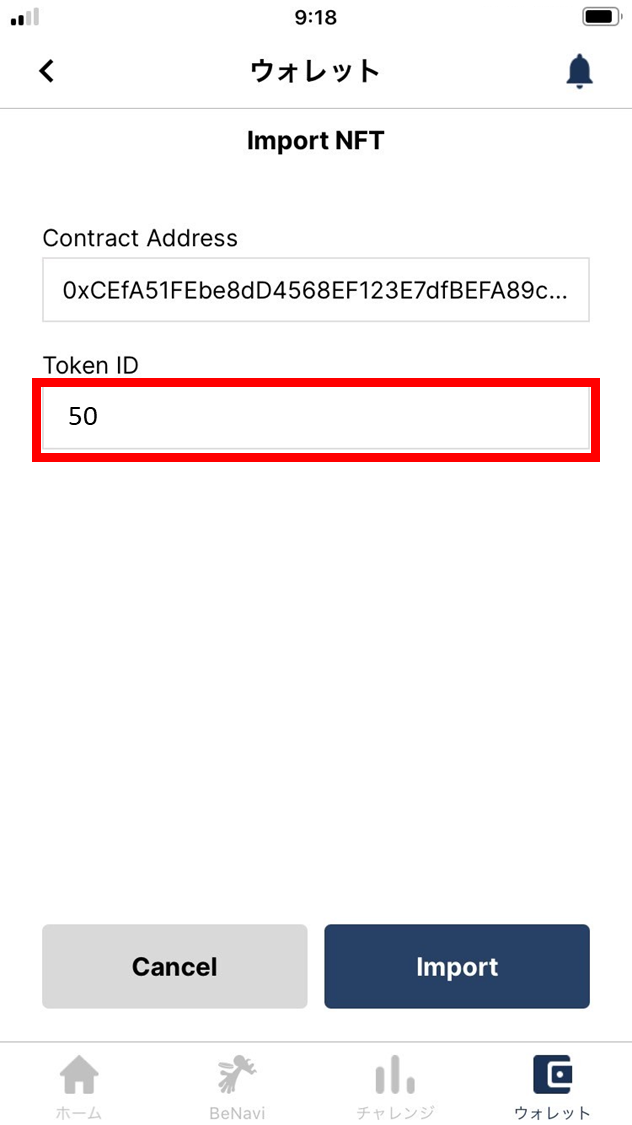
- Enter the Token ID.
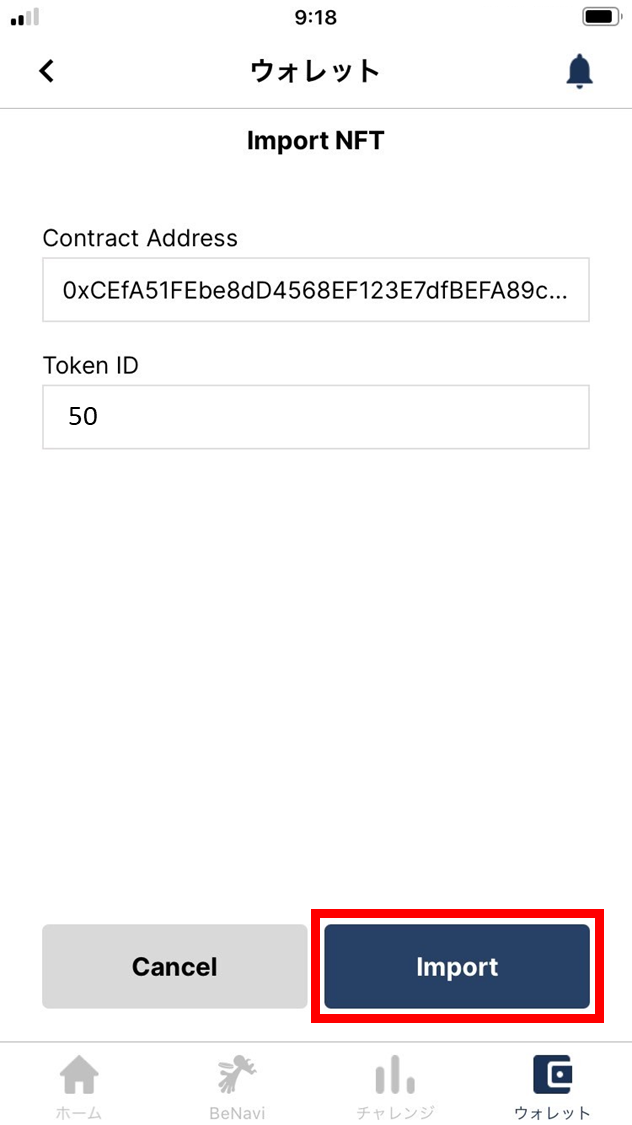
- Tap “Import”.
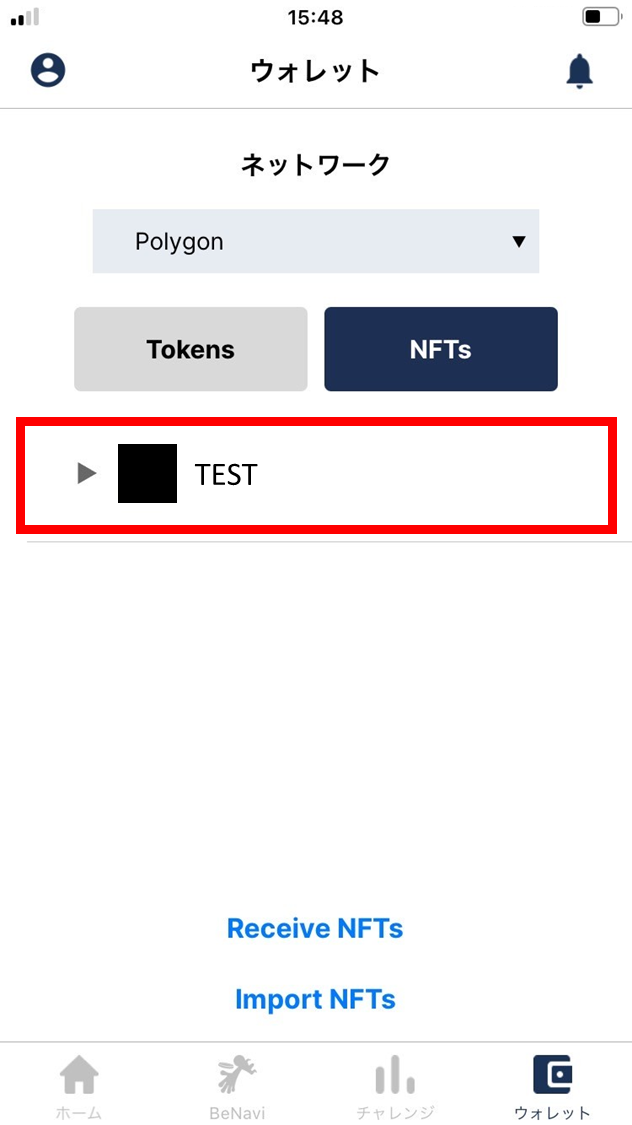
- The NFT is added to your wallet.
Receive an NFT from another device
Receive an NFT from another device.
- Tap “Wallet”.
- Tap “NFT”.
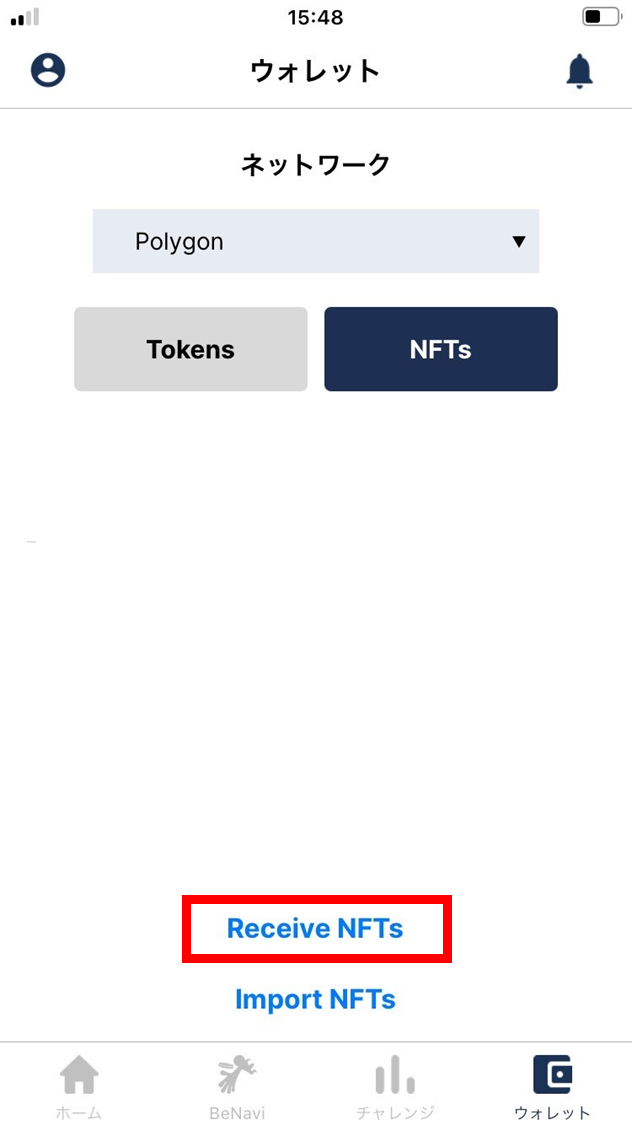
- Tap “Receive NFTs”.
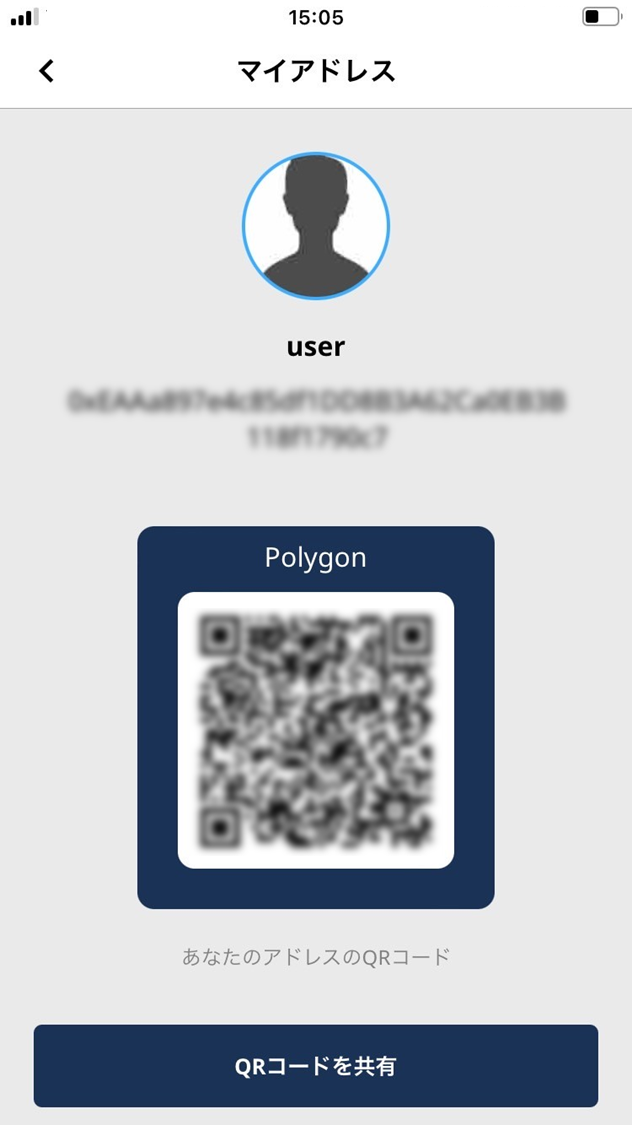
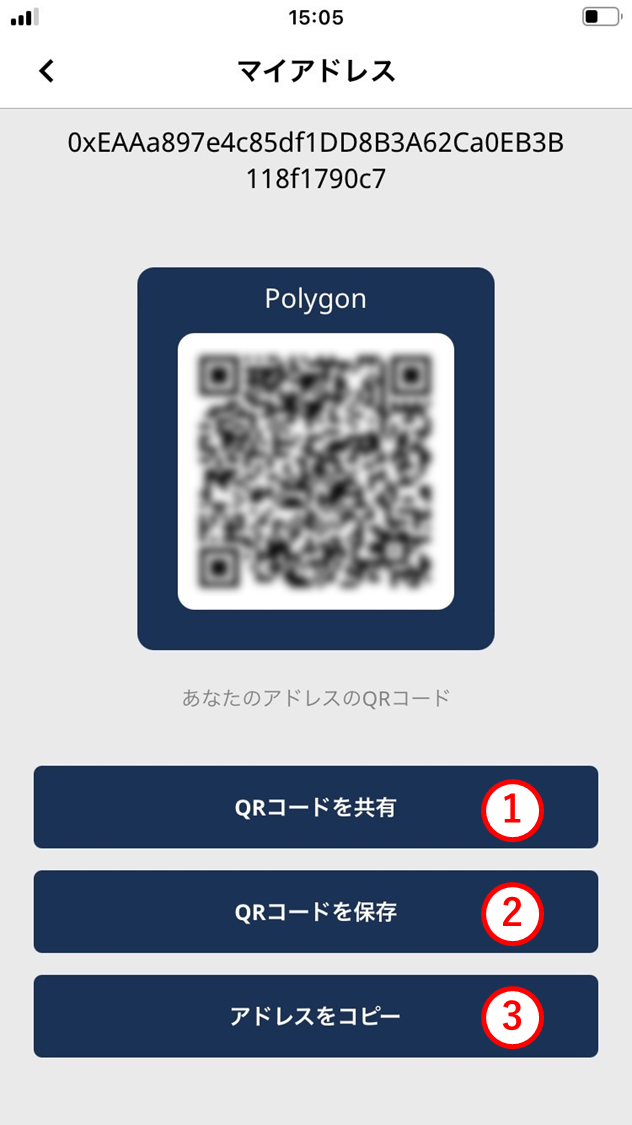
- Your address is shown.
Your wallet address is displayed as a QR code. The sender can read it to send crypto-assets or tokens.
(1) Share QR code
Use this to share your wallet-address QR code with another person. Tap to pick AirDrop, email, SMS, or mail.
(2) Save QR code
Save your wallet-address QR code to your phone. Read it later from a saved photo when sending / receiving.
(3) Copy address
Copy your wallet address as text. Tap to copy to the clipboard.
Send an NFT to another device
Send an NFT to another device.
- Tap “Wallet”.
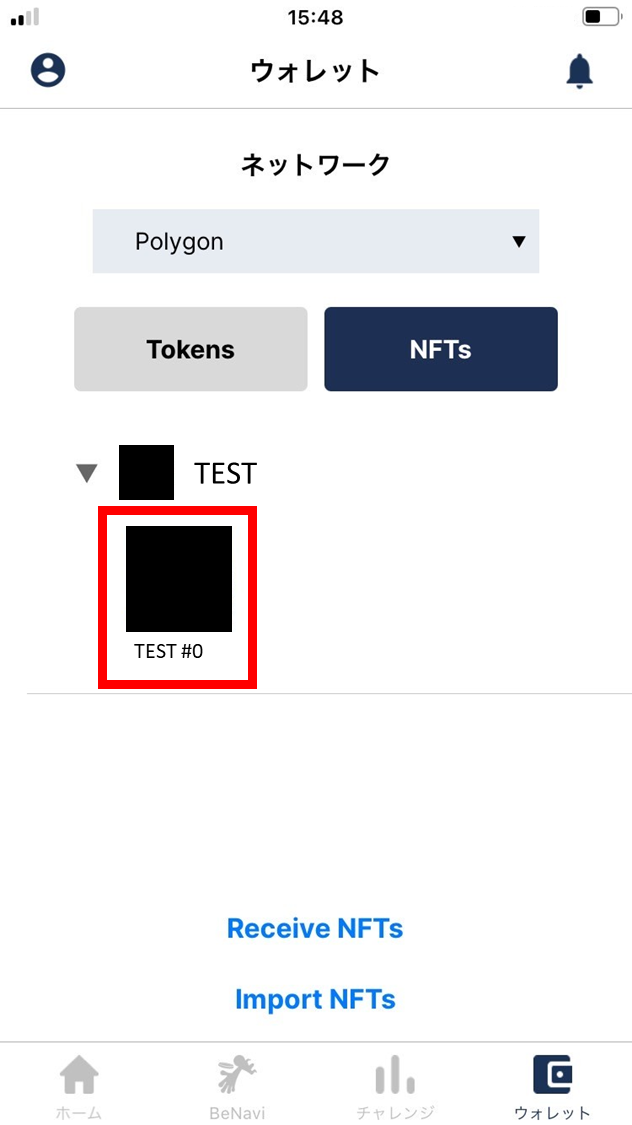
- Tap “NFT”.
- Choose the NFT you want to send.
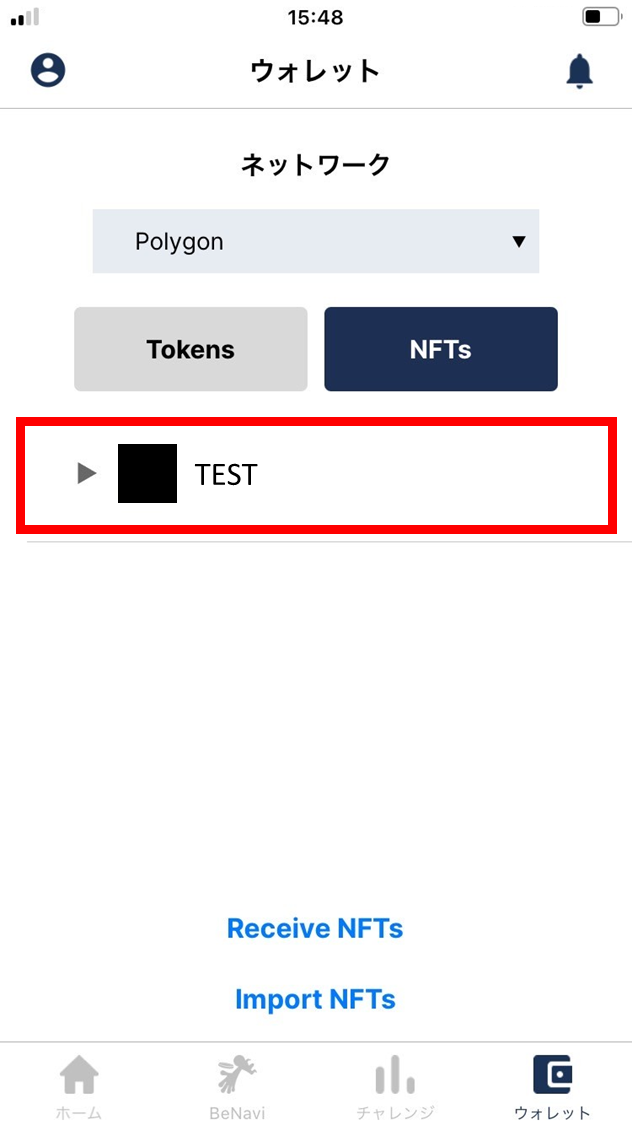
- Tap the NFT.
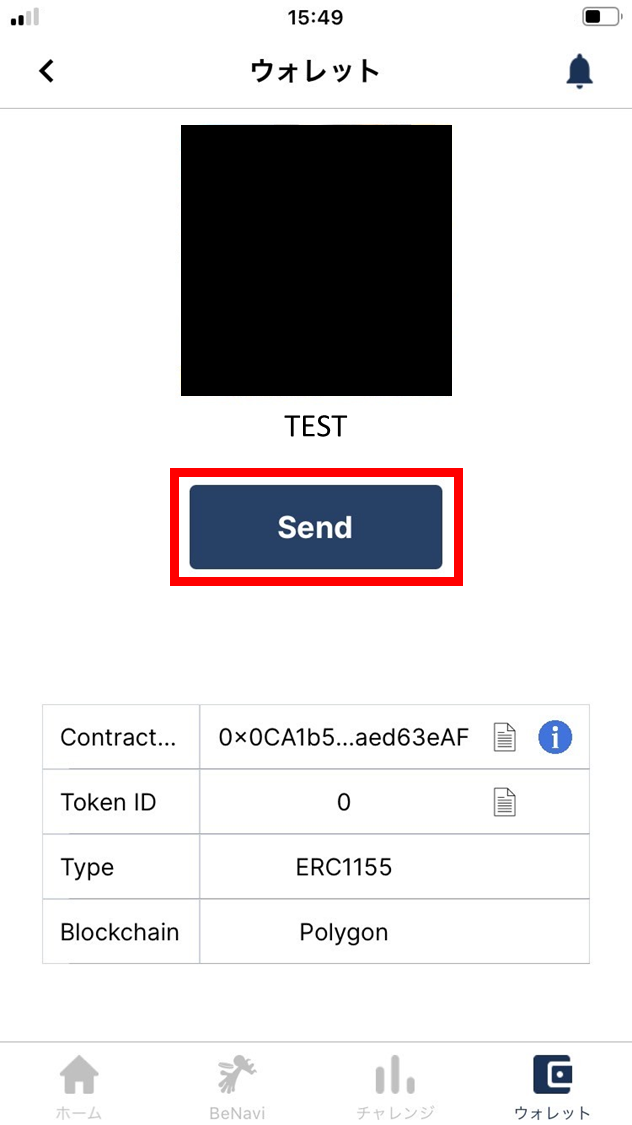
- Tap “Send”.
You can also send the NFT by copying the contract address and Token ID from the table and giving them to the recipient.
-
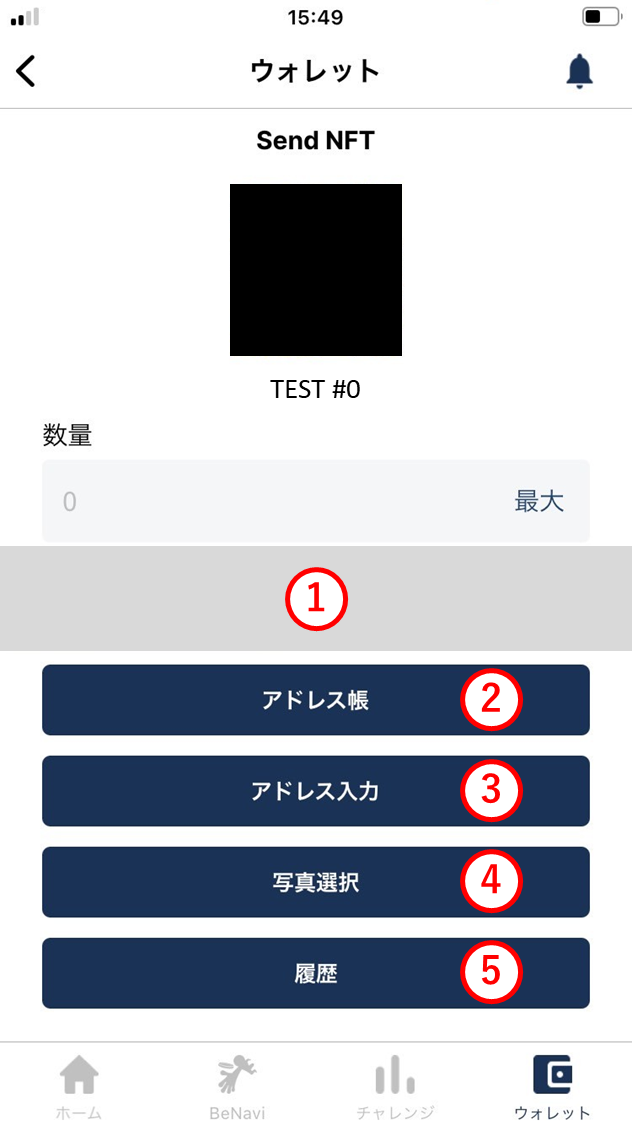
Specify the destination address using one of the following methods. (1) QR code camera
Scan the destination address’s QR code with the camera.
(2) Address book
Pick the recipient from your address book.
(3) Enter address
Type or paste the destination address.
(4) Select photo
If you have a saved photo of the destination address QR code, import it.
(5) History
Pick the destination from the send history.