Help / setup
[Important] For Android users
💡 You can now choose how steps are counted on Android. Setup differs between the default (device) and Health Connect. See each section below.
💡 You can now choose how steps are counted on Android. Setup differs between the default (device) and Health Connect. See each section below.
Default (device)
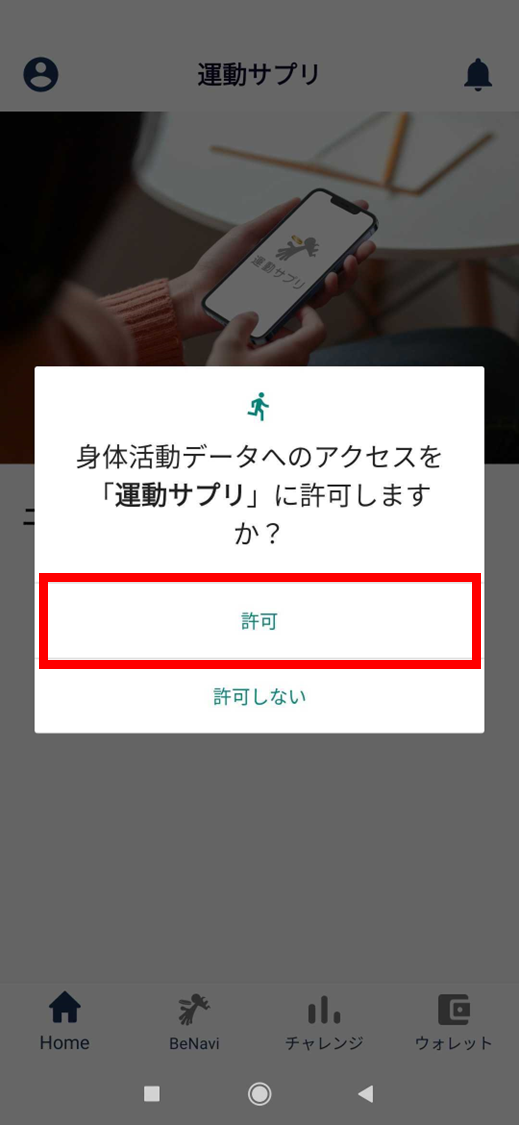
- Allow access to physical-activity data.
When you start ESPL, the physical-activity data linkage screen opens automatically.
If it doesn’t appear, log out and log back in.
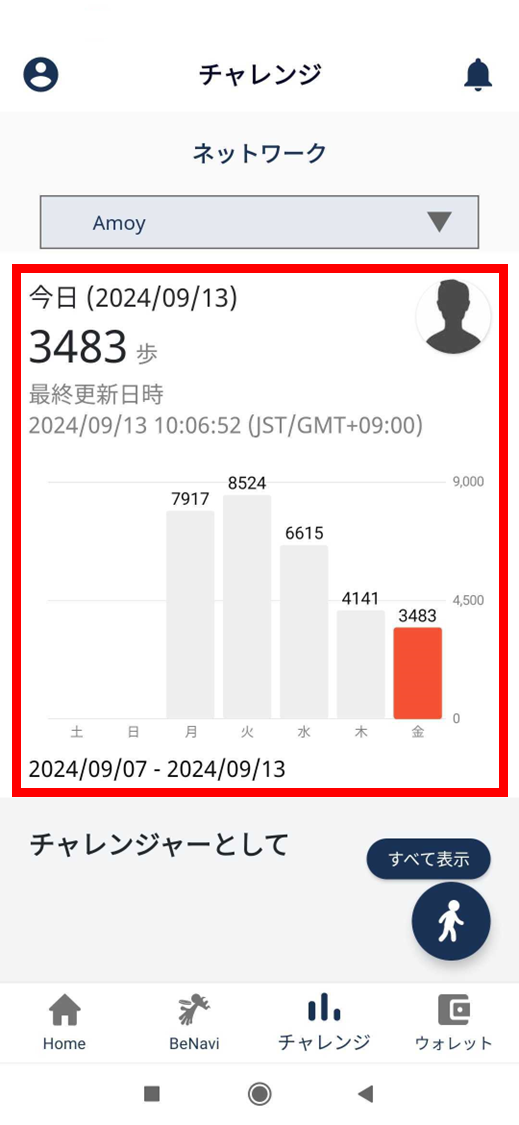
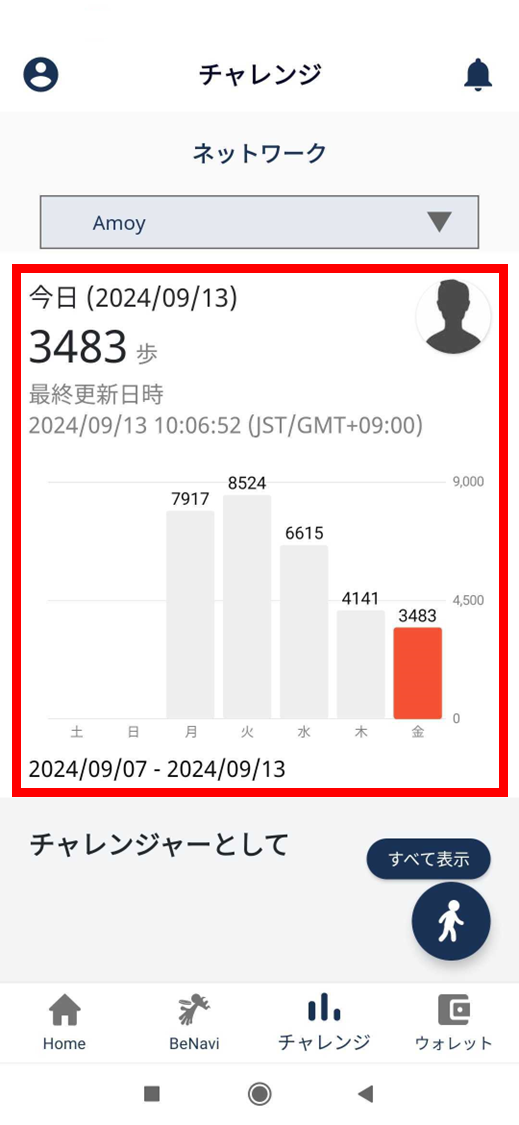
- Once physical-activity data linkage is complete, your steps appear on the challenge screen.
Health Connect
💡 Note: there can be a sync lag for steps. If steps aren’t syncing, try:
- Open Google Fit.
- Close the ESPL app and restart your device.
- Install “Google Fit” and “Health Connect”.
On Android, health-data recording is moving from “Google Fit” to Google’s “Health Connect”. To keep recording health data, update the ESPL app to the latest version, then follow the steps below.
■ Install Google Fit
Google Fit: Activity Tracking — Apps on Google Play
■ Install Health Connect
Health Connect — Apps on Google Play
2. Link Health Connect with Google Fit
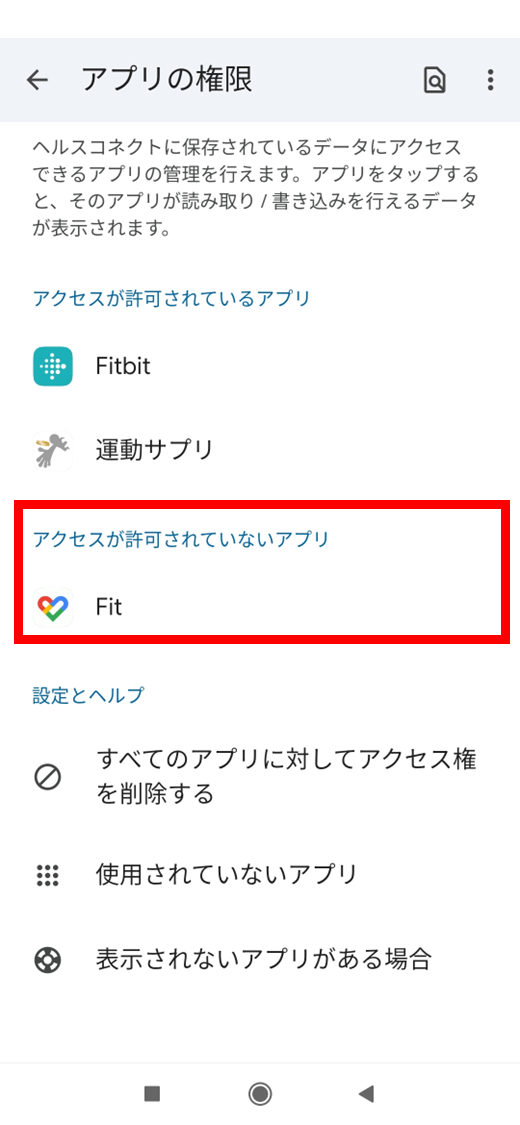
2-1. Open Health Connect and tap “App permissions”.
As of December 2023, the Health Connect icon does not appear on the home screen. To open it, either tap “Open” on the Play Store page, or launch it from the app list in your phone’s Settings.
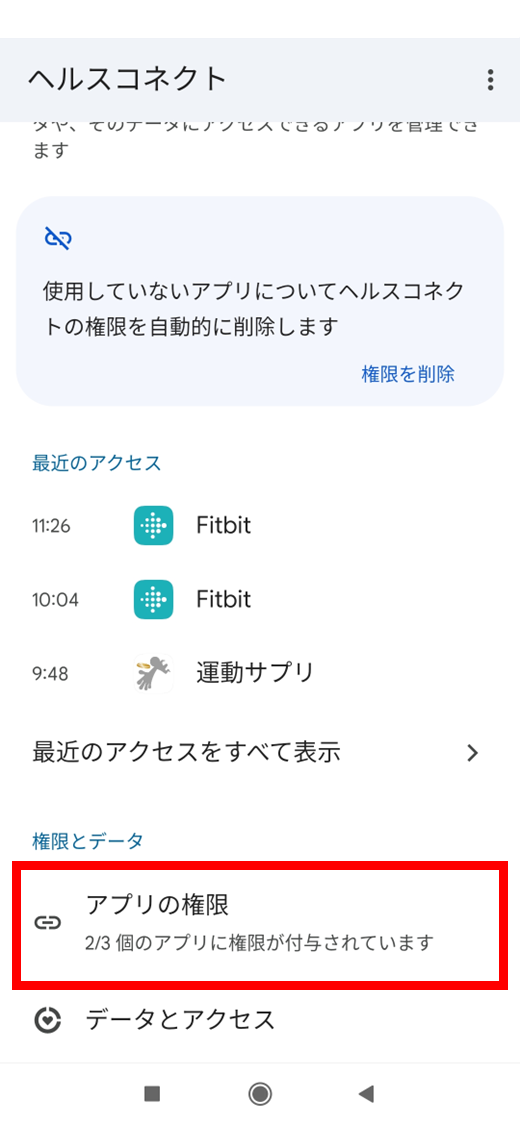
2-2. Under the list of apps without access, tap “Fit”.
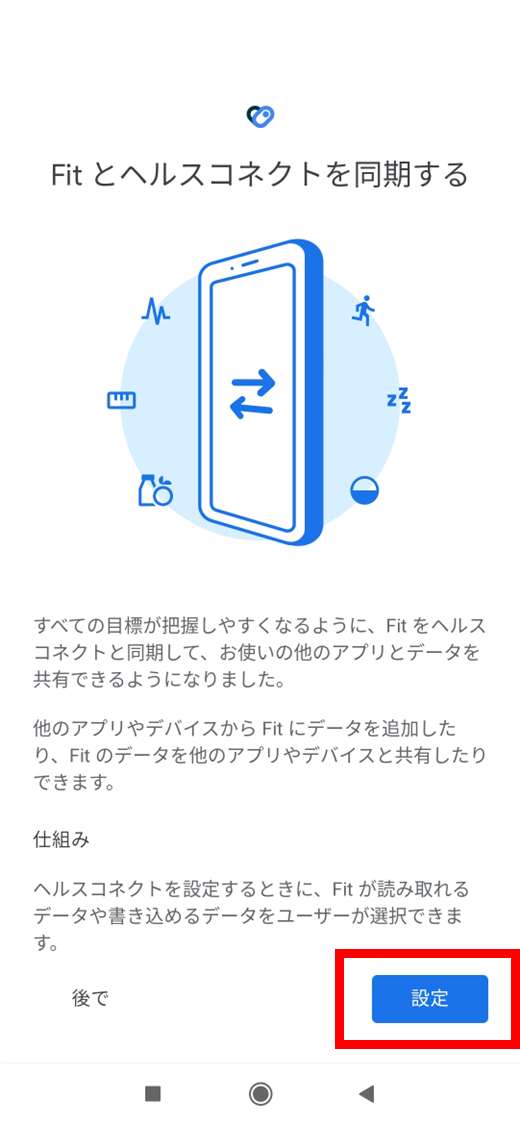
2-3. Tap “Settings”.
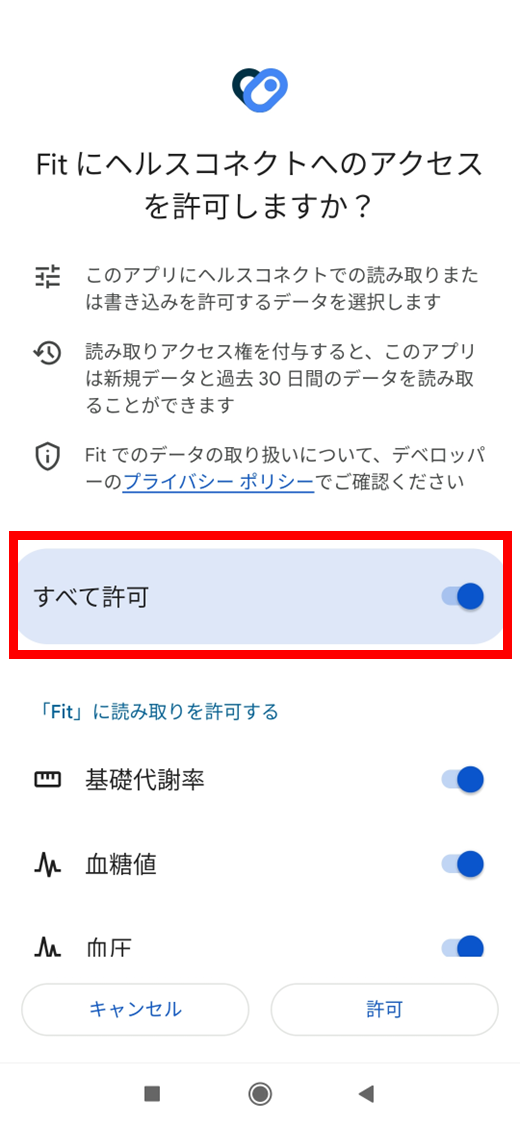
2-4. Tap “Allow all”.
2-5. Tap “Allow”.
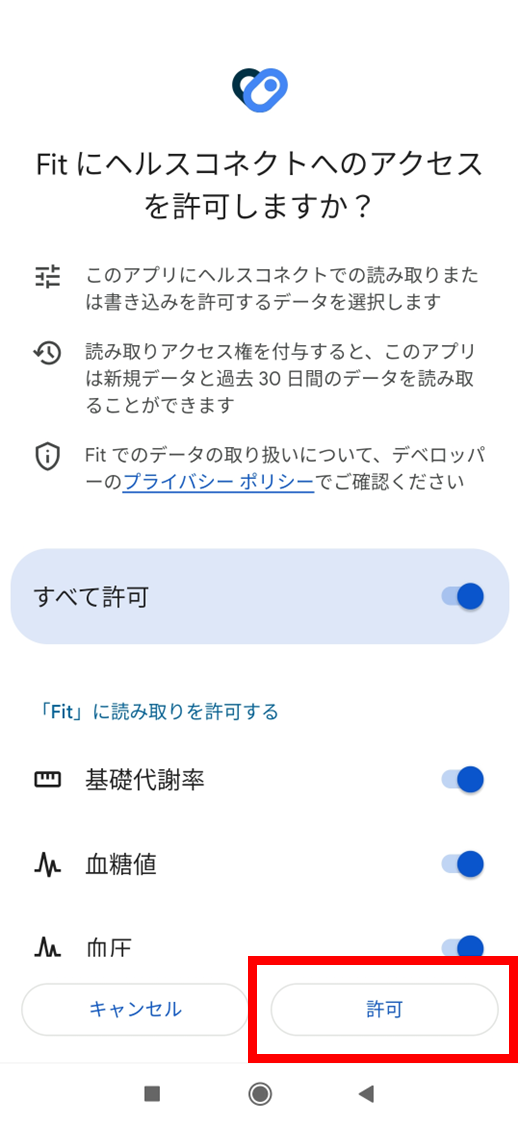
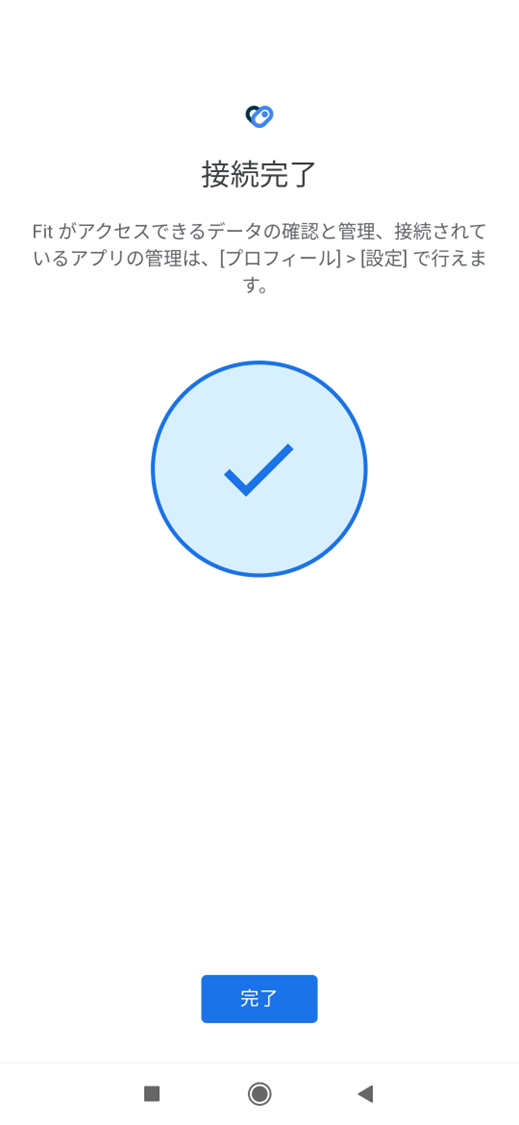
2-6. Health Connect and Google Fit are now linked.
- Link Health Connect with ESPL
When you start ESPL, the Health Connect linkage screen opens automatically.
If it doesn’t appear, log out and log back in.
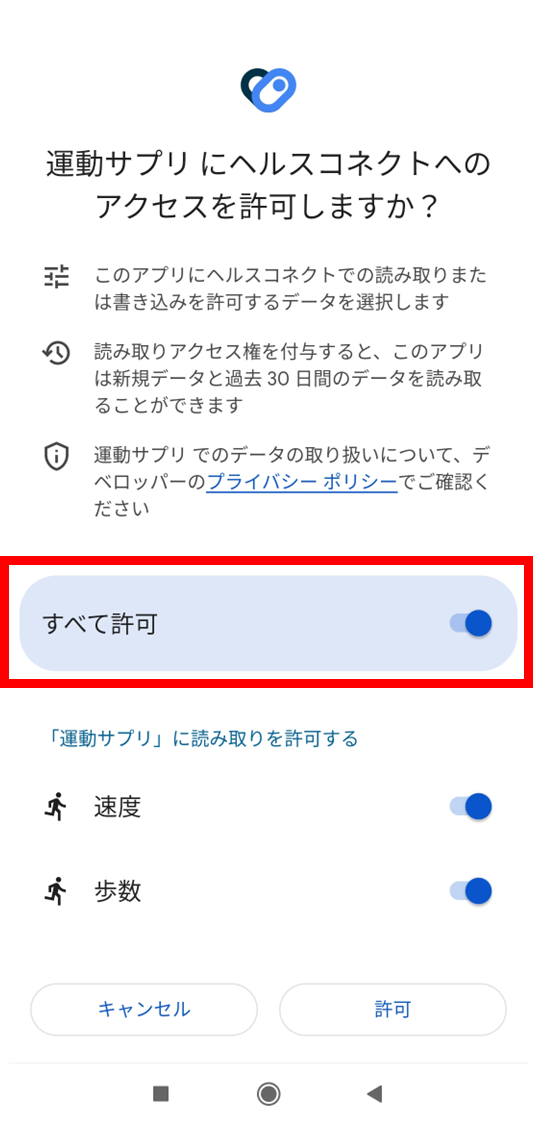
3-1. Tap “Allow all”.
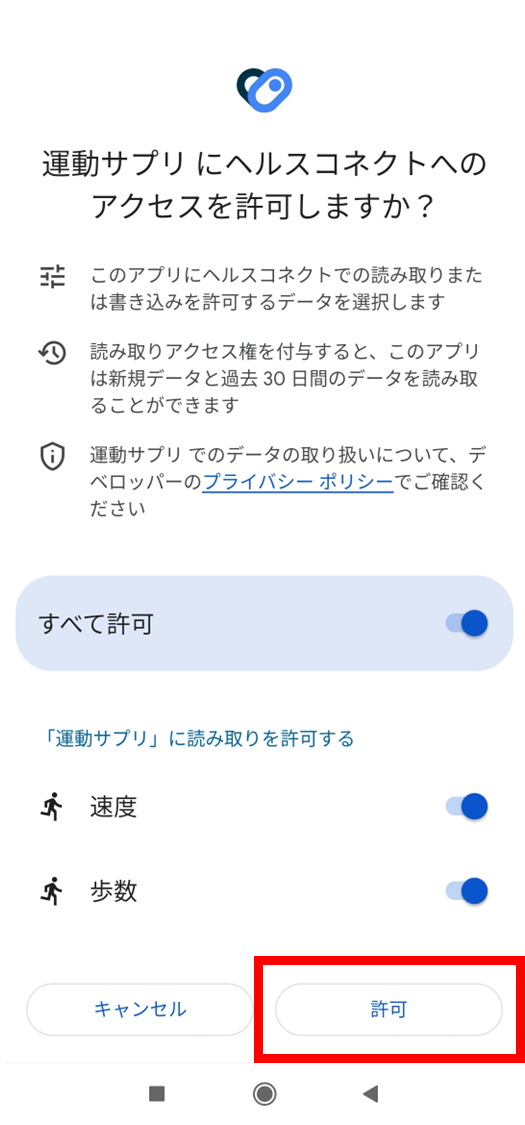
3-2. Tap “Allow”.
3-3. Once everything is linked, your steps appear on the challenge screen.