Help / setup
Sign-up and login
1. Tap [Log in / Sign up].
Sign-up
1. Tap “Log in / Sign up”.
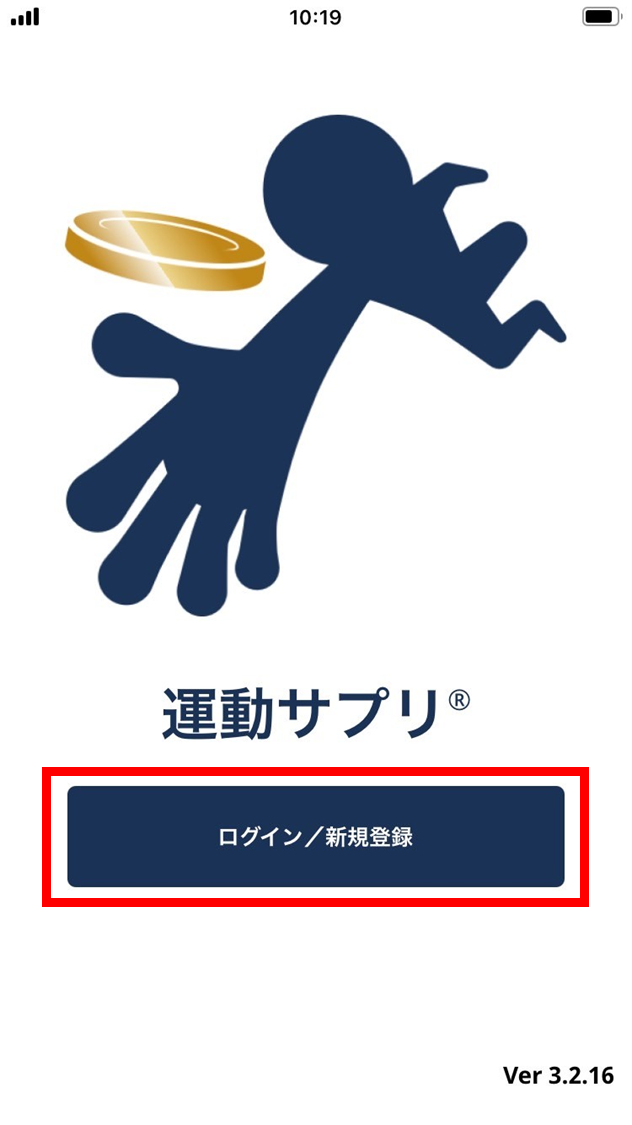
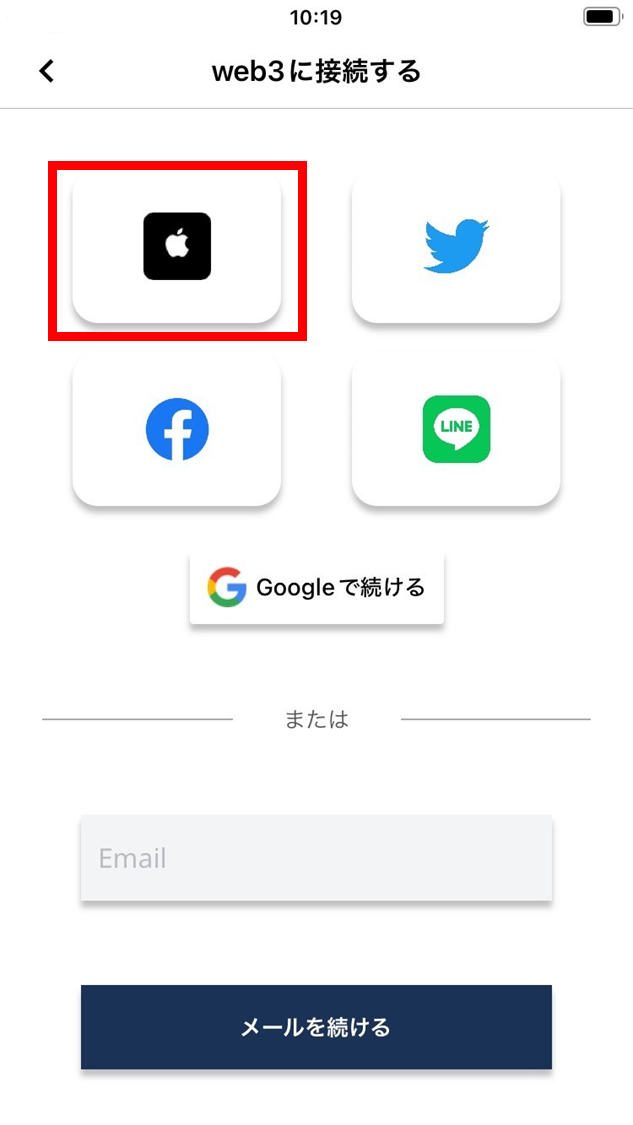
- Choose a sign-up method.
- You can log in with any of these accounts:
- Apple Account
- Discord
- GitHub
◆ Signing up with an email address
2-1. Enter your email address.
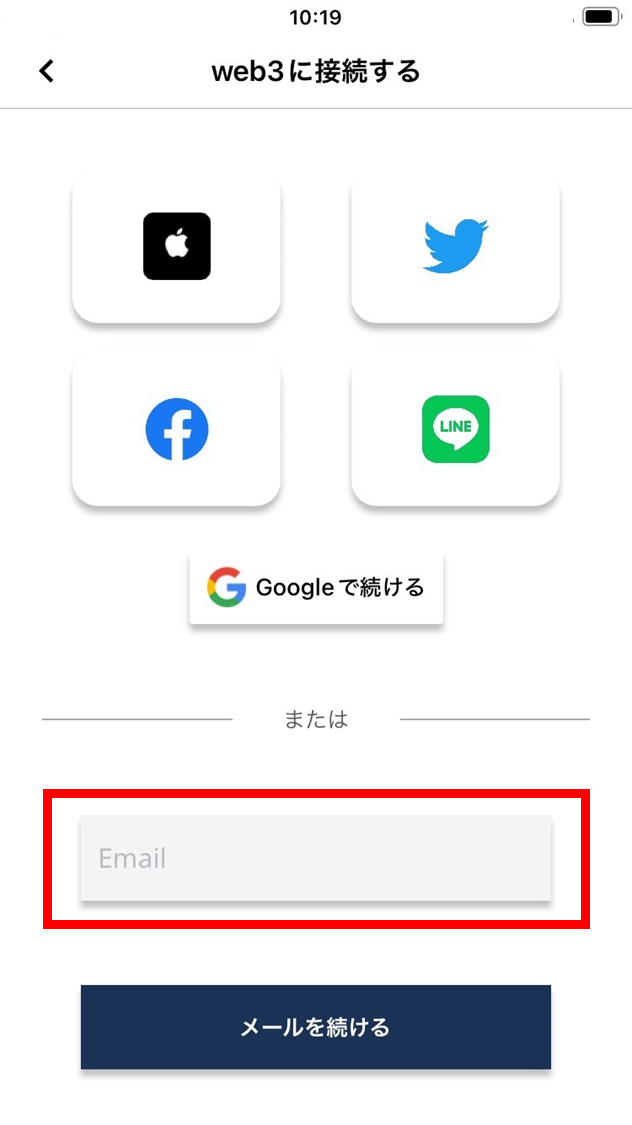
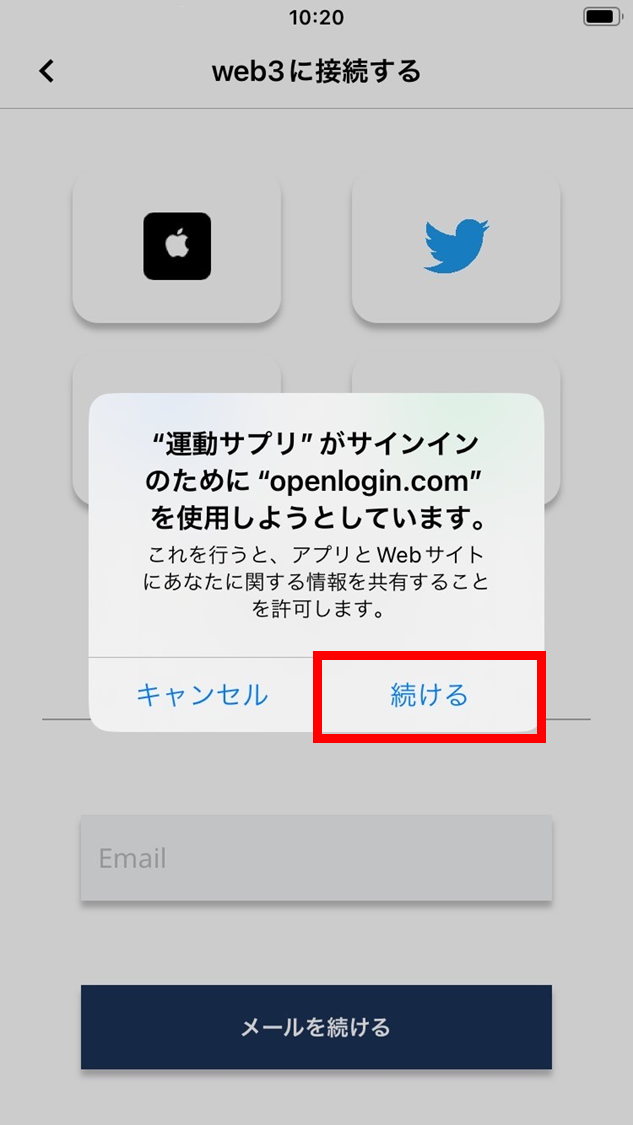
2-2. Tap “Continue”.
Allow ESPL to use openlogin.com for sign-in.
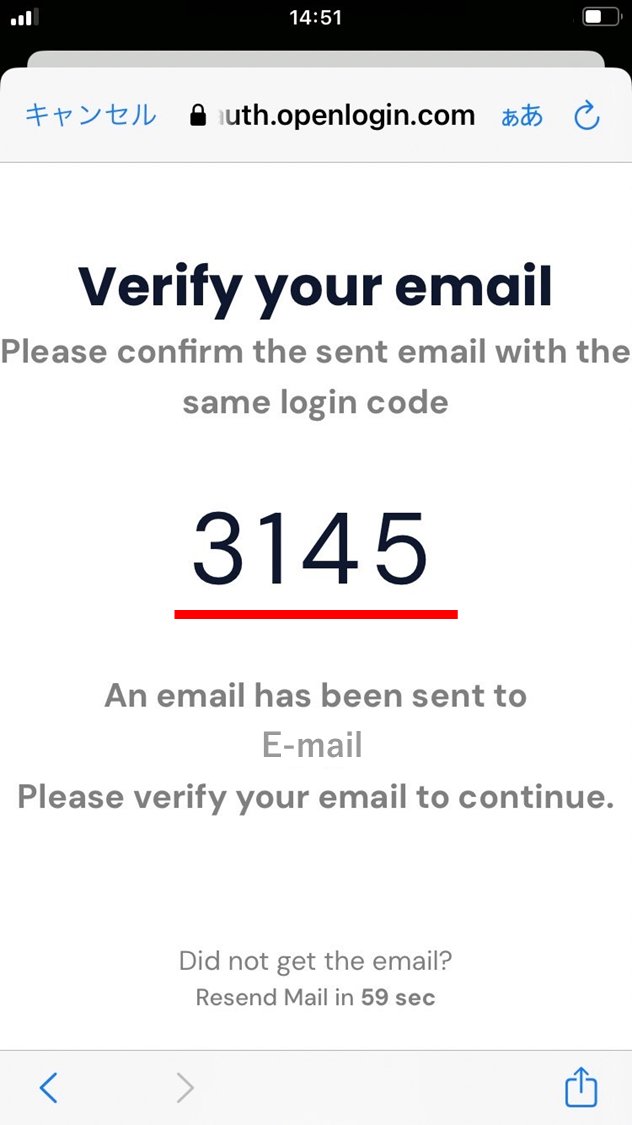
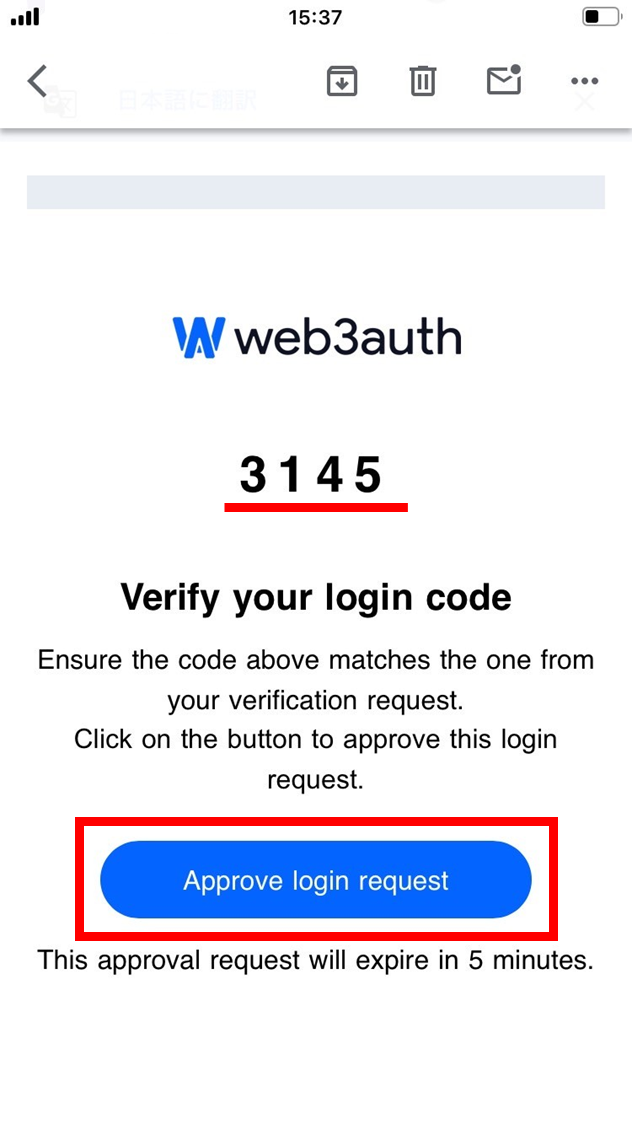
2-3. Verify your identity. A number is shown in Web3auth. The same number is sent to your registered email. Confirm that the number shown in Web3auth matches the one in the email, then tap “Approve login request”.
◆ Signing up with Google
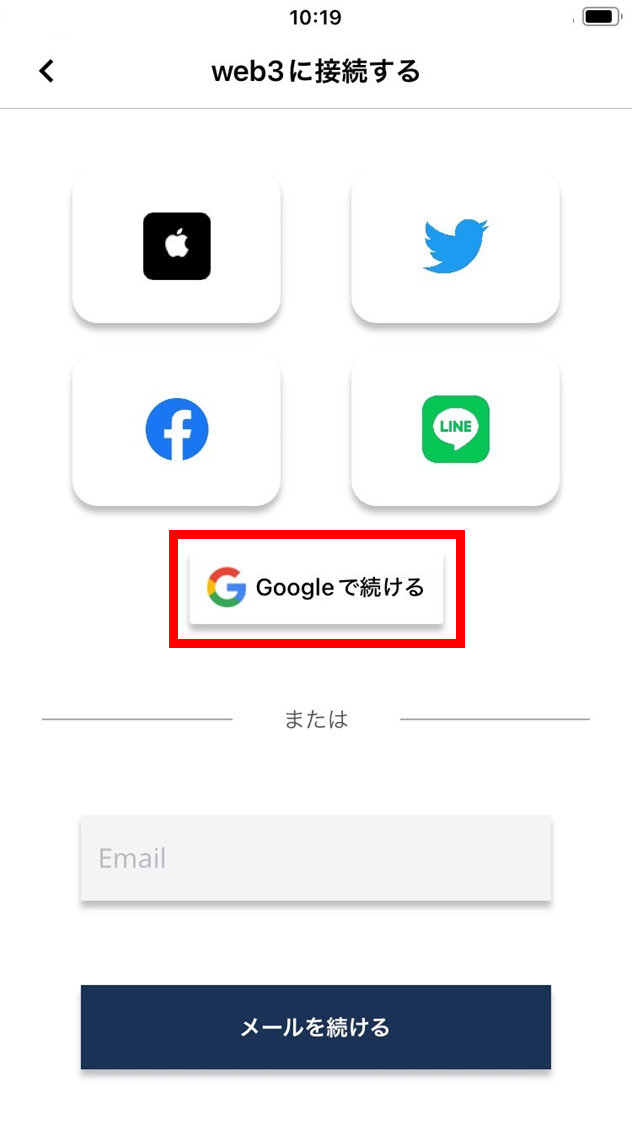
2-1. Tap “Continue with Google”.
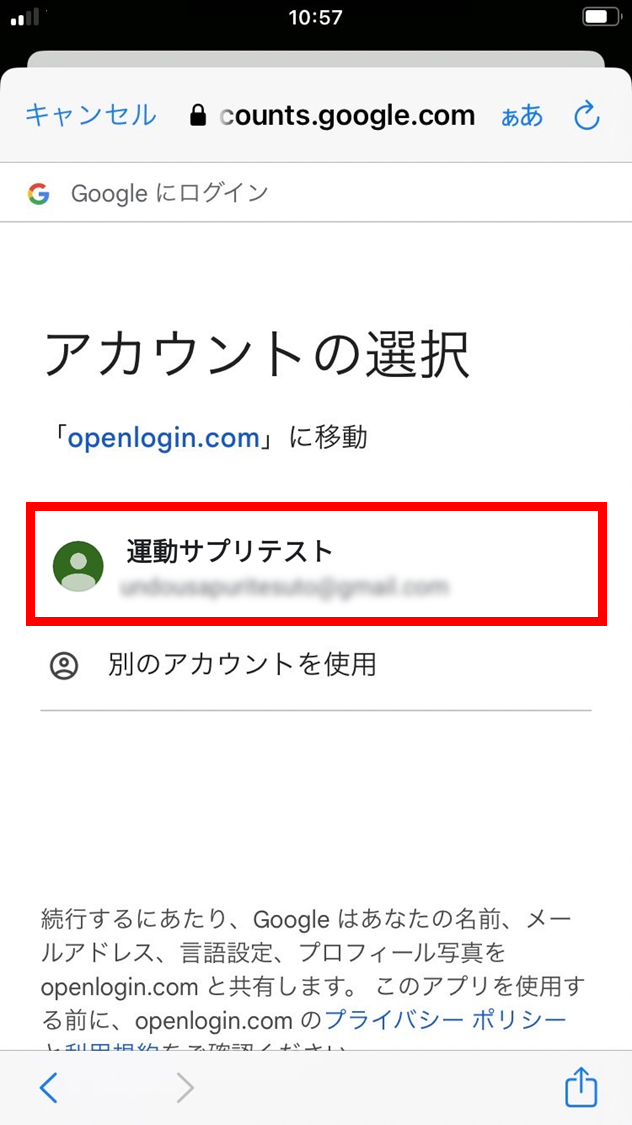
2-2. Tap your account.
2-3. Tap “Next”.
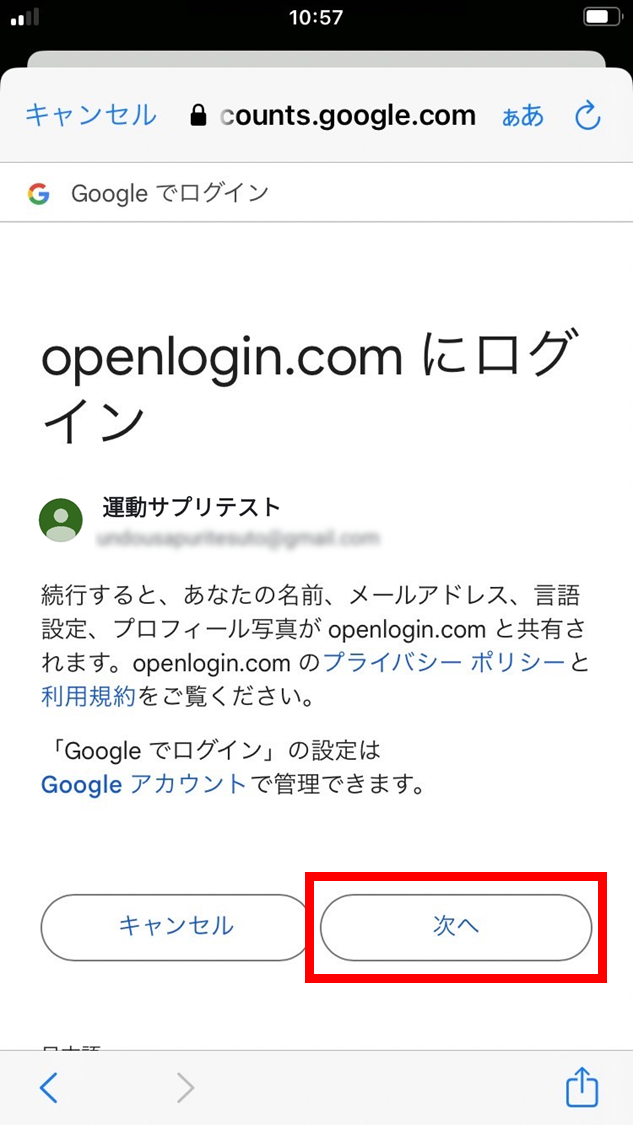
◆ Signing up with an Apple Account
2-1. Tap the “Apple ID” logo.
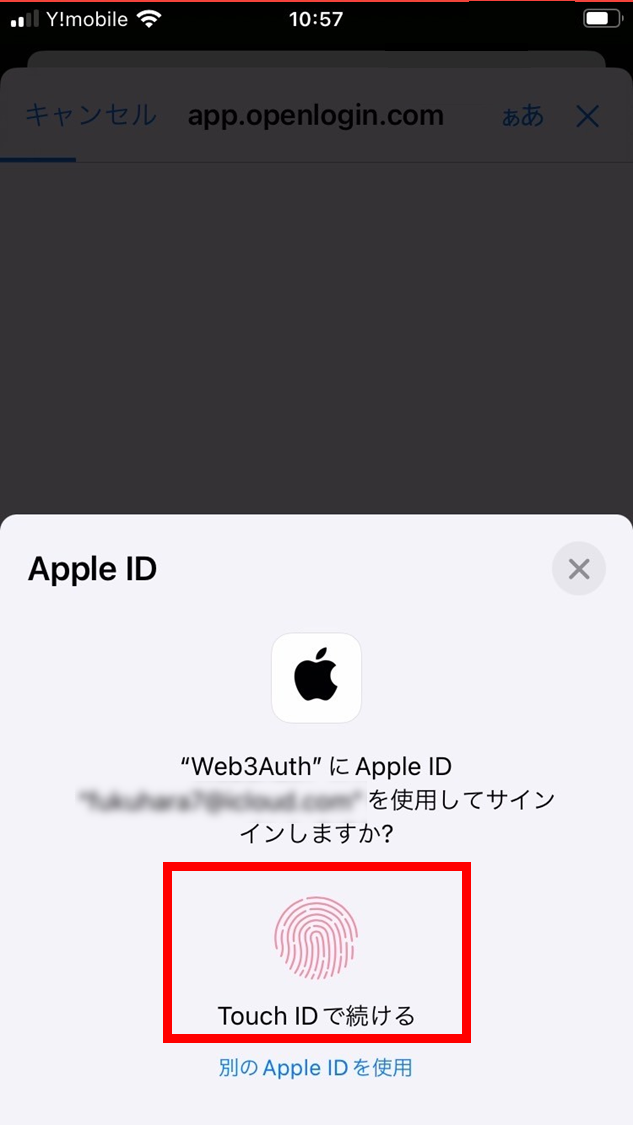
2-2. Authenticate your Apple ID.
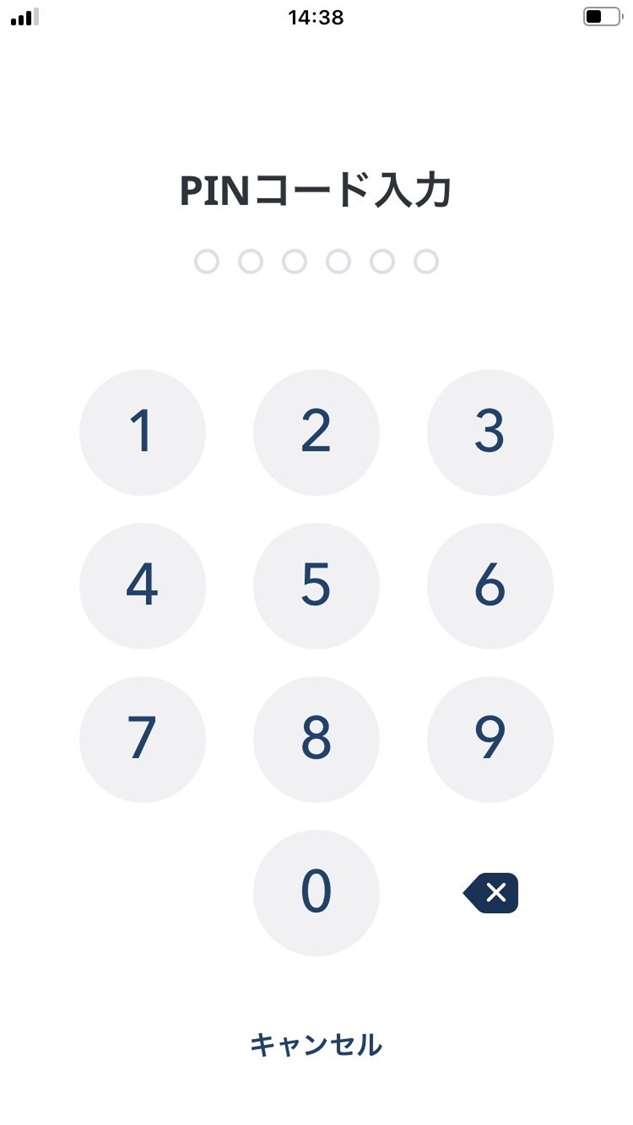
- Enter a 6-digit number to create a PIN code. Enter it twice for confirmation.
The PIN is for added security.
You’ll also be asked for the PIN at challenge creation and similar moments — keep it where you won’t forget.
- Read the Terms of Use and the Privacy Policy, and if they’re fine, tap “Next”.
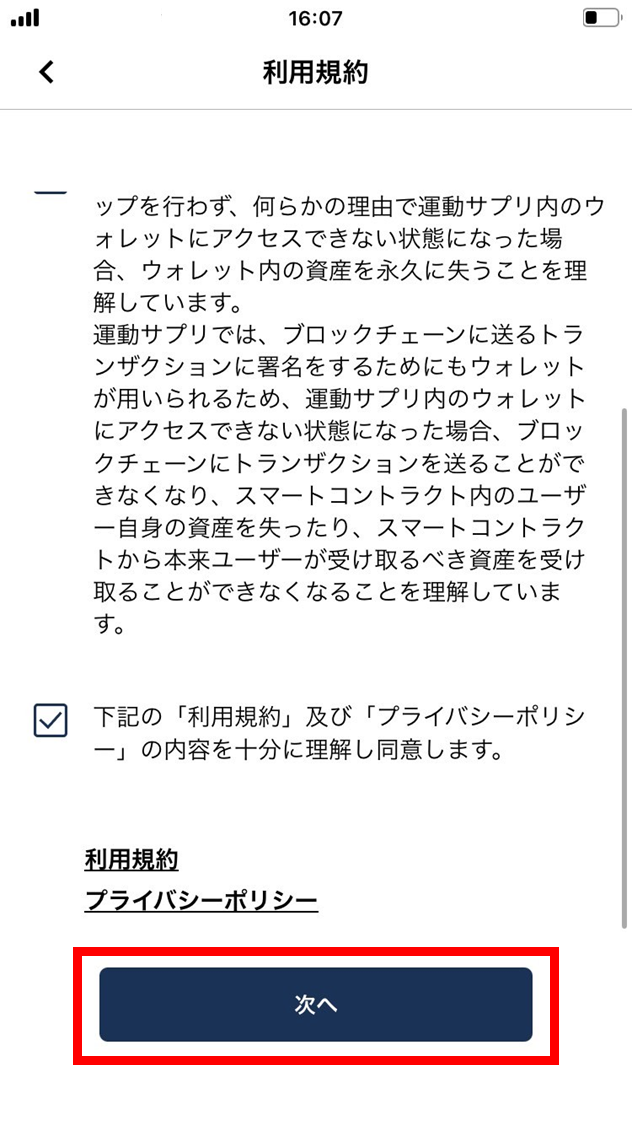
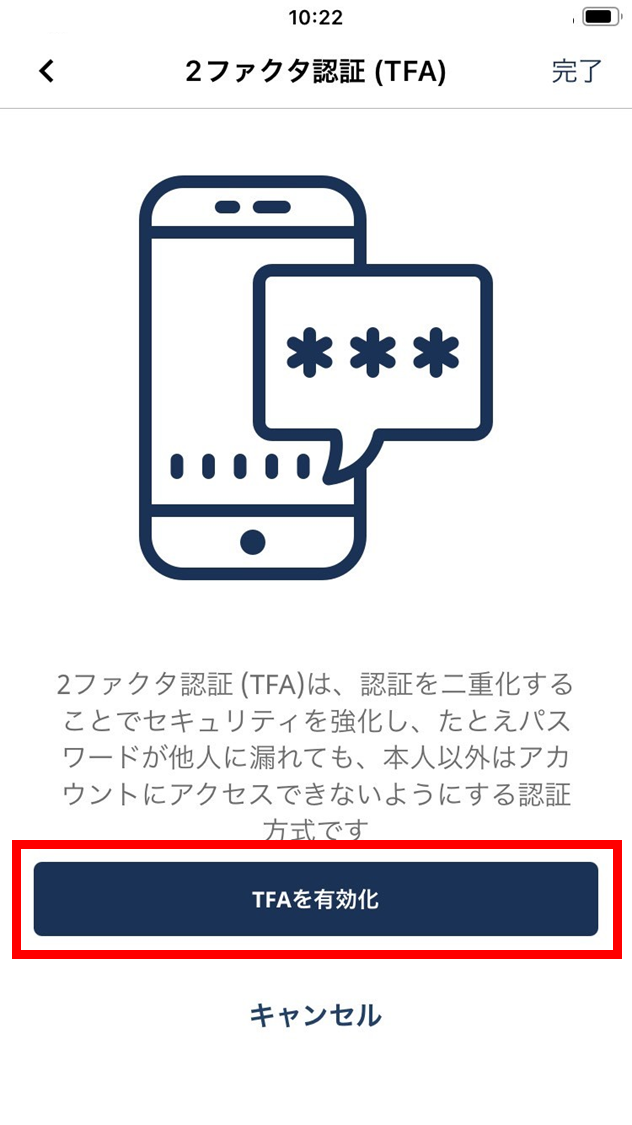
- Enable two-factor authentication (TFA).
Two-factor authentication adds a second verification step that strengthens security. Even if your password leaks, no one else can access your account.
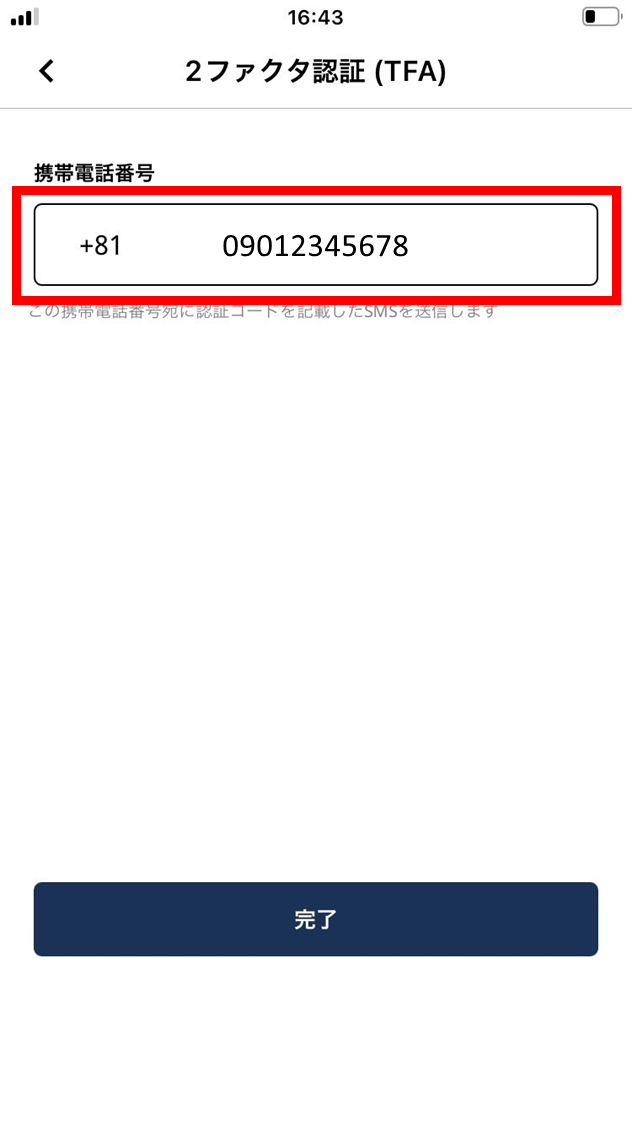
- Enter your mobile phone number.
A SMS with a verification code is sent to that number.
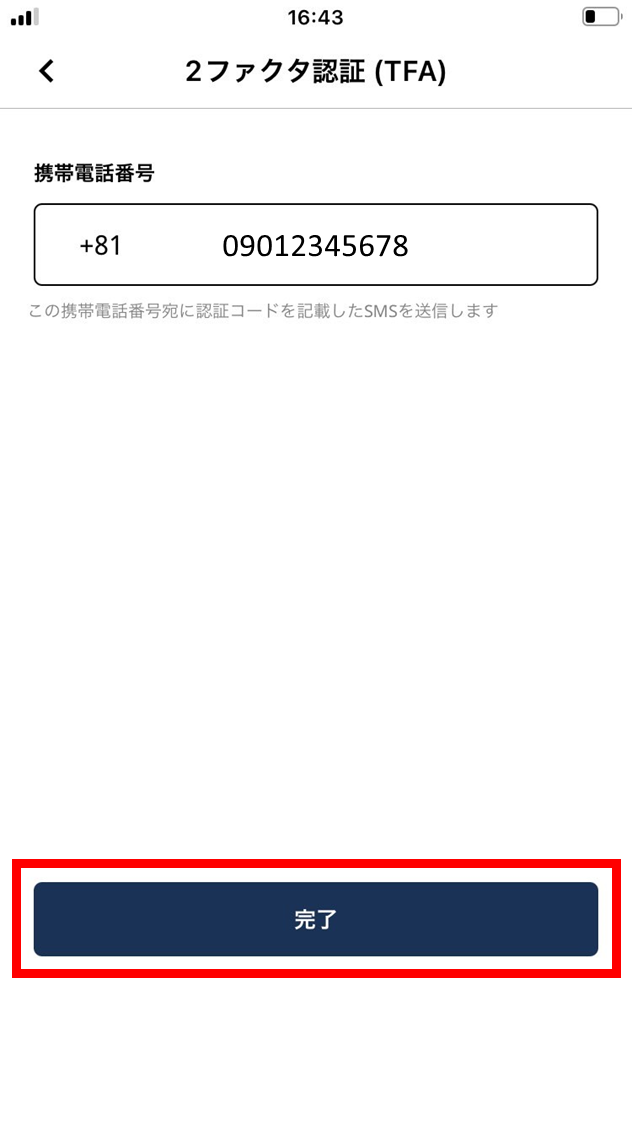
- Tap “Done”.
- A 6-digit verification code arrives by SMS to the number you registered — enter it.
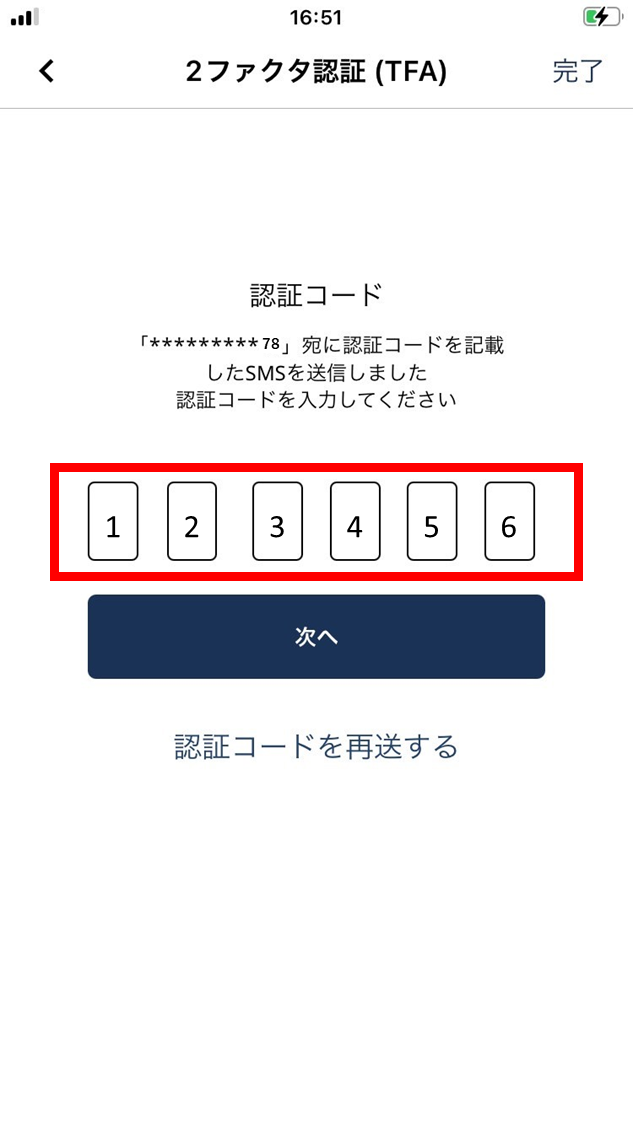
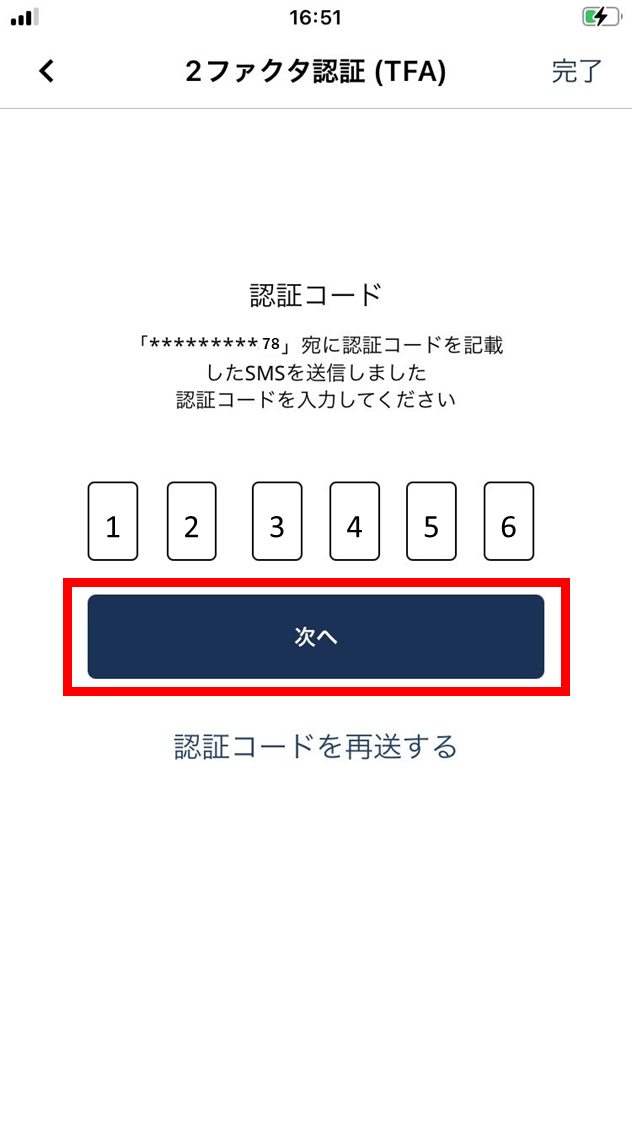
- Tap “Next”.
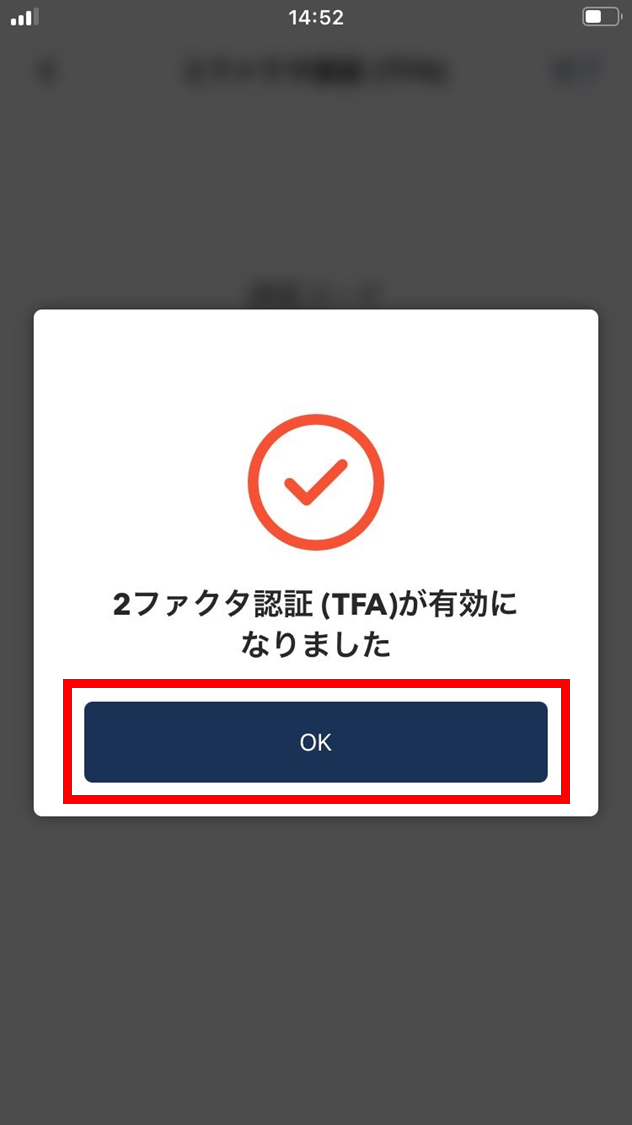
- Tap “OK”.
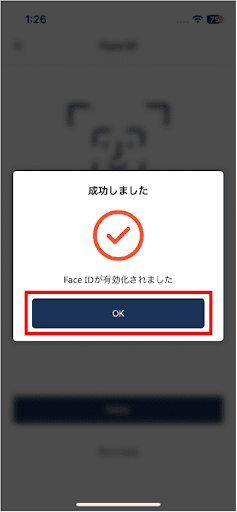
Two-factor authentication (TFA) is now enabled.
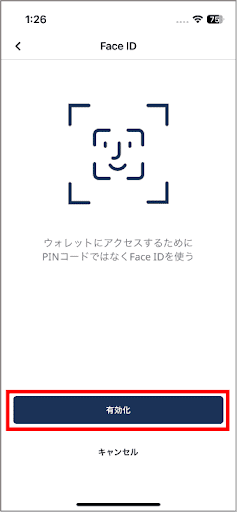
- Tap “Enable” for biometric authentication.
When you log in to the app, you’ll be asked for biometric authentication. (For this example we set it to Face ID.)
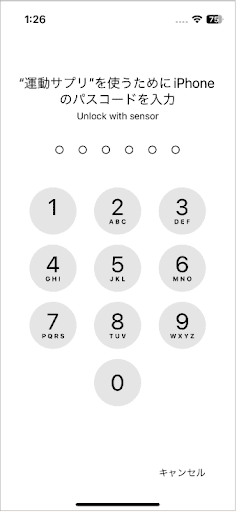
- Enter your iPhone passcode.
- Tap “OK”.
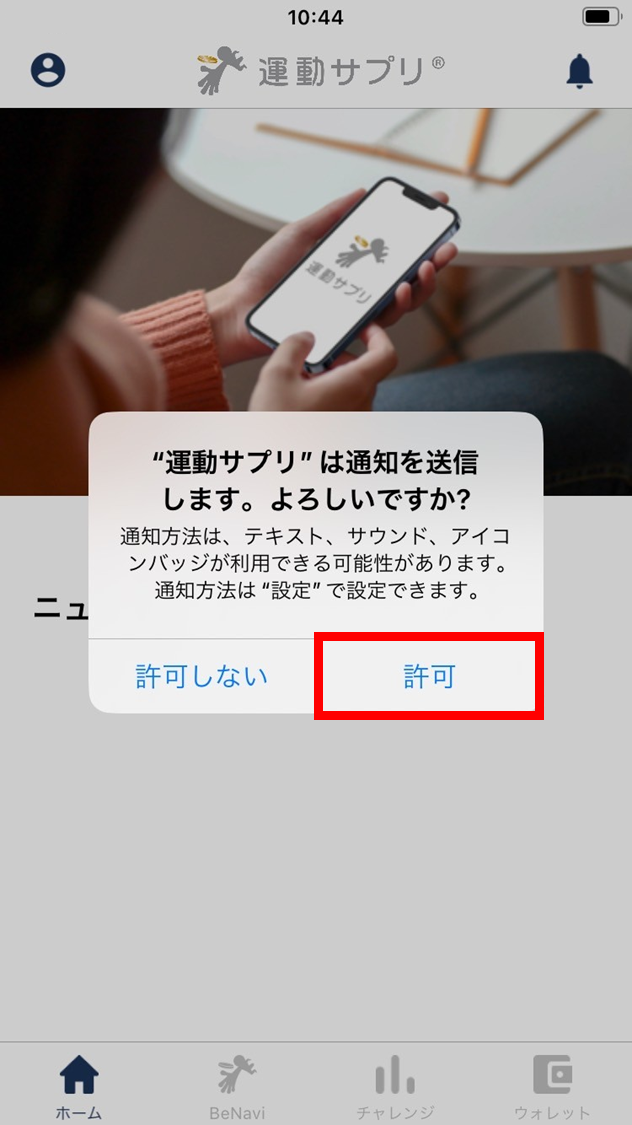
- For push notifications, tap “Allow”.
- Choose whether to allow push notifications from ESPL.
- When allowed, notifications appear on your phone’s home screen.
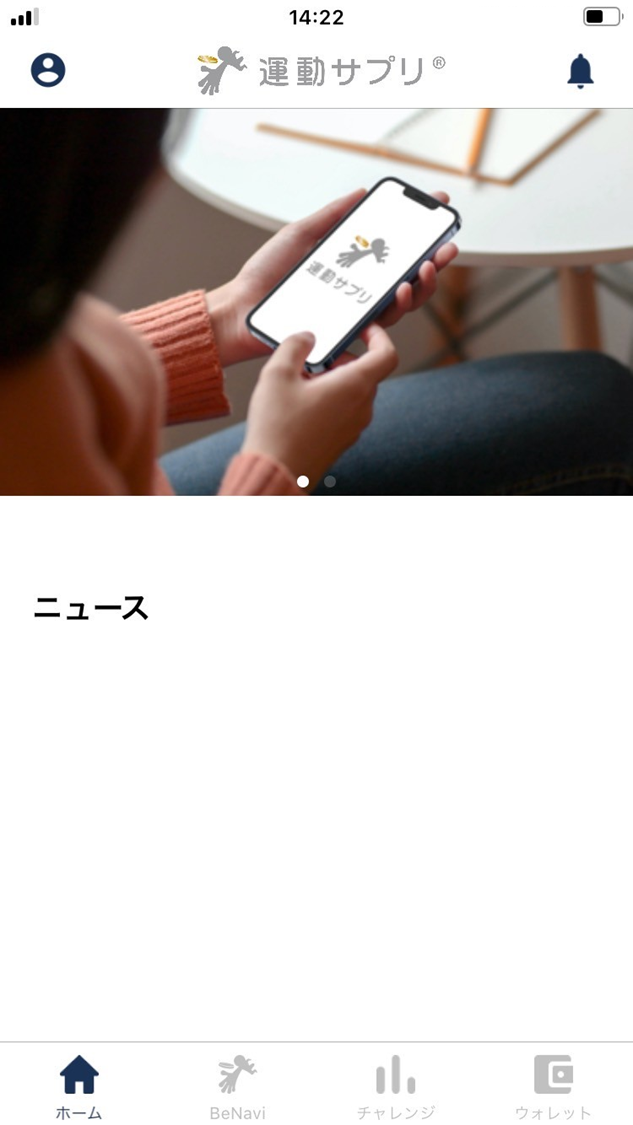
- Sign-up is complete.
Health-app linkage (iOS)
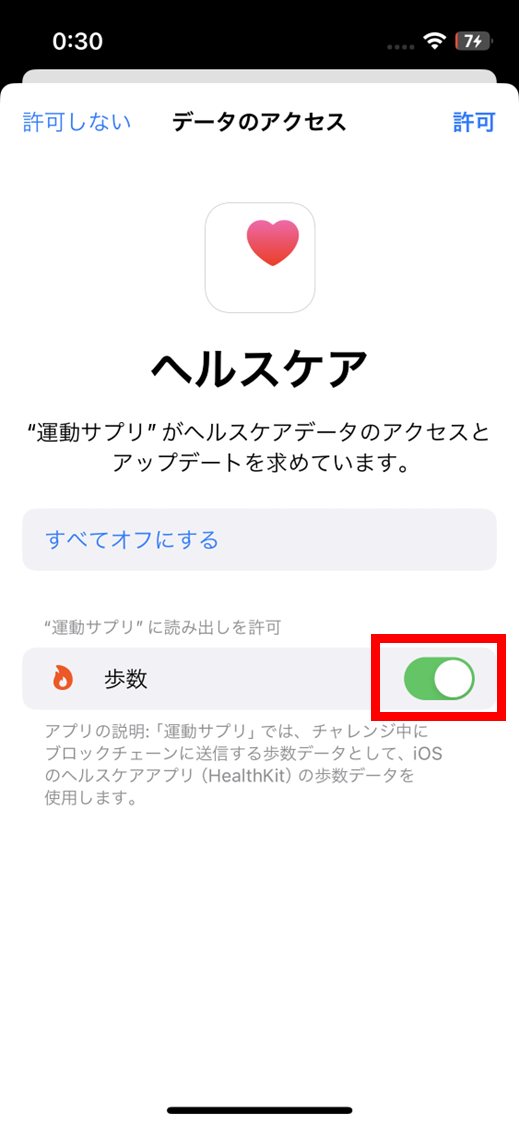
After you sign up for ESPL, the Health linkage screen opens automatically.
- Enable steps in the Health app.
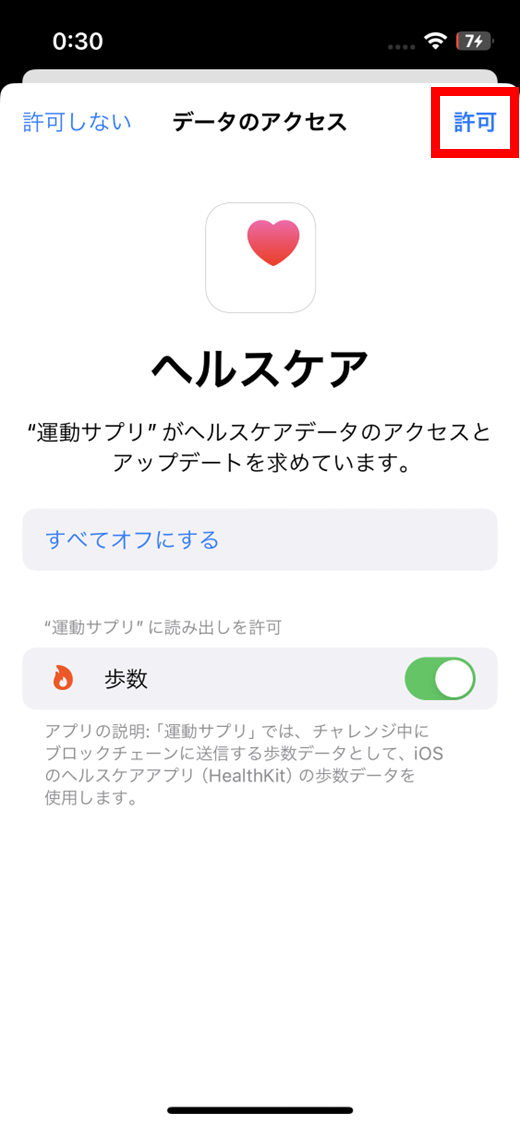
- Tap “Allow”.
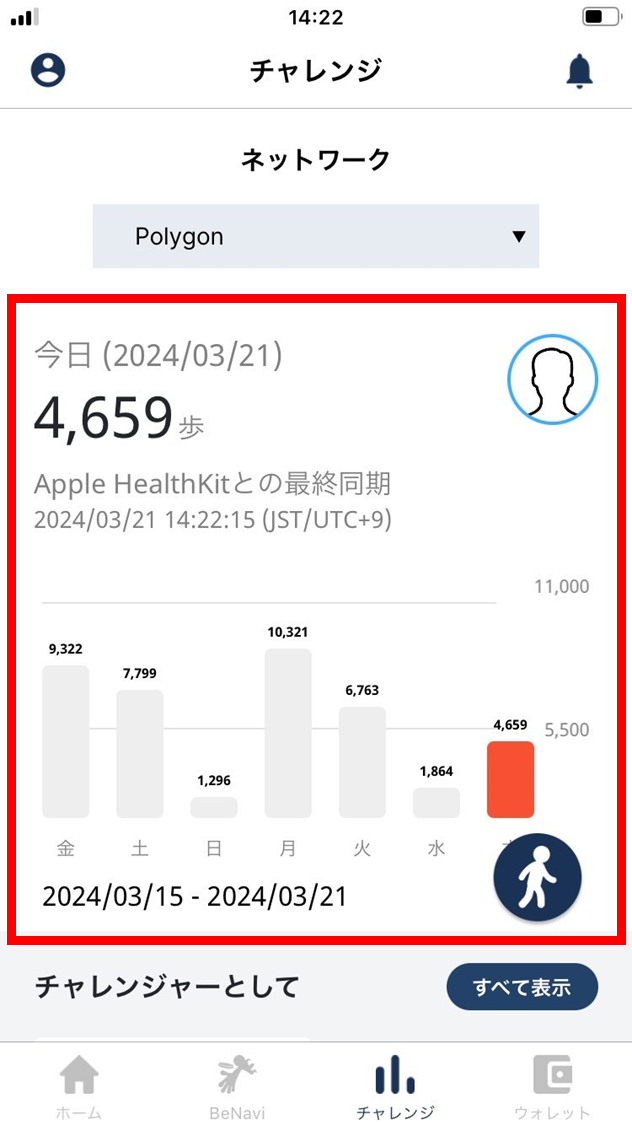
- Once Health linkage is complete, your steps appear on the challenge screen.
Physical-activity data linkage (Android)
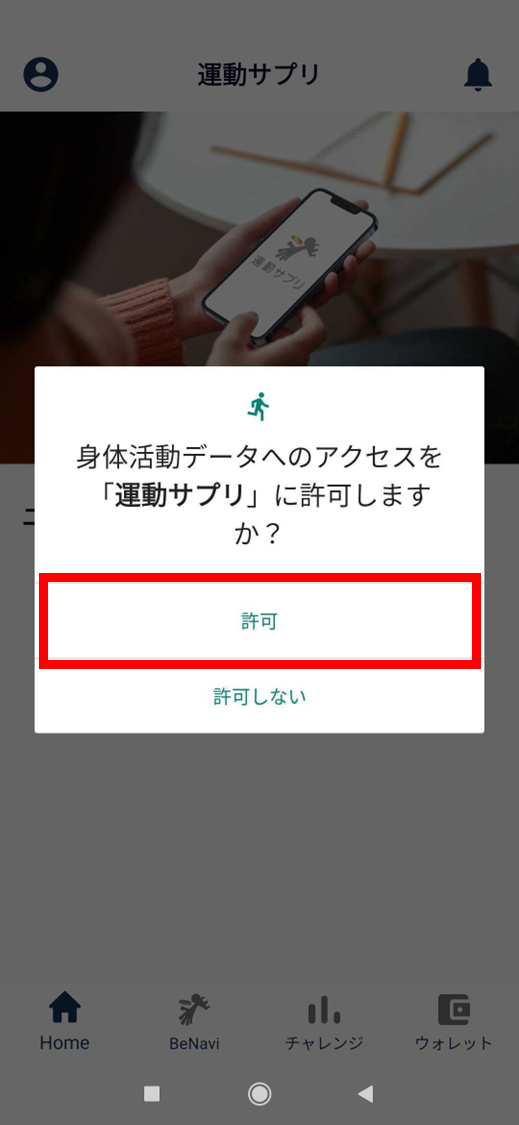
After you sign up for ESPL, the physical-activity data linkage screen opens automatically.
- Allow access to physical-activity data.
- Once physical-activity data linkage is complete, your steps appear on the challenge screen.
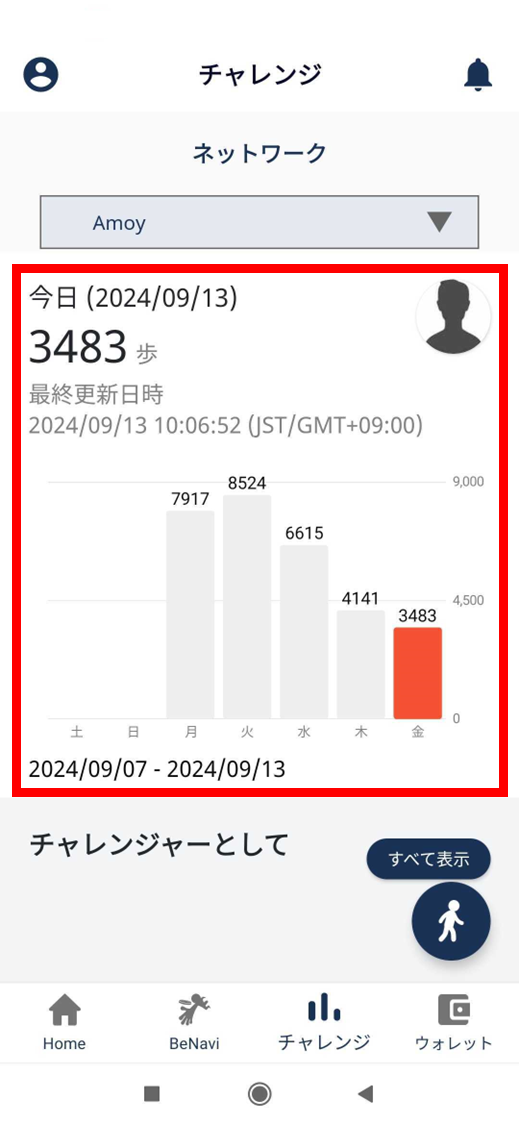
Health Connect (Android)
On Android, health-data recording is moving from “Google Fit” to Google’s “Health Connect”.
To keep recording health data, update the ESPL app to the latest version, then follow the steps below.
💡 Note: there can be a sync lag for steps. If steps aren’t syncing, try:
- Open Google Fit.
- Close the ESPL app and restart your device.
- Install “Google Fit” and “Health Connect”.
■ Install Google Fit
Google Fit: Activity Tracking — Apps on Google Play
■ Install Health Connect
Health Connect — Apps on Google Play
2. Link Health Connect with Google Fit
2-1. Open Health Connect and tap “App permissions”.
As of December 2023, the Health Connect icon does not appear on the home screen. To open it, either tap “Open” on the Play Store page, or launch it from the app list in your phone’s Settings.
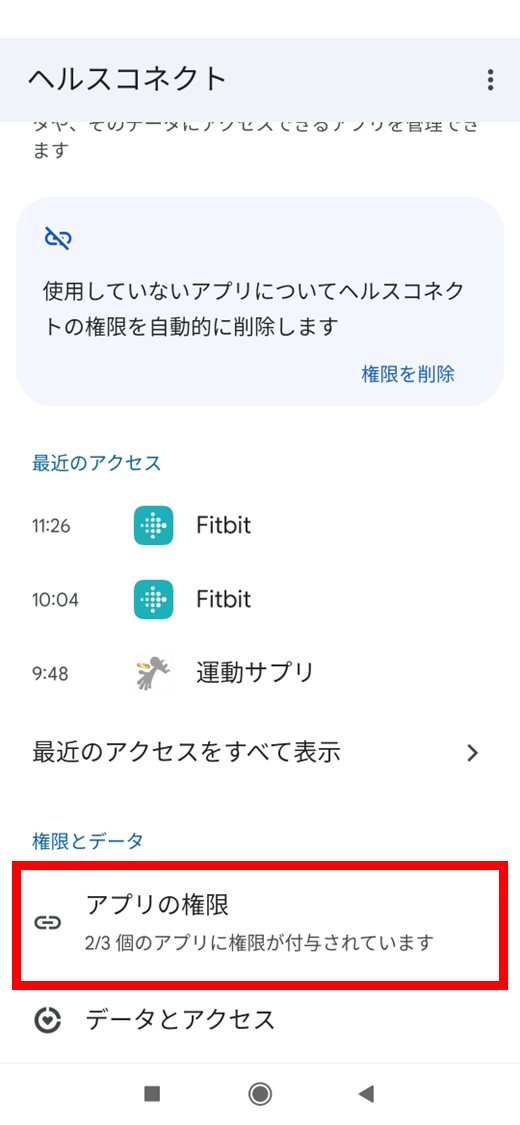
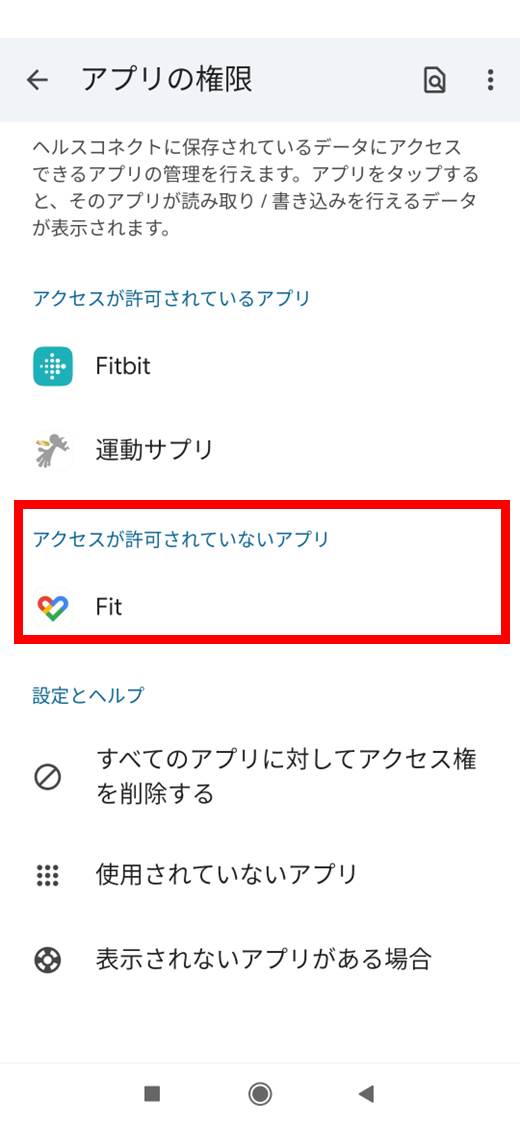
2-2. Under the list of apps without access, tap “Fit”.
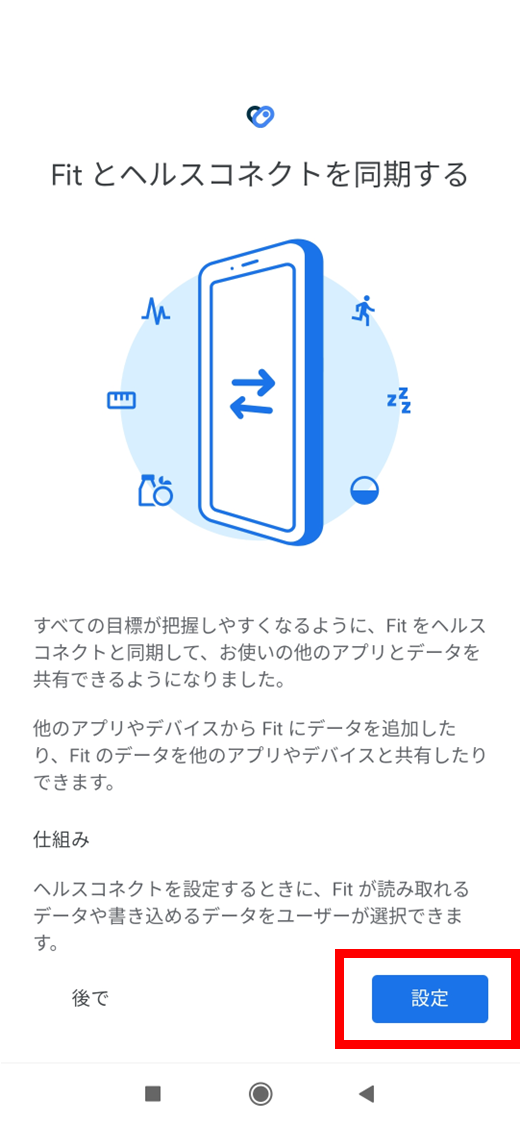
2-3. Tap “Settings”.
2-4. Tap “Allow all”.
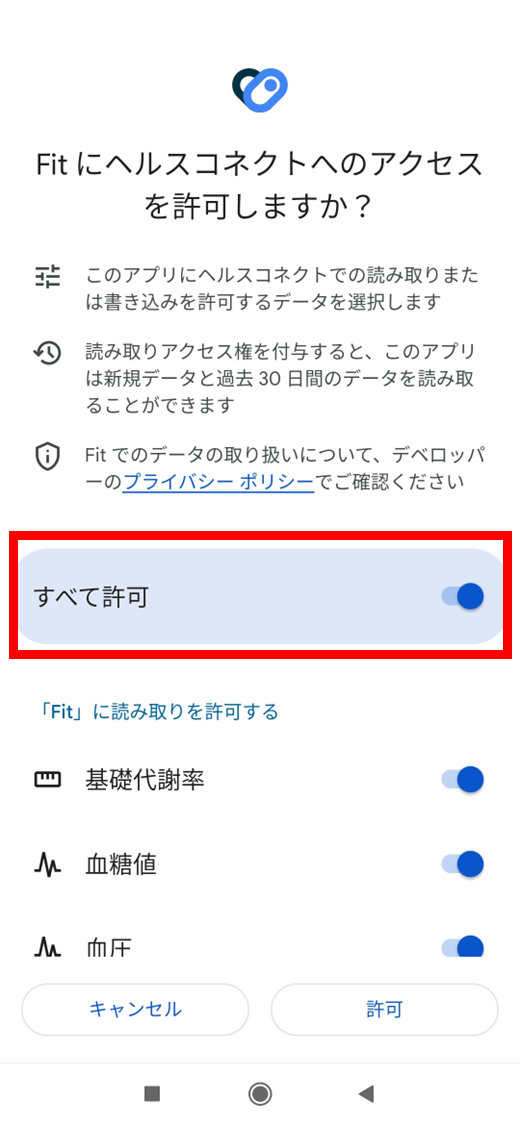
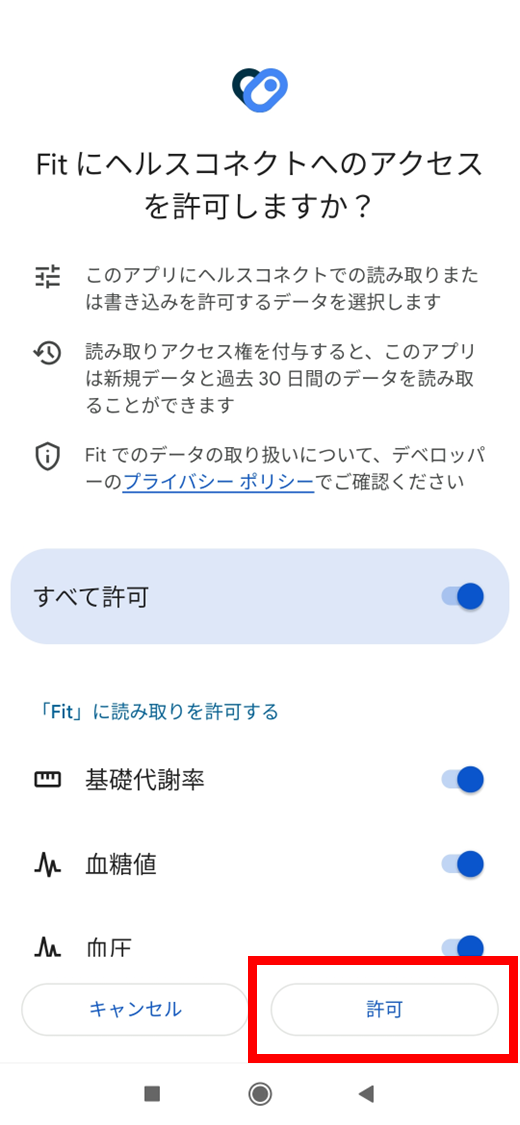
2-5. Tap “Allow”.
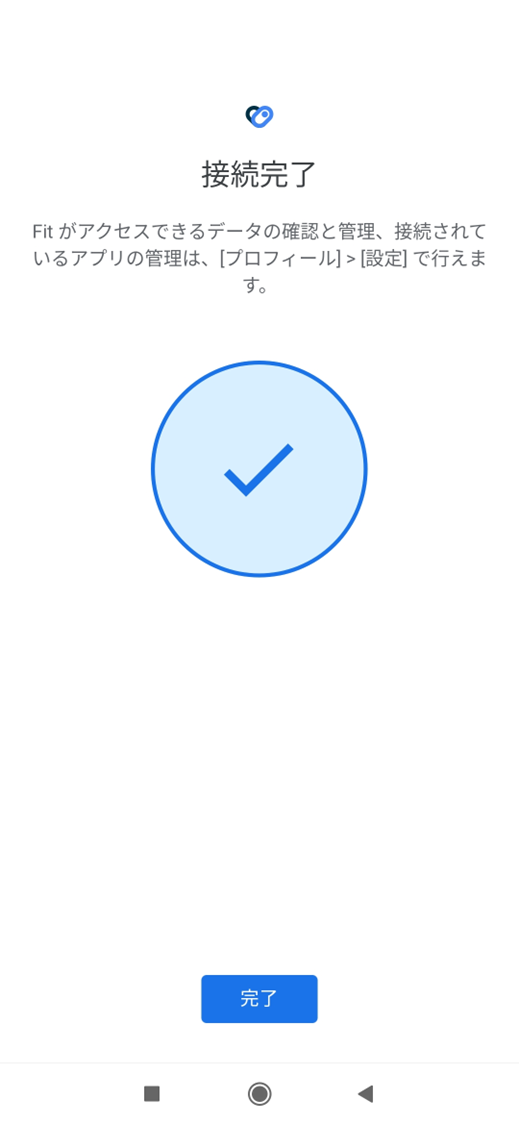
2-6. Health Connect and Google Fit are now linked.
- Link Health Connect with ESPL
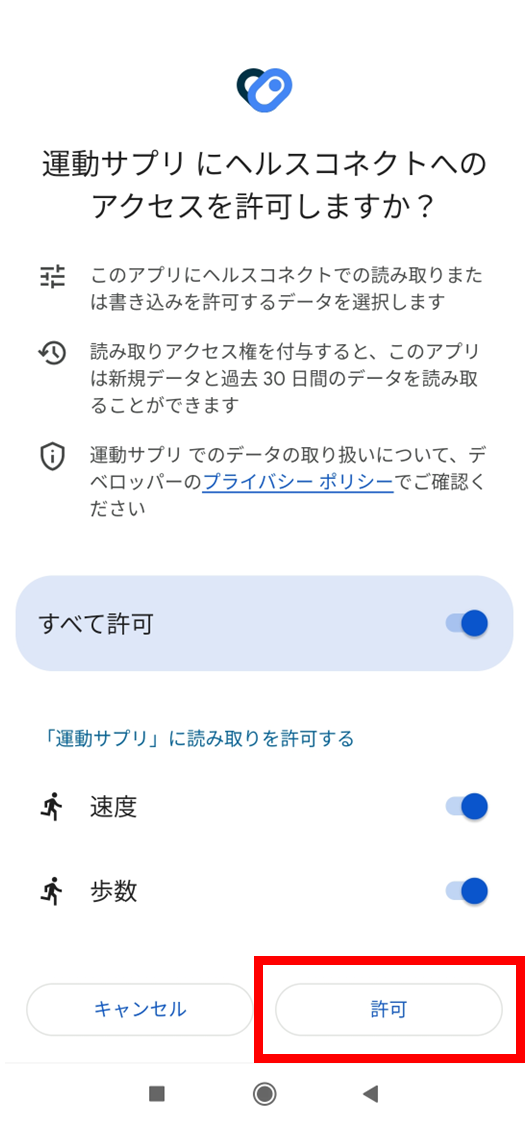
When you start ESPL, the Health Connect linkage screen opens automatically.
If it doesn’t appear, log out and log back in.
3-1. Tap “Allow all”.
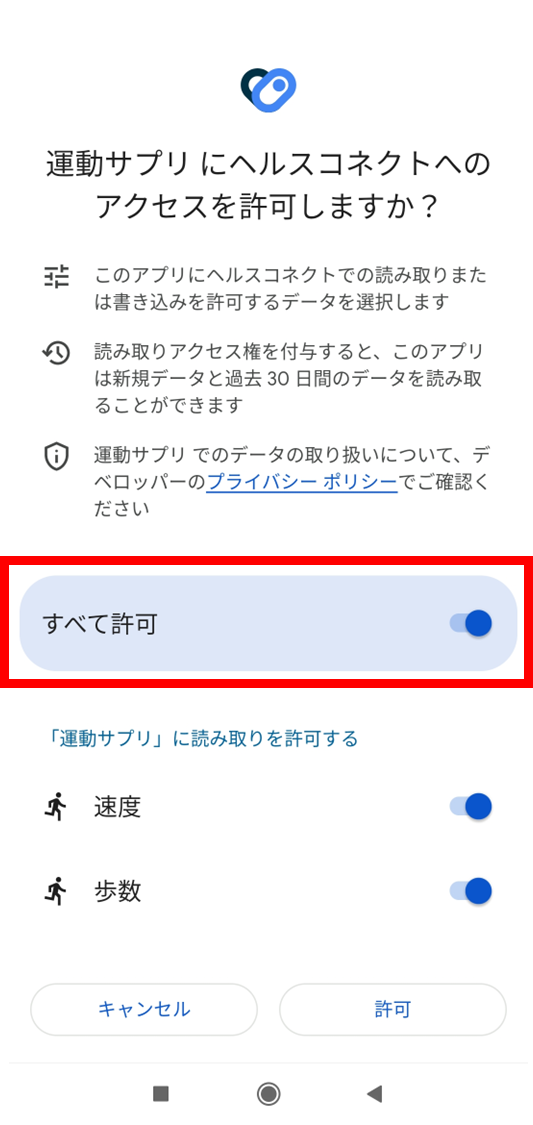
3-2. Tap “Allow”.