Help / overview
Before you start using ESPL
To track walking steps in the exercise app, you need to link it with your health app.
Linking the health app with ESPL
To track walking steps in ESPL, you need to link it with your phone’s health app.
Set up the health app
-
Step counting is done by your phone’s health app.
-
Make sure to carry the phone that has the health app installed when you walk.
-
Steps are counted automatically — there’s no need to enter them by hand.
-
On iPhone, the built-in Health app does the counting.
-
The iPhone Health app is at “Health” on the home screen.
-
After you enter your personal information and tap through, the Health app shows your steps.
-
Once the Health app is linked with ESPL, your daily steps are sent to ESPL automatically.
- From the home screen, tap “Health” and enter your personal information; your steps then show up.
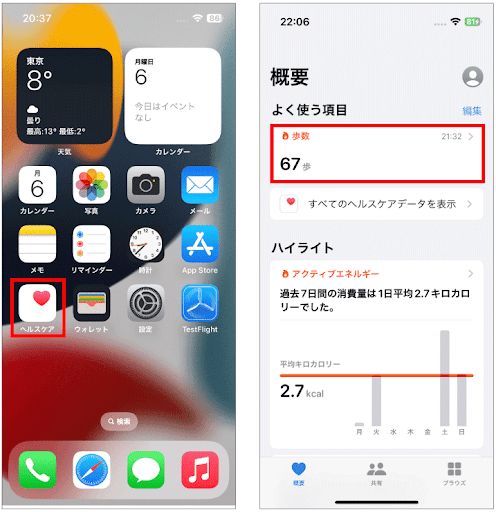
Linking the health app with ESPL
-
To count steps in the exercise app, you need to link it with your health app.
-
Even if the link is already in place, please confirm it before starting a challenge.
- From the home screen, tap “Settings”.

- Tap “Privacy & Security”.
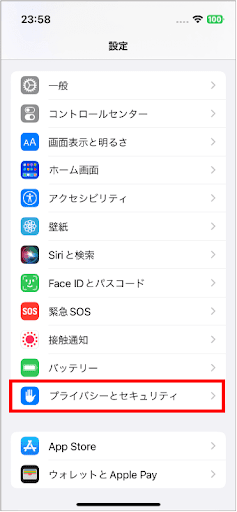
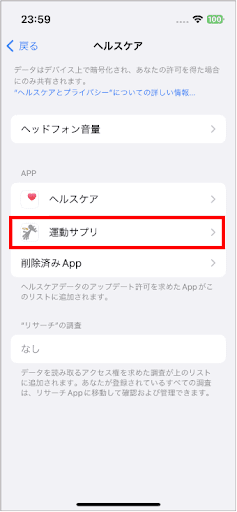
- Tap “ESPL”.
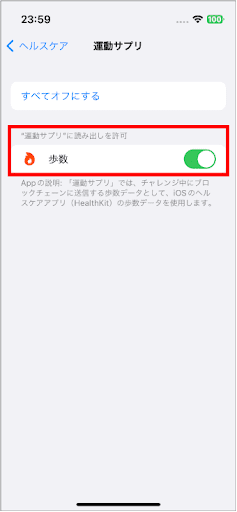
- Check that “Allow ESPL to read” is enabled.
If it’s not enabled, enable it.
Open an account with a crypto-asset exchange
Open an account with SBI VC Trade or BITPoint
Before you run a walking challenge, you need to open an account with the crypto-asset exchange SBI VC Trade or BITPOINT.
In ESPL, the commitment deposit is paid and received mainly in Polygon (POL). In Japan, POL can be purchased at several crypto-asset exchanges, including SBI VC Trade and BITPoint (check each exchange for current availability).
Note: Polygon’s gas currency was renamed from MATIC to POL in 2024. Some screenshots on this page may still show the old MATIC label, but current exchanges and wallets display POL.
Open an account with either one.
Install the SBI VC Trade app
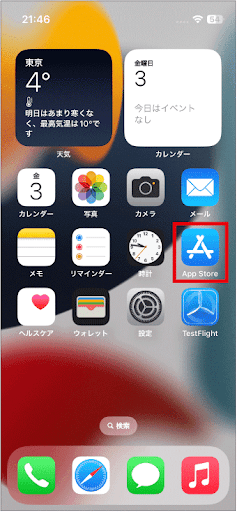
From the home screen, tap “App Store”.
Search for “SBI VC Trade”.
Install “SBI VC Trade mobile”.
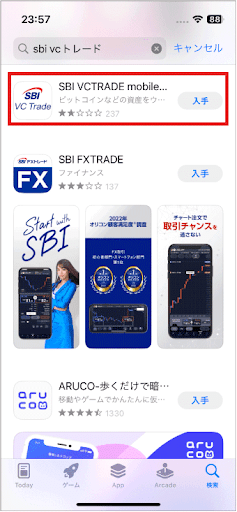
The app is now installed.
Deposit Japanese yen
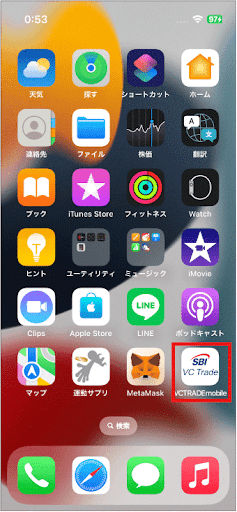
- From the home screen, tap “VCTRADEmobile”.
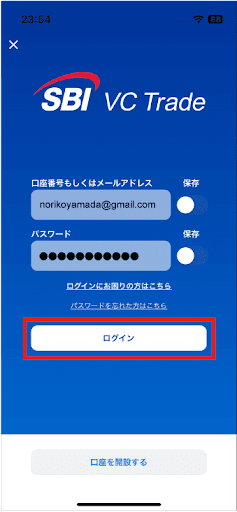
- The login screen appears.
-
To open an account, tap “Open an account”.
-
If your account is already open, continue to the next step.
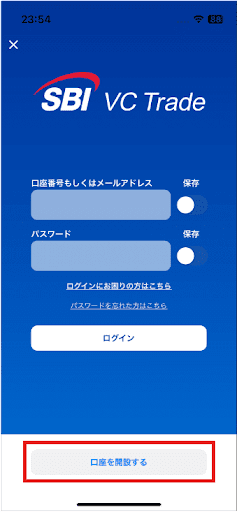
- Enter your account number or email address and password, then tap “Log in”.
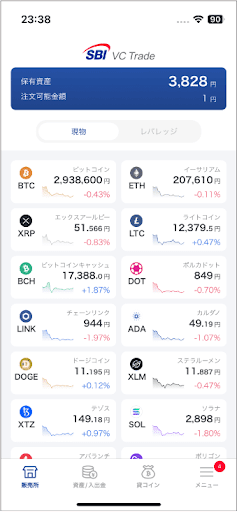
- You’re logged in.
The home screen appears.
Set up two-factor authentication
To send and receive crypto-assets, you need two-factor authentication.
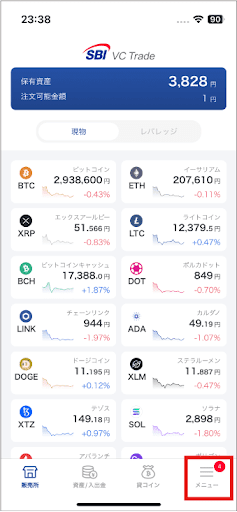
- Tap the bottom-right menu.
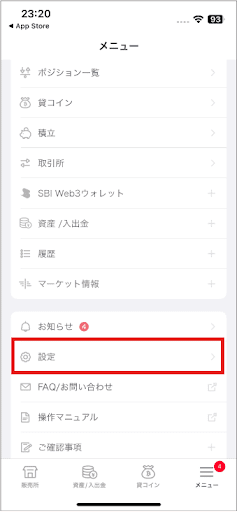
- Tap “Settings” → “Two-factor authentication”.
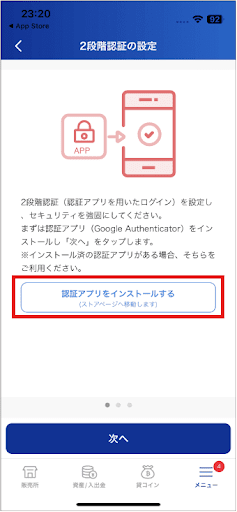
- Tap “Install the authenticator app”.
The App Store install page opens.
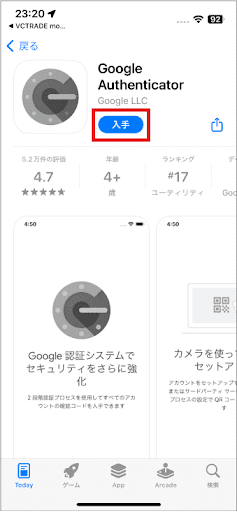
- Tap “Get” on Google Authenticator.
-
On a computer, log into your SBI VC Trade account in advance, display the 2FA QR code, and scan it.
-
Enter the 6-digit code shown in Google Authenticator on the SBI VC Trade 2FA screen and log in.
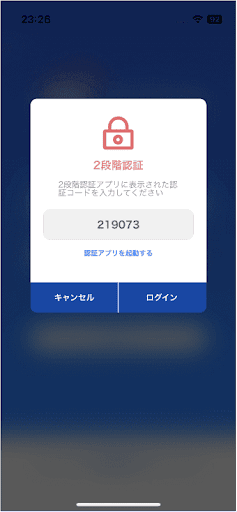
- You’re logged in.
Deposit Japanese yen into the crypto-asset exchange
- Once your account is open, deposit Japanese yen into it.
- After the account is open, you need to buy the crypto-asset POL with yen (JPY).
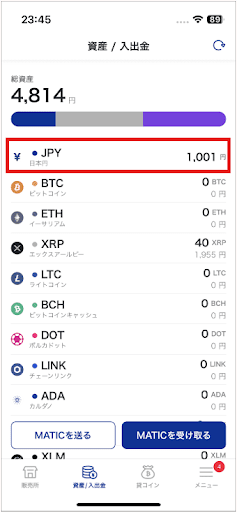
- Tap “JPY”.
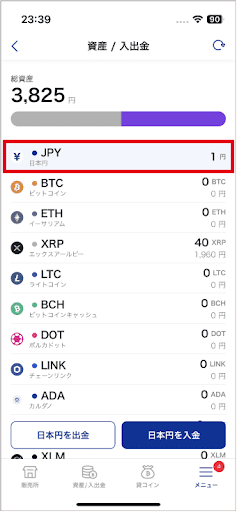
- Tap “Deposit JPY”.
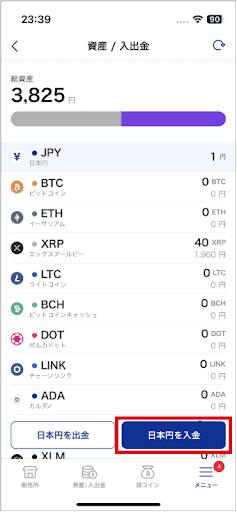
- Enter the amount to deposit.
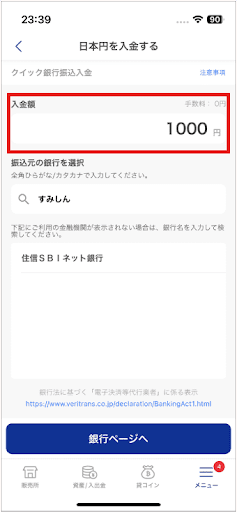
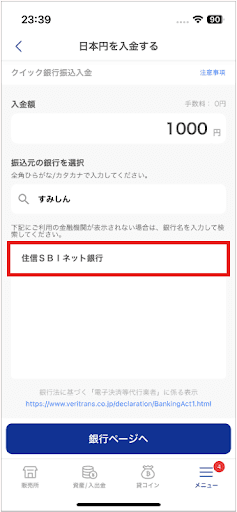
- Select your bank account.
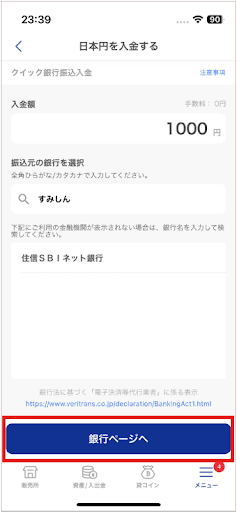
- Tap “Go to the bank’s page”.
- Check the radio button next to your branch name.
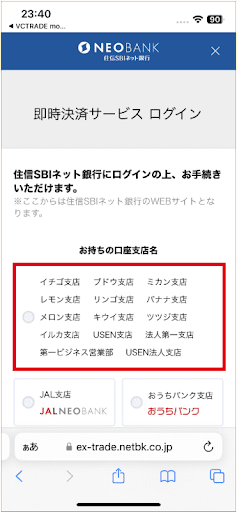
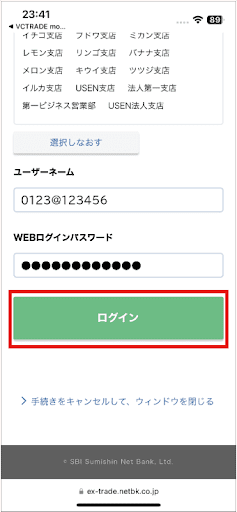
- Enter your username and password, then tap “Log in”.
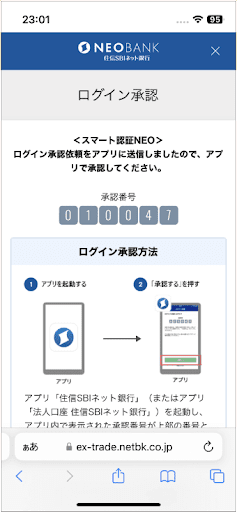
- A login approval screen appears. Open your bank app, check the number, then tap “Approve”.
- Tap “Smart Authentication NEO”.
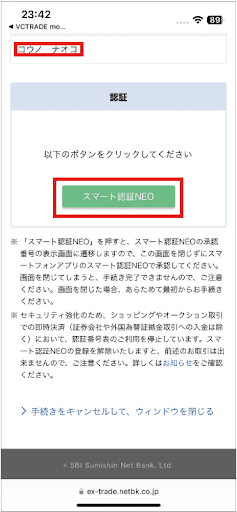
- An immediate-settlement approval screen appears. Open your bank app, check the number, then tap “Approve”.
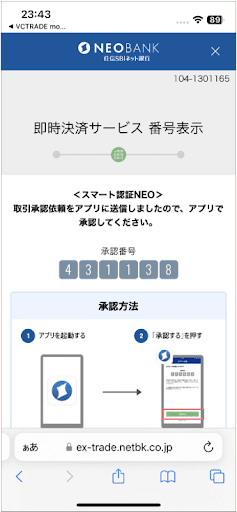
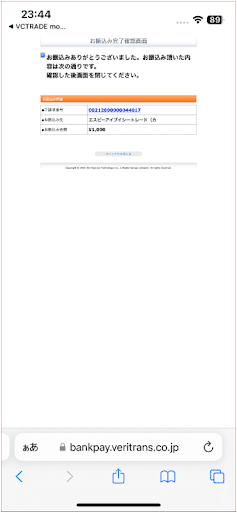
- The yen (JPY) transfer to SBI VC Trade is complete.
- Confirm that your yen (JPY) balance has increased by the amount you deposited.
Buy POL
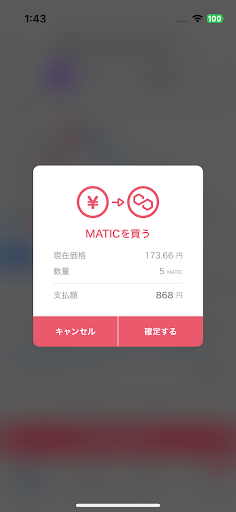
Buy POL with Japanese yen (JPY).
- Tap “Sales counter”.
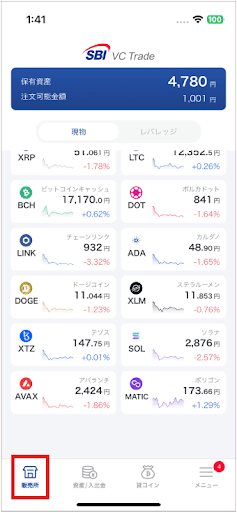
- Tap “POL”.
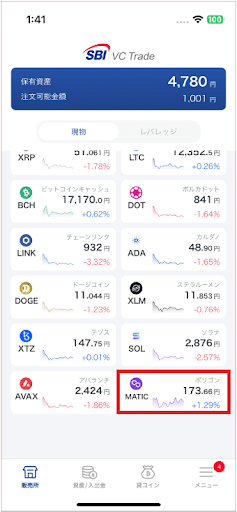
- Tap “Buy”.
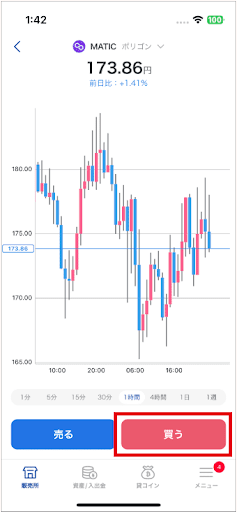
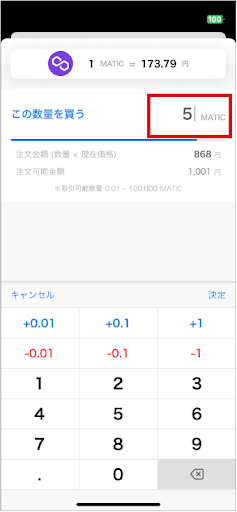
- Enter the quantity.
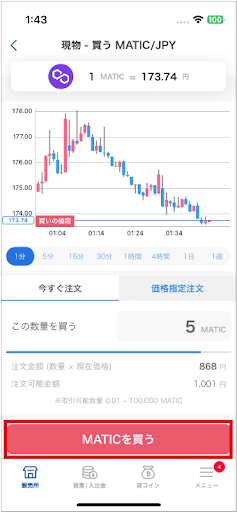
- Tap “Buy POL”.
You can also choose a limit order, but if you’re in a hurry, tap “Order now”.
- Tap “Confirm”.
The purchase is complete.
Send POL to your ESPL wallet
- Send POL to your own wallet in ESPL.
- Before sending, complete sign-up in ESPL.
- Signing up in ESPL automatically creates a wallet for you.
- In the SBI VC Trade app, tap “Assets / Deposits & Withdrawals”.
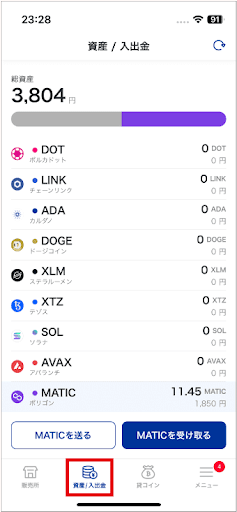
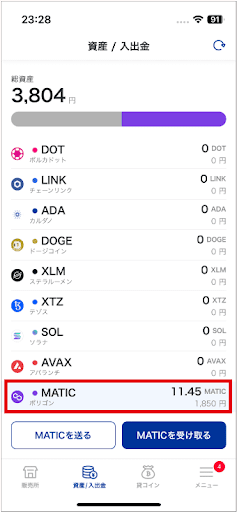
- Tap “POL”.
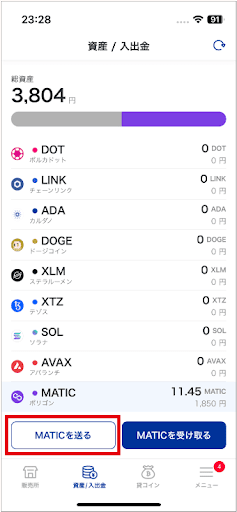
- Tap “Send POL”.
- Tap “Add to address book”.
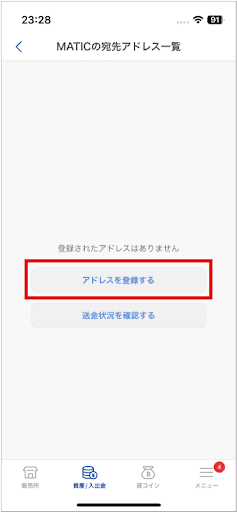
- Enter your ESPL wallet address. You can also read it from a QR code, including a saved photo of a QR code.
After signing up in ESPL and logging in, tap the settings icon in the upper left to see your wallet address.
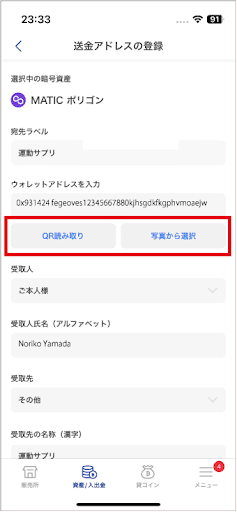
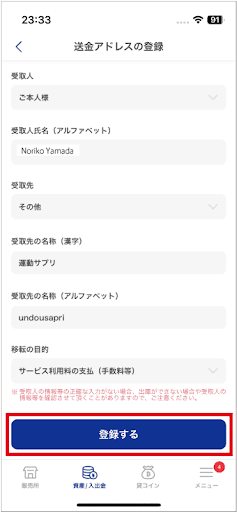
- Fill in the required fields and tap “Register”.
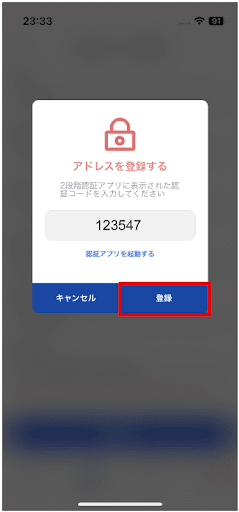
- Enter the verification code and tap “Register”.
The ESPL wallet address is now saved in the address book.
- Tap your ESPL address.
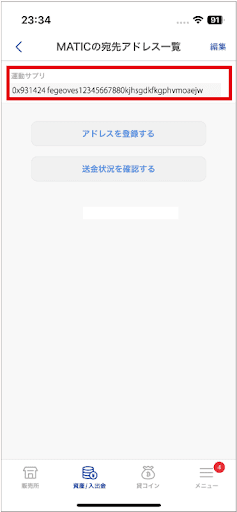
- Confirm the destination details → check the agreement boxes → tap “Send Polygon”.
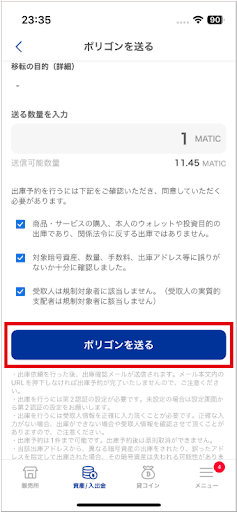
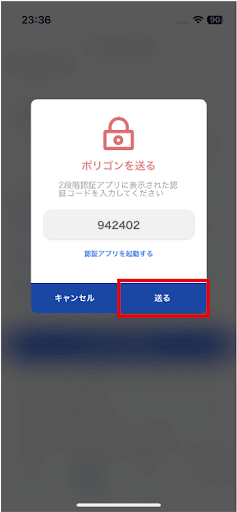
- Enter the verification code and tap “Send”.
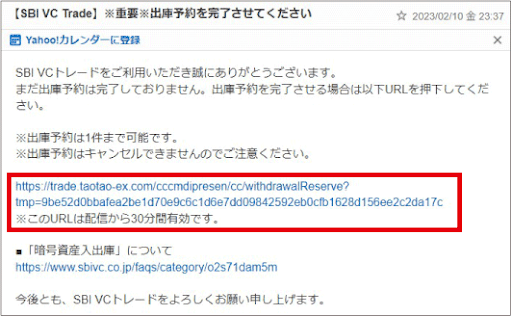
- Once the send request is complete, an email titled “[SBI VC Trade] Important Please complete your withdrawal reservation” arrives — click the URL within 30 minutes.
The withdrawal reservation is complete.
- It takes some time for the POL to arrive in your ESPL wallet.
Withdrawals to addresses outside crypto-asset exchanges can take 2–3 days. Send with some buffer.
Buy crypto-assets with MetaMask
You can also link your ESPL wallet with MetaMask and buy crypto-assets there. See the MetaMask help page for details.